
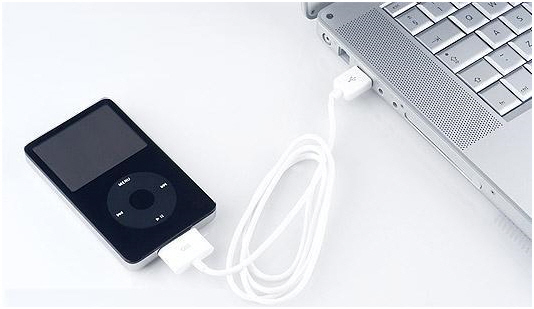
Carrying an iPod with you is a great way to listen to all the music you love on the go. However, because our iPods go everywhere with us, they are susceptible to damage and theft. It is a safe practice to back all of your music files onto your computer because–contrary to what some of us think–iPods are not invincible. Don’t let one bad accident with your iPod not wipe out your music collection. A common question asked is “how do I backup my music from my iPod to my computer?” Don’t worry, backing up your music is easy and highly recommended. Here’s how to do it :
If you are using Windows:
- Connect your iPod to your computer. If iTunes pops up, make sure it is not on auto sync. If it is, close it immediately.
- Go to “My Computer” and find your iPod under “Portable Devices.” If it doesn’t show up there, go to Control Panel >> Portable Media Devices.
- Once you find your iPod, double click it (or right click and click “explore”).
- Windows hides some files and folders by default. To see them, go to Options >> View >> Show Hidden Files and Folders.
- Find the Music folder.
- Select all the files.
- Drag and drop the content into a folder on your computer.
- Go into iTunes Preferences.
- Under the Advanced tab, check the boxes by “Keep iTunes Music Folder Organized” and “Copy files to iTunes Music Folder when adding to the library.”
- Drag and drop the new folder into iTunes.
If you are using Mac OS X, it might be a little trickier. Mac recognizes an iPod as strictly an iPod and does not allow you to open it up in Finder like a normal external disk. However, this can be done using utilities such as iPodDisk, Expod, and Anapod CopyGear.
If you need additional computer help, TalkLocal can connect you to a local professional in minutes!


Thank you for showing us this information. Awesome stuff.