
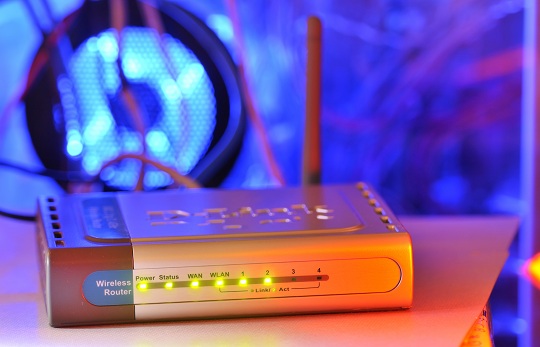
Have you just bought a new wireless router? Use these tips for an easy Belkin wireless router setup using the Belkin start-up disk.
1) Plug the network cable into the Ethernet port of the router and into the data port of the modem.
2) Place the security card on the bottom of the router.
3) Plug the router into an outlet. A blinking blue light will appear on the top of the router. Once the light stops flashing, you may continue.
4) Insert Belkin’s startup disk into your computer and follow the instructions.
If you do not have the Belkin installation disk, follow these steps:
1) Make sure you have an Ethernet connection.
2) You will be prompted for a password. New routers do not have passwords by default, so click “Submit.” If there was a password already in place, then you will need to reset the Belkin router.
3) On the left side of the page, click on “Connection Type.”
- Cable Broadband users (Comcast, Cox Cable, Charter Cable, Time Warner, Road Runner): Dynamic > Next > leave “Host Name” blank > Next > Change WAN MAC Address > Clone > Apply Changes.
- DSL Connection (AT&T, Bell-south, AOL, Verizon Direct): click on PPPoE > Next > enter username and password given by the internet service provider > save > Home
- Static Connection (Qwest.net, Sky-way, Star-band, DIRECTV): click on “Static” > Next > enter the IP Address, Sub-net Mask, and ISP Gateway Address > Apply changes > enter the Primary DNS and Secondary DNS information > Apply Changes
Additional Help
If you need further assistance, contact TalkLocal to help connect you with the best local professional suited to your needs. Learn more about TalkLocal today!


