
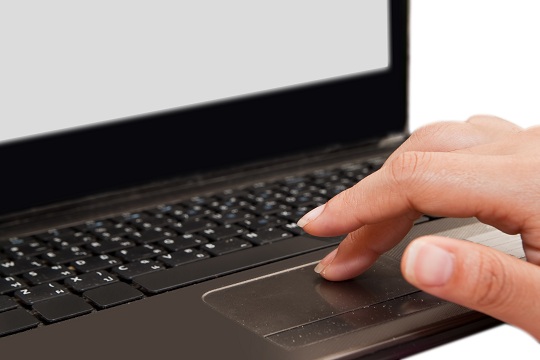
Since Gateway touchpads are delicate items, misuse of the touchpad or even just normal wear and tear can cause the touchpad to malfunction. For some people, it may be easier just to replace the Gateway touchpad rather than the whole computer. Warning: The process of replacing the touchpad is somewhat complicated, and you should be very careful in handling laptop parts. If you feel uncomfortable at any point during your Gateway touchpad replacement, TalkLocal can connect you to a trained IT professional to help you with this task.
Disassembling Your Laptop:
- Power off the laptop and disconnect any peripherals and adapters connected to the computer
- Touch a bare metal surface to discharge any excess static electricity.
- Slide out the battery and remove the two screws securing the bezel in the back of the laptop.
- Completely remove the bezel and disconnect the cable connecting the keyboard to the motherboard.
At this point, you need to remove the LCD display by disconnecting the four screws beneath the display and then remove four more screws near the center of the top cover. This will allow you to disconnect the blue and white cable connecting the touchpad to the motherboard. You now should be able to pull the top cover off the motherboard and replace it with your new touchpad. Ensure that you reassemble the laptop in the same way it was disassembled.
Once again, if you feel the least bit uncomfortable disassembling and reassembling your laptop, visit TalkLocal right now to find you a local computer repair professional to assist you within minutes. We will connect you with up to three local professionals who will be able to help you.


