Archive for the ‘services’ Category


Homepage Changes Automatically

Tuesday, February 19th, 2013

Homepage Changes Automatically - Computer Repair

If your browser’s homepage changes automatically, your computer most likely has spyware or a virus on it. You may have noticed other telltale signs of this as well, such as your Internet being slower than usual. You don’t need fancy antivirus software like Norton or McAfee. There are much easier ways to check and get rid of spyware.

Check to see if the problem is adware or just your own programs lagging your computer.

1. Open the task manager by pressing CTRL + ALT + DELETE and find any processes that are using an abnormally high amount of memory.

2. Go to google.com.

3. Type in the name of the suspicious looking files and research whether or not they are malicious.

4. Go to My Computer and search your C:\ drive.

5. Delete the malicious files ONLY IF YOU ARE SURE that they are malicious. If an error message pops up saying it is in use, stop the process with Task Manager and try again.

In the future

– Don’t download any browser toolbars or any third party software from suspicious sites.

– Use a browser such as Mozilla Firefox, which blocks most ads.

– Use Microsoft Windows Defender to protect your PC.

Other Tips

– Not all anti-virus programs offer anti-adware or spyware protection.

– Spyware is defined as “Software that sends information about your web surfing habits to its web site.”

– Adware is considered “to go beyond the reasonable advertising that one might expect from freeware or shareware.”

– If you really want to avoid adware, then consider switching to a Linux or BSD operating system.

Additional Help

If the issue persists after trying all of these things, then you should use TalkLocal to get the best help you can get quickly from local IT service professionals. We will connect you with up to three professional computer technicians in just minutes.


How to Replace a Door Frame

Tuesday, February 19th, 2013

How to Replace a Door Frame - Handyman

If your door frame has been damaged, you will need to replace it. If you wish to replace the door yourself, but do not know how, this article will help you learn how to replace a door frame. You will need a tape measure, 2×4 studs, a reciprocating saw, a hand saw (or circular saw), a hammer (or nail gun), 10d framing nails, a level, and a square.

How to Replace a Door Frame

1. Remove the casing, or trim, around the door frame. If you take it off carefully, you may be able to use it again.

2. Saw off the nails that are connecting the door and door frame to the wall.

3. Saw off the framing studs.

4. If you cannot reach the wall frame, take off some drywall/paneling on each side of the wall until you can.

5. Measure the new door you are putting in.

6. Make marks indicating the width of the new door you are putting in on the wall frame.

7. Measure the following distance from each of your marks (going out) and mark them as well: 3/8 inches, 1-7/8 inches, 3-3/8 inches.

8. Measure the height of your new door.

9. Make marks on the wall studs indicating the height of the door.

10. Saw a pair of studs so that they will fit between your width marks.

11. Place the studs on your 3-3/8 inch marks.

12. Use a hammer or nail gun to put framing nails through each side of your studs diagonally, so that they are attached to two boards.

13. Measure the space in between the studs.

14. Saw another stud, so that it is the same width as what you just measured.

15. Nail this stud to both of your previous studs.

16. Measure the space between the wall frame and the header.

17. Saw another stud to be the height that you just measured.

18. Put the stud in the middle of your header, vertically oriented.

19. Nail the stud to the header, and through the wall frame diagonally.

20. Saw off anything that is blocking your doorway.

Additional Help

If you need help replacing your door frame, you can contact a professional handyman to do it for you. With the help of TalkLocal, you can be on the phone in minutes with up to three high quality handymen in your area who will be available to be help you when you need them!

Buying vs. Leasing a Car

Monday, February 18th, 2013

Buying vs. Leasing a Car - Auto Repair

When you’re finally ready to put up money for a new car, you’re immediately approached with a choice.  Should you buy or lease a car?  Usually, most people would purchase a car, since at the end of the lease, you’ll have nothing to show for all of the money you put in. However, buying and leasing the car isn’t simply just a money decision.  Buying vs. leasing a car has many advantages and disadvantages that you’ll want to weigh before making your choice.

What to consider

When thinking about this question, you should first make a list of your priorities with your car to figure out what type of financing or lease you would like to take.  Is owning the newest car on the block a high priority or are long term savings more important to you?  Do you want to have ownership of your car and be free from car payments, even if you’ll be paying higher monthly costs initially?  There are always trade-offs to consider when choosing to buy and lease a car.

Buying vs. Leasing a Car

Now that you know your priority, you can finally make a decision.  If you are buying the vehicle, that means you’ll be paying to own the car you’re driving off of the lot.  It doesn’t matter how often you drive the car, you’ll always own the car at the end of the payments and, as such, buying a car is an investment in it of itself.  However, this does mean you’ll have higher monthly payments than leasing, and you’ll also have to pay for major repairs down the road when your car gets older.

If you choose to lease the vehicle, you are paying to use the car rather than to own it.  You can lease a car with a very low down payment, low monthly payments, and no risk of maintenance costs, which also means that you can invest your money elsewhere.  You’ll even be able to return your car every 3 years for another new leased car under warranty.  The downside to leasing, however, is that you’ll never actually end up owning a car at the end of the payments and you may even have to pay additional fees if you drive your car above a certain mileage limit.

Lifestyle Choices

It really comes down to how you want to live and how you want to achieve that lifestyle with your money.  Buying vs. leasing a car should always fall in line with your lifestyle priorities.  If you have any financial concerns, you can always discuss this choice with an accountant.  Try using TalkLocal.  It can connect you to the highest quality local accountants in just minutes!

Door Latch Won’t Retract

Monday, February 18th, 2013

Door Latch Won't Retract - Locksmiths

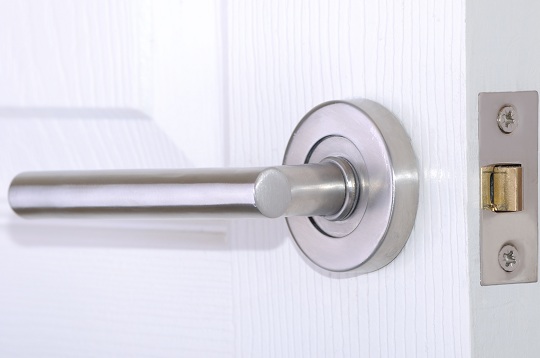
As time passes, door knobs and locks tend to wear out and have problems. One problem you may notice is that you door latch won’t retract. A lock that does not work can be a big problem, so you will want to fix this immediately. There are a few reasons why a door latch won’t retract, and there are a few ways to fix the problem.

Reasons Why a Door Latch Won’t Retract

One possible problem is that the latch has fallen into the strike hole and gotten stuck. The friction can make the latch unable to retract. If this is the problem, you can try to fix it by closing the door and closing the handle of the knob simultaneously. If that does not work, you can try picking the door up off the ground while turning the lock.

Another possible problem that could cause your door latch to not retract, is that the latch may have completely come off the knob. In order to fix this problem, you will have to completely take the lock off of the door and open it with a screwdriver (flatbed). You will most likely have to get a new latch.

It is also possible that your latch is broken, and there is a mechanical problem with the springs inside of it. If this is the case, you will need a new latch.

Additional Help

If you are unable to determine why your door latch won’t retract, you can contact a locksmith to help you figure out what the problem is and how to fix it. With the help of TalkLocal, you can be on the phone in minutes with up to three high quality locksmiths in your area, who are available to come look at your door latch exactly when you want them to.

Computer Restarts Randomly

Monday, February 18th, 2013

Computer Restarts Randomly - Computer Repair

Restarting your computer helps solve many minor errors such as a bad internet connection or a slow program. But when your computer restarts itself, it can be annoying. Here are a few common reasons for why your computer restarts randomly.

Power Supply Overwhelmed​

If too many USB devices are connected to your computer, the power supply may not be able to handle it, causing it to shut down. Try disconnecting some of the devices and seeing if the problem persists.

Bad Outlet or Cord 

A faulty outlet or power cord can also cause a computer to randomly restart. Try plugging your computer into a different outlet. If that doesn’t work, try using a different power cord. Sometimes, unplugging and replugging the same power cord into the same outlet will fix the problem. Make sure all connections are tight and secure.

Outdated Drivers

Updating the driver is a common solution for many users. It can solve a variety of minor computer problems, including random restarts. To update a driver for Windows 7:

1.     Find the latest driver for your computer by visiting your manufacturer’s website, or simply searching “Latest Windows 7 Drivers” in Google. The first link provides updated drivers for 21 major manufacturers.

2.     Open Device Manager on the Control Panel.

3.     Right click the hardware whose driver you want to update.

4.     Click the Driver tab in the Properties window.

5.     Click Update Driver.

6.     Click Browse my computer for driver software in the How do you want to search for driver software? window.

7.     Click Let me pick from a list of devices on my computer at the bottom of the Browse for driver software on your computer window.

8.     Click Have Disk under the text box.

9.     Click Browse in the Install From Disk box.

10.     Click any INF file.

11.     Click Open.

12.     Click OK in the Install From Disk box.

13.     Click the hardware you just opened in the text box.

14.     Click Next >.

If a message appears, warning that the device driver and hardware may not be compatible:

  • Click Yes if you are installing a driver from your manufacturer.
  • Click No if you are installing a driver from anywhere besides your manufacturer.​

15.     Follow any instructions to finish the driver update. The INF file should instruct the Update Driver Software wizard to install the drivers.

Additional Help

If the problem persists, leave the sleuthing to TalkLocal. TalkLocal can connect you to local computer technicians to diagnose your problem. A fast, reliable solution is just a few clicks away. Hurry and fill out a request for service online–before your computer restarts.

How Often Should a Pet Go to the Vet?

Monday, February 18th, 2013

How Often Should a Pet Go to the Vet - Veterinarians

Pets are just like humans — they need to go to regular check-ups. Taking your pet to the vet increases the likelihood your pet will have a long and healthy life.  The question is, “How often should a pet go to the vet?”  There are different protocols depending on the age of your pet.

Puppies or Kittens

When the pets are in the stages of infancy, they need to visit the vet more regularly.  Puppies and kittens need to be seen by a vet every three to four weeks until they are at least four to five months old. This is the age when most of the vaccinations are given. If you are considering followup operations, such as spaying or neutering your pet, you can do so after your pet is six months old.

Middle to Elder years

As your pet gets older, you should make sure to take your pet to the vet at least once per year for their annual checkup. This is the case for pets throughout their middle age years. Middle age is considered four to five years for large breeds and seven to eight years for smaller breeds. After their middle age years, pets need to be seen at least twice a year. At these later checkups, pets need to have a vaccination status check, blood work, heartworm testing, and metabolic function testing to detect diseases early. While check-ups are crucial at the beginning of life for implementing vaccinations, check-ups in the later years of your dog or cat’s life is important because old age can  cause additional health problems.

Additional Help

If you need to find a vet for your pet’s health check-up use TalkLocal. TalkLocal will connect you to a high-quality vet in your area in minutes. Best of all, TalkLocal will only match you to vets that can accommodate your location and availability.

HP Desktop Not Powering On

Monday, February 18th, 2013

HP Desktop Not Powering On - Computer Repair

Is you HP desktop not powering on? There can be one of several issues with your computer, but there are ways for you to figure out what exactly is wrong with your computer.

Power supply issues are often mistaken for start-up problems. Before you begin troubleshooting, it is important to first isolate the problem and determine its source. Push the power button on the PC and wait for the green light to come on. The green light on the front of the PC indicates that the PC has power. If you see an amber or orange light it means the processor board has failed. You will need to purchase a replacement directly from HP or an HP authorized service center.

After you push the power button, listen for any beeps. If you do not hear anything, it is an indication that your PC is not receiving any electrical power. Refer to your HP user guide to determine the meaning of the beeps. These beeps are known as POST (power on self test) codes, so different beeps have different meanings.

Test the electrical outlet used by the PC. To determine if you have a faulty outlet, plug your PC into an outlet in a different environment. If the outlet is good, continue your troubleshooting.

Remove the case of the computer to determine whether or not you have a faulty power supply. Locate the power supply inside the case. The power supply is the large metal box mounted in your computer that connects with the AC power cord. Push the power button and listen for the noise of the cooling fan. If the fan does not spin then there is no power getting to the PC. You will have to order a new power supply from HP. Make sure the wattage on your replacement equals or exceeds the wattage on the faulty power source before ordering.

Additional Help

If you prefer to consult a professional, use TalkLocal the get the help you need. We will connect you to a high quality computer repair professional in your area in minutes!

Setting Up a Limited Liability Company

Sunday, February 17th, 2013

 Setting Up a Limited Liability Company - Accountants

Many small businesses are forming a Limited Liability Company (LLC) because it is a flexible form of enterprise in terms of management and contracting. Some advantages for members include controlling how the company is taxed, and being protected from debts and lawsuits of the LLC.  The process of setting up a Limited Liability Company is simple and can be finished in an hour. To form a Limited Liability Company, just follow these steps:

1.  Go to your state’s Secretary of State office.

2.  Ask for a copy of your state’s LLC Articles of Organization form. While you are there, ask about state regulations regarding notices in the newspaper and business names.

3.  Select a business name. There are restrictions on words like “Corporation”, “City”, and “Insurance” among others, so check your state’s prohibited words. You cannot use the same name as another LLC in the state and your business name must end with an LLC designator such as “Limited Liability Company” or “LLC”.

4.  Complete the LLC Articles of Organization form. The form includes basic information such as the purpose of the business and the names of the members. You are not yet required to specify more  complicated information such as ownership distribution and management structure.

5.  Submit the LLC Articles of Organization form.

6.  Pay the filing fee, which ranges from $40 to $900. Along with the filing fee, you must also pay an annual fee at that time. Contact a local accountant for the amount of the annual fee.

Designate a Registered Agent

A registered agent is the person who receives important information on behalf of the LLC. The registered agent must be available at the legal address of the LLC (cannot be a post office box) during all normal business hours. Make sure your registered agent complies to these requirements and researches other responsibilities, or else your LLC will face legal consequences.

Remember to follow up with tasks unique to your state, such as posting a notice in your local newspaper if necessary.​ You are now finished with the legal requirements, but it is highly recommended to follow up with an LLC Operating Agreement if the LLC has multiple members.

Create an Operating Agreement

The purpose of the Operating Agreement is to outline basic rights and responsibilities of the members. If a dispute ever occurs, an Operating Agreement can quickly resolve any discrepancies. You can find free templates of operating agreements online.​

Additional Help

Different Types of Grass Seeds

Sunday, February 17th, 2013

Different Types of Grass Seeds - Landscapers

There are many different types of grass seeds throughout the world. The following is an article that will help guide you to the grass seed best for you. Choosing the optimal seed can be a special and confusing task. Check out these tips and pointers to help you out.

Get to Know Your Region

Check out the region and climate in which you live. Do your research to understand your area and the weather patterns. For each season, there are different types of appropriate grass seeds. There are warm and cool season seeds. As the name implies, cool season seeds are best suited for cool weather but require a large amount of water during the warm times. Whereas warm weather seeds can tolerate the warm weather without as much upkeep, they tend to go into hiding and turn brown when the temperatures are not optimal. Check out this helpful link to get to know the different types of grass seeds.

Warm Season Seeds

Warm weather seeds are able to withstand the harsh temperatures resulting from the way they grow. Warm season seeds form deep roots that allow them to tap into water sources. Buffalo grass is known to be one of the most drought-resistant species. In addition, Zoysia and Bermuda seeds tend to be used in areas with moderately high to high levels of foot traffic.

Cool Season Seeds

Perennial Ryegrass and Kentucky Bluegrass are two well-known cool season seeds. Kentucky Bluegrass is known for its classic lawn appearance and texture. Perennial Ryegrass is typically used when a lawn is wanted in a hurry. Once grown, ryegrass turns into a beautiful masterpiece.

Additional Help

For any landscaping questions or needs, check out TalkLocal. You will be connected directly (for free!) with up to 3 local, high-quality professionals who can help you at the time that is most convenient for your schedule.

Antivirus Software Slows Down Computer

Sunday, February 17th, 2013

Antivirus Software Slows Down Computer - Computer Repair

Antivirus Software Slows Down Computer?

Virus protection software that slows down a computer seems counter-intuitive. The point of virus protection is to keep our computers running quickly and efficiently, yet often times, the same antivirus software that is helping our computers is also hindering performance.

Why does antivirus software slow down computers?

In order to perform virus sweeps throughout your computer, the program has to scan each and every file in your system. This not only takes time but it also takes power and space. Because we want a virus protection to spot each and every bug, there is a price to pay – that is, it slows down our computer.

I want a safe computer, but I also want a fast computer. What do I do?

There are a few things that you can do. One is to make sure you do not have unnecessary files or programs opening up when your computer first turns on. Delete any unnecessary programs or documents that you have floating around your computer.

Spend the extra money and buy a high quality virus protection program. If you spend the extra money now, it will save you a possible headache in the future. You will be less likely to experience a computer crash because your computer got infected if you invest in high quality antivirus software. Furthermore, your computer programs will not randomly shut down due to viruses and you can be sure that your information is safe if you properly equip your computer before the attack happens. In addition, you will be more productive and have more time to do your work if you are not struggling with a slow computer.

Additional Help

If you are having trouble with your computer and feel as if it is not running as efficiently as it should be, check out TalkLocal. This local service search engine will direct you to high quality professionals right in your area who can help with your computer at a time that fits your schedule. Try it out!