Archive for the ‘services’ Category


Humidity Levels in the Home

Thursday, January 10th, 2013

Humidity Levels in the Home Heating and Cooling

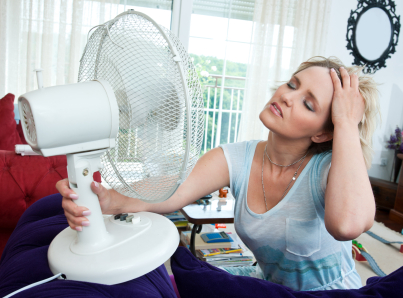
For many of us, the word humidity often brings up feelings of discomfort.  We associate it with the heaviest, most tiring days of summer and that damp feeling that no one really enjoys.  When there are issues in regards to the humidity levels in the home, there is no indoor escape from unmanageable outdoor conditions.  Although, not only people suffer from humidity issues, houses themselves are also affected negatively from overly dry or damp conditions.

An atmosphere that is too dry is less than ideal, as well.  Less moisture in the air leads to less water vapor which reduces the size of building materials.  A prolonged period of dryness can eventually create visible damage to walls, floors, and ceilings.  This is especially true when it comes to wood detailing.  Hardwood floors, wood wall paneling, and wood furniture can shrink and crack due to lack of moisture.  Therefore, an appropriate humidity level is important when it comes to preserving your home’s structures.

Similar to dryness, dampness and hair air moisture can be damaging to your home’s structures.  Excess water vapor in the air can create stains on your ceilings and walls and cause paint and wallpaper to flake and peel away from its surface.  Condensation that forms on windows and walls can drip onto wood panes and paneling and cause rotting.  And on an even more disturbing note, severe dampness is the perfect environment for mold, mildew, and pests to thrive (Ew!).  Keeping your home’s humidity at the correct level is an easy way to avoid these household damages and menaces.

So what is an appropriate humidity level?  Most experts say that anywhere from 35-45% is healthy for you and your home.  The effects of dryness begin to occur at levels less than 30% and the damaging consequences of dampness are usually seen above 50%.  The simplest way to measure your home’s humidity is with a hygrometer – this is a rather inexpensive tool that allows you to measure and regulate humidity on your own. It is important to take readings at regular intervals because humidity levels are always changing.  Humidity can change seasonally or even after a specific household activity.

Activities such as cooking, bathing, and doing laundry all add extra moisture to the air. It is important to vigilantly monitor your home’s humidity level if you wish to regulate it yourself.

Heating and cooling companies can also provide you with mechanical solutions to control humidity levels.  Whole house (de)humidifiers, regulators that hook up to the rest of your home’s system, or simple ventilation devices in target areas can be installed and serviced by most companies.  As discussed, correct humidity levels are fundamental to the preservation of your possessions and home, so consulting with professionals is always a good plan.  For more advice or information on the best equipment for your home, use TalkLocal to easily contact a heating and cooling company near you!
Replacing a Computer Screen for Laptop

Thursday, January 10th, 2013

Replacing a Computer Screen for Laptop Computer Repair

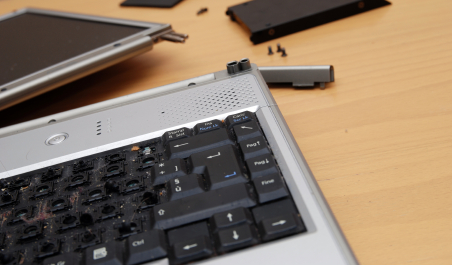
When your computer screen is not powering up, don’t worry! It might not be your computer itself but a faulty screen.  Before throwing out the entire laptop, you should assess the damage, take action, and try to salvage what you can.  Your problem may just be a faulty screen, and not the computer itself. Here are some directions on replacing a computer screen for your laptop.

Assessing the Problem

Your first step should be to determine whether or not it’s just the screen that has lost power or whether the entire computer has been affected.  For example, you could have dropped your computer and fractured the screen.  Try plugging into an external computer monitor through the VGA port.

If all you see is gibberish, lines, or maybe even nothing at all, the problem is severe. However, if everything pops up on the screen, it’s good news! Your hard drive and computer are intact and you will be able to access all your data. If it is possible, you can replace the screen (details below). If you cannot replace the screen yourself, take your laptop to a professional to find out if he or she will be able to replace the screen. If not, get the professional to extract your data and input it to a new computer.

Replacing the Screen

When replacing a computer screen, first turn the computer off, remove the battery and power cord and then unscrew the screen from the computer using a small Phillips screwdriver. These screws hold the screen and bezel together. Once the screws are out, you can gently pull the bezel away from the LCD screen. It should not break because it’s generally pliable. Once the bezel is removed, gently take the screen off.  Look for the part number on the screen and order the same type from the manufacturer. Be sure to keep the screws and bezel in a safe place while you await the replacement screen. Once you receive the new screen, attach it to the computer with the bezel and the screws, replace the battery and power cord, and power up the computer. You should be able to see everything and be able to use your laptop normally.

Continuing Problems

If you feel nervous about removing the screen, or if you cannot locate another monitor to check for screen damage, or if it appears that the computer itself is damaged, you should seek professional help.  Use TalkLocal to be put in contact with a reliable local business. All you have to do is input your problem and availability and within minutes TalkLocal will do the rest: you will be connected with an IT service company almost immediately.

Maintenance Tips for Refrigerators

Thursday, January 10th, 2013

Maintenance Tips for Refrigerators Appliances Repair

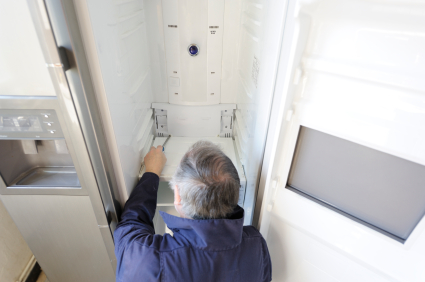
There are few household appliances as important and frequently used as refrigerators.  No matter your living situation, the amount of time you spend at home, or your place in the family, you probably visit this type of machine several times each day. Every machine will eventually put itself out of use, but being conscious of a few things can help prolong the life of your refrigerator.  Here are some maintenance tips for refrigerators to ensure their longevity

  • Keep the machine level: The first thing to be aware of for the best refrigerator operation is its physical placement.  It is important to keep the machine level, so you may want to check your kitchen’s ground characteristics before choosing a spot.  Do not be afraid to use risers on one or more corners if they will create a more even surface.
  • Leave it some “breathing room”: You also want to make sure to leave enough room around the edges of the machine.  Allowing space between the refrigerator and walls, cabinets, or ceilings around it will allow air to flow away freely, keeping the machine at an efficient operating temperature.
  • Connect to a Good Electrical Outlet: Always be sure to plug your refrigerator into a good outlet.  Since it is a valuable machine that uses a great deal of energy, you want to be able to trust in a good flow of electricity.  With that being said, avoid the use of extension cords.  This is simply another chance for electricity malfunction, and reducing the amount of cords around the machine is a safer practice in itself. 
  • Clean your Door Seals: An occasional cleaning of these is quite easy, yet very important to the refrigerator’s conservation.  Dirty door seals will often get stiff and crack, compromising the machine’s ability to lock in cool air.  This is obviously not ideal for the most efficient operation of your refrigerator, so wipe them down every so often. 
  • Clean the Refrigerator’s coils: Found underneath the machine, the refrigerator coils are great at collecting pet hair, dust, and other dirt that cannot be seen without moving the refrigerator.  It is best to intermittently unplug the machine and brush the coils off – this will reduce the risk of too much heat build-up and allow for more efficient operation in general.
  • Clean the Drain Pan: Also located underneath the refrigerator, the drain pan collects water that drips out of the machine.  Since it is essentially standing water, an unmonitored drain pan runs the risk of becoming moldy.  However, occasionally dumping the water and sterilizing the pan can easily avoid this foul outcome.

Again, every appliance will acquire some problems over time, but don’t get yourself into a refrigerator predicament before absolutely necessary!  By stationing the machine appropriately and performing these routine maintenance tasks, you can more effectively avoid expensive repairs and enjoy the proper functioning of your refrigerator.

However, problems may still prevail after performing routine maintenance tasks. Use TalkLocal to find reputable local handyman in your area that can fix your essential household machine.

Stop Programs from Automatically Starting Up

Tuesday, January 8th, 2013

Stop Programs from Automatically Starting Up Computer Repair

The following are the quick and easy steps for PC and Windows users to stop programs from automatically starting up:

1. Click Start >> Run.

2. When the Run text box opens up, type “msconfig” into the word box.

3. Select the Startup tab. Uncheck all the programs that you do not want to start when your computer boots up. Then, select Apply.

Following these steps will allow your computer to turn on and load faster because all the programs will not attempt to run at once. Beware that some of the programs that are running are necessary for your computer to function and must keep running. Use your own discretion when turning off or deleting programs if you are unsure of their functions.

For Mac users, take the following steps to stop programs from automatically starting up:

1. Open up the System Preferences on your Mac by clicking the Apple icon located in the upper left hand corner of your home screen. There you will find the System Preferences selection.

2. From there, select “Accounts” or “Users and Groups” based on which Mac model you have.

3. If you selected “Users and Groups” button on your Mac, move on to step four. If you have the other model of Mac and selected the “Accounts,” then select the programs you want to stop from automatically starting by checking the boxes next to the specific programs and then hitting the subtraction button.

4. In the center right of the next screen that comes up, select “Login Items.”

5. Select the programs you wish to stop from automatically starting. Then, hit the subtraction button.

Additional Help

If you have carried out the above steps and are still having issues with your computer, feel free to contact a computer specialist. Check out TalkLocal! You will be connected directly to professionals right in your neighborhood who can help you out with your problem at a time that works for you.

How to Replace a Garage Door Window

Tuesday, January 8th, 2013

shutterstock_63340165

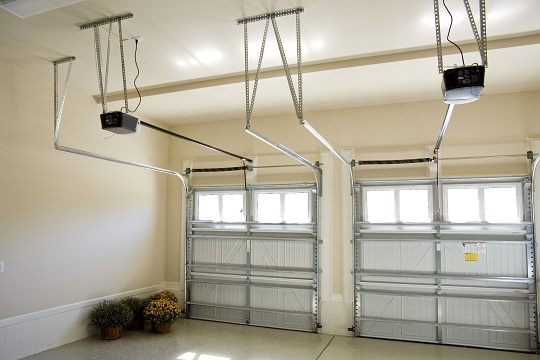
While garage door windows are great decorative additions to your home, they have the potential to break and pose a danger to anyone using the garage. If your garage door windows ever break, you need to replace it as soon as possible since broken glass can drop from above when the garage door is open. Use this guide to learn how to replace a garage door window.

Prepare the area

You’ll first want to disconnect all power from the garage door opener, unplugging it and disconnecting the opener from the power supply.  You’ll also want to remove any loose glass from the window from the top down.

Remove the window frame

Inspect the inside of the window frame for any screws or snap-over retainers that are securing the frame to the door. This will differ based on whether you have an insulated or uninsulated garage door. You’ll need someone to help hold the frame from the outside while you remove the screws/retainers with either a Phillips head or a flathead screwdriver. At this point, you’ll want to take measurements for a replacement window that you can usually order from any glass supplier.  Refer to your garage door manual or manufacturer for the specifics regarding the window material.

Reinstall the window

Clear out any excess glass that was left in the window (you can even remove it from the door if that makes it easier). Replace the frame into the window and place the glass into the window frame and secure it as necessary. If you have snap-over retainers, use a rubber mallet to reinstall the retainers on the frame. Remember to tap the mallet gently so you don’t damage the window or frame again.

While this may seem like a simple task, removing the frame and finding the correct type of glass may be extremely time-consuming, so you may want to consider finding a garage door professional to do the replacement for you. Consider using TalkLocal to make the search process go by in a flash!  You’ll be talking to a local high-quality garage door service company in just minutes!

Are Carpet Cleaning Chemicals Harmful for Pets

Tuesday, January 8th, 2013

Are Carpet Cleaning Chemicals Harmful for Pets Carpet Cleaners

Carpets and rugs take a lot of abuse and inevitably need to be cleaned. This cleaning often involves the use of many different chemicals, so pet owners may be asking themselves, are carpet cleaning chemicals harmful for pets? The answer to this is yes and no.

Some carpet cleaners, and spot removers in particular, can be very dangerous. These products contain chemical solvents that dissolve dirt without soap or water, but give off strong odors as a tradeoff of sorts. These odors may contain chemicals that are not safe for human consumption, and certainly not okay for pets, who are smaller in body size and closer to the ground. During the cleaning process, the chemicals in carpet cleaners and protectors evaporate and may be concentrated in the air. This indoor air pollution is even more likely if the area isn’t well ventilated, or if the weather is hot and humid. This chemical pollution can cause headaches, irritation to the eyes, nose, and lungs, congestion, nausea, sneezing, and other problems. Some of these chemicals have even been reported to cause sever diseases like Kawasaki Disease, although the evidence supporting this is limited.

In short, it’s very possible that carpet-cleaning chemicals are harmful for pets. Many people have reported that their pets have grown ill and died not long after a carpet cleaning – even cleaners claim their products are not pet-safe. If you want to avoid these complications, be certain to avoid carpet-cleaning methods that utilize large amounts of chemicals and be sure to interrogate the carpet cleaners (and their superiors) about the ingredients within the products they use. Even if the supplies claim to be pet-safe, it may be a good idea to research the ingredients to see if anyone has run into any complications. If not, purchase the pet-safe carpet cleaning supplies.

Pet-safe Cleaning Methods

If you want to keep your carpets clean without the use of chemicals, you’ll want to vacuum often, especially during the summer when your pets shed more frequently. You can make a spot-cleaning solution by mixing vinegar and water. This mix is both natural and quite safe for pets, they just won’t care much for the smell (but then again, who does?).

Professional Help

If you want your carpet cleaned professionally, call your local carpet-cleaning company and ask them what products they use. Research these and if they seem okay, feel free to book an appointment. If you need help finding a local carpet cleaning professional, consider using TalkLocal to find a carpet cleaning company for you. TalkLocal is a free service that will connect you with top-quality, reputable carpet cleaning companies in your neighborhood within minutes. Just enter in your specific problem, location and availability, and up to three companies will call YOU directly, saving you the time and stress of finding one yourself.

How to Change Icons on Windows 7

Tuesday, January 8th, 2013

How to Change Icons on Windows 7 Computer Repair

One of the easiest and most unique ways you can personalize your Windows 7 computer is to change your icons.  You can choose from a variety of different icons that Windows has built into the system, or you can even create your own icons from scratch! Read on to learn how to change icons on Windows 7.

To change your desktop icons:

1. Right click an empty area of the desktop and click Personalize.
2. There should be a “Change desktop icons” link in the upper left corner.
3. Select the icon that you want to change and click Change Icon.
4. Select a new icon or you can hit “Browse” to select something you’ve made from scratch. Remember that if you choose to make or use your own icon, it will need to be in a 256×256 pixel .ico file so that it will display correctly at different resolutions.
* Remember that you can also restore the default icon by clicking the “Restore Default” button in the middle pane of the icon selection screen.

To change a library icon:

1. Open up Notepad or your favorite text editor and drag the icon over from Explorer.
2. You’ll see (or need to add) the iconReference line that should look like this:

<iconReference>C:\Windows\System32\shell32.dll</iconReference>

The path to the icon file (.ico) should go between the two iconReference tags.

Additional help

If you’re still confused about how to change your icons, or if the above instructions didn’t work for you, you can always contact a local IT professional to change your icons for you!  TalkLocal can instantly connect you to three high quality local computer repair professionals. Best of all, the three companies will be able to accommodate your busy time schedule and cater to your specific location. You’ll be personalizing your desktop to your heart’s content very soon because TalkLocal finds you help in just minutes!

Car Radio Troubleshooting

Tuesday, January 8th, 2013

Car Radio Troubleshooting Auto Repair

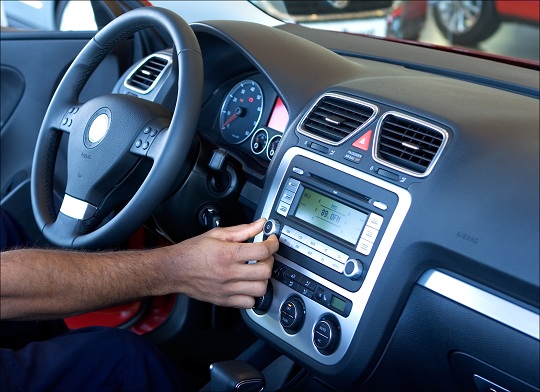
You may find that when you turn your car on, the radio does not turn on with it, does not output any noise, is not playing through all the speakers, or produces distorted, fuzzy sounds when turned on higher volumes. These are all common issues that occur, and with some troubleshooting tips, you may be able to solve them on your own with the steps below. Read on if you are experiencing car radio troubleshooting.

If the radio does not turn on when your car is running, the associated fuse may be blown or broken. You should read the owner’s manual for your car to find the location of the fuse. In most cases, there are two fuses: one of them will be in the car cabin and the other will be in the engine area. In the cabin’s fuse box, it should be fairly simple to locate the correct fuse; they should be clearly marked. Once you find it, remove it and replace with a new one. You should be able to purchase one at your nearest auto parts store.

If you turn your radio on, but it does not produce any noise or is not playing through all the speakers, you need to do an inspection. There could be two possible problem sources: the speakers themselves or the speaker wiring. Experiment with the fader and balance controls on your radio and try to isolate which, if any, particular speaker is not working. If you find it, locate the physical speaker (you may have to remove the interior door panels). Check the speakers for visual damage. If they appear to be intact, check the wiring that comes from the speakers and connects to the radio unit. If you find any damage, you will most likely need to replace the speaker.

Lastly, you may find that when turning your radio’s volume up, the sound is distorted and/or fuzzy. An explanation for this is that the radio’s wattage is not high enough to accommodate the speakers. To solve this, you could do two things. First, you could try purchasing a car amplifier, which would increase the radio’s wattage capacity and lessen the distorted sounds. Second, you could replace the speakers themselves with models that match the output of the radio.

If you are having trouble with any of these suggestions, or are experiencing a problem not listed here, it may be best to take your car to an expert for help. Try using TalkLocal to locate an auto body shop near you. TalkLocal is a free service that will connect you with top-quality, reputable auto repair professionals in your neighborhood, within minutes. Simply enter in your specific problem, location, and availability and TalkLocal will contact multiple auto shops, who will then call YOU directly, ready to help.

Remove a Trojan Horse Virus

Thursday, January 3rd, 2013

Remove a Trojan Horse Virus Computer Repair

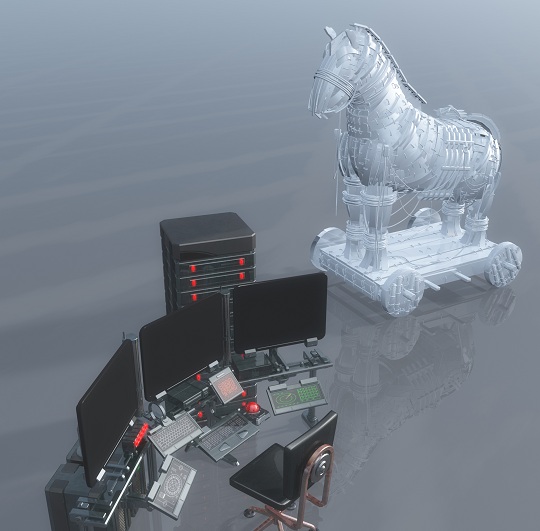
You should remove a Trojan horse virus as soon as you can after you realize it has infected your computer. Trojan horse viruses attach themselves from the Internet onto programs within your computer and penetrate the infrastructure of your computer. The following are a few helpful tips when it comes to protecting and maintaining a safe computer.

– Avoid getting a Trojan horse by using caution and discretion with the websites that you click. Do not link to random websites or cruise sites that look fishy. Take extra precaution by having a secure wireless connection. Check out this helpful link for more information about how to remove a Trojan horse virus from your computer.

– Do not download the “exclusive” videos that you can only find on one site. Most likely, it is a fraud and will download a bug onto your computer. Chances are if the content seems to be one of a kind, then it is only titled that way to get your attention and draw you into downloading the fake link.

– If you have to turn off your protection to enter into a trusted site or download a secure file, remember to return your security settings to full protection after you have finished your task.

– Remove the registry files that have been infected along with the .exe files. If you are removing registry files, do some research beforehand and consult the professionals for help. If you accidentally remove the wrong files, these actions can seriously damage your computer. For more help, check out TalkLocal. TalkLocal is a local service search engine that can direct you to a top-rated computer specialist right in your neighborhood. Within minutes you will be speaking to a professional who can help you at the time that is most convenient for your schedule. Try it out!

How can I tell if my Pet has Worms

Thursday, January 3rd, 2013

How can I tell if my Pet has Worms Veterinarians

You might wonder, how can I tell if my pet has worms?  There are five main types of worms you should worry about your pet contracting: tapeworms, roundworms, hookworms, whipworms, and heartworms. They each have different symptoms, and can range from essentially harmless to extremely dangerous for your pet.

Tapeworms:

Tapeworms are the most common parasite to infest your pet. Your pet will often either do the infamous carpet scoot or continuously lick around the anus area in an attempt to get rid of the itch caused by the worms. You can tell if your pet has tapeworms by checking for worms or worm eggs in its stool. Tapeworm eggs look like grains of rice, and will be located in your pet’s stools, around its anus, or even on your carpet. Pets that have tapeworms will have an increased appetite, but will often be thinner than usual due to the worms using up the consumed nutrition. Other common symptoms include stomach aches, constipation, fevers, and coughing.

Roundworms:

Roundworms are common in puppies and kittens because they pass from mother to offspring. The roundworms first form cysts in the mother that remain dormant and cannot be treated by medication. These roundworms cysts are then activated when the mother becomes pregnant, and are passed onto the offspring. Roundworms can also be transferred through the mother’s milk. Symptoms of roundworms, particularly in newborn animals, are distended stomachs that are bloated with worms. Animals may also have a loss of appetite and weight, in addition to diarrhea and vomiting. Just like tapeworms, roundworms will also cause an itchy anus.

Hookworms:

Hookworms “hook” themselves onto the interior wall of your pet’s intestines by biting onto the sides. Their eggs are not visible to the human eye, and will require a microscopic examination at the vet to diagnose. At worst, hookworms can cause anemia and bloody stools, posing a big threat to your pet’s health.

Whipworms:

Whipworms are very thin worms about two to three inches long that attach themselves to interior walls of your pet’s intestines. They are hard to detect even with multiple stool screenings, but signs of a heavy infection are bloody stools, chronic or acute diarrhea, mucoid stools, and even anemia.

Heartworms:

Probably the most dangerous type of worm, heartworms live inside an animal’s lung vessels and can take up the chambers and vessels of the heart if the infection is serious enough. They can cause respiratory problems, major lung damage, and even cardiac arrest. Heartworms are also very hard to detect, which means the infection could quickly spiral out of control. You’ll notice coughing and a lack of stamina in active dogs, but for sedentary dogs, heartworms are difficult to detect. When you notice weakness and a lack of luster in the fur, heart damage has already occurred. Heartworms are more prevalent in dogs because heartworms that infect cats die out quickly before they can multiply.

Many of these worms can be controlled through deworming medications, such as Iverhart Max, which provides protection against heartworms, hookworms, roundworms, and tapeworms. Usually, you’ll only need to give your pet one dose every month, but check the labeling for the specific dosage for your pet’s weight. You should also go for regular vet checkups for your pet to discover infestation cases before they get out of hand. There’s no better way to book an appointment with a high quality local veterinarian than through TalkLocal.