Archive for the ‘services’ Category


Electronic Door Lock is not Responding

Monday, October 8th, 2012

Electronic Door Lock is not Responding Locksmiths

Most modern cars come with electronic door locks that can be activated from a distance using a small signaling device called a “key fob.”  Like any car part, normal wear and tear can cause this to malfunction. If your electronic door lock is not responding, there are several things that could be going wrong.  Fortunately, many of the possible issues are minor and can be easily dealt with by yourself or a qualified auto mechanic.  Read on for some tips on troubleshooting for your non-functioning electronic door lock.

The most common issue with electronic car doors is the batteries in the key fob dying.  If you get no response at all from your car when you press the unlock/lock button, you should replace the batteries in your key fob; they tend to last for around three years.  Sometimes a key fob will only work when you are standing right next to your car door.  Distance issues like this are also a sign of a dying battery that needs to be replaced.  You may need to take your keys into a same-make dealership to be reprogrammed if they continue not to function after replacing the batteries.

If the issue is not with the key fob, there may be something wrong with the door lock motors or your car’s electrical wiring.  Try locking and unlocking your doors while listening carefully for a whirring or vibration sound.  If you hear the sound, that means that the small motors that operate the electronic locks are burned out and will need to be replaced.  If you don’t hear anything, that means that electricity is not getting to the motors so there may be an issue with a fuse, circuit, or wire inside your car.  First check for any burnt out fuses, if you don’t know how to do this there is a great instructional video available here.

Still having issues after checking for and replacing any burnt out fuses?  There is likely some damage to your car’s internal electrical wiring like a short circuit or broken wire.  Wiring issues can be very hard to detect and fix, so you might want to bring in an auto mechanic to solve your problem.  You can use TalkLocal to automatically connect you to a high quality local professional in minutes.  All you need to do is enter your name, contact info, and a short description of your problem and TalkLocal will take care of the rest.


Adobe Photoshop Not Responding

Monday, October 8th, 2012

Adobe Photoshop Not Responding Computer Repair

If Adobe Photoshop is not responding on your Mac, you can wait for a bit to see if it starts responding. Try not to use more memory while waiting for the program and close out of any programs, windows, and files that you are not using. Do not click within Photoshop until it starts responding again.

If it it does not start responding within 5 minutes, you will have to force quit; be warned that this will lose any unsaved data. For this reason make sure that you save early and often. You can take a screen shot (command+shift+3) to remember any unsaved work you were doing in Photoshop if you have to force quit. To force quit, you can either right click on Photoshop on your tool bar and click “Force Quit” or press the esc key.

It is normal for Photoshop to not respond for a bit when importing large, high-quality photographs, but it should not be happening regularly for tasks that do not require large amounts of memory. To make Photoshop run better, you should close out of all unused programs, windows, and files when running Photoshop. Also, be patient and do not click things repeatedly if they do not work right away.

If you continue to have problems with Photoshop/other Adobe programs not responding, but not with other other programs on your Mac, your issue may be with your version of Photoshop. You can seek assistance at adobe.com

If you are having trouble with all programs on your Mac repeatedly not responding, you may have a problem with your computer and you should contact a computer repair professional for assistance. With the help of Talklocal, you can receive phone calls in minutes from up to three high quality professionals in your area who are available when you are.

How to Move a King Size Bed

Friday, October 5th, 2012

How to Move a King Size Bed Moving and Storage

King size beds can be a hassle to move, but it is still manageable with the help of one or two people. There are a few steps you should know on how to move a king size bed. Before you begin, make sure the pathways in your home are cleared of obstructions so you can move the bed in one swift trip.

Once the area is cleared, you can move either the mattress or the box spring first. If you move the mattress first, you can do more trial and error to figure out the best moving method because it is more pliable. On the other hand, the box spring is lighter and may be easier to handle. Most king size beds are 80 inches by 76 inches, while doorways are about 80 inches in height. You shouldn’t have trouble fitting it through the door, but if you do, just tilt the mattress at an angle. A more common problem is fitting around tight corners or winding staircases. Be sure to plan a few steps ahead for how you will maneuver the mattress so you don’t have to back trackor even worse, dislodge a stuck mattress.

Next, you want to take apart the bed frame. If you still have the construction manual, use it to correctly disassemble the frame. If you have a storage frame, remove the contents of the drawers, and then the drawers themselves. Once the storage frame is transported to the moving van, replace the drawers to give the frame support. Be sure to wrap the pieces of the bed frame in blankets to prevent wooden frames from getting chipped or to prevent metal frames from scratching other objects.

When you get to your new house, unload the bed frame first and before unloading the mattress or box spring. Unwrap the blankets when you get to the actual room you will be setting up inyou wouldn’t want to mark up your new house before even moving in. Reassemble the bed frame, then bring in the box spring and mattress, respectively.

If you are short on help, contact a moving company to help you move your king size bed. TalkLocal can connect you to reliable local businesses that can meet you when you need it. Just go to the TalkLocal website and tell them your service need, location, and availability. Within minutes, you’ll receive up to three calls from local moving businesses that meet your needs.

How to Replace Asphalt Roof Shingles

Friday, October 5th, 2012

How to Replace Asphalt Roof Shingles Roofers

Storm damage, wind, and even time can cause damage to your asphalt roofing. As a result you may notice that it is necessary to replace a few or several of these shingles. Assuming there is no underlying roof or water damage, this is an easy do-it-yourself job with the right materials and an understanding of the steps to follow. Keep reading to learn more on how to replace asphalt roof shingles.

While you could just acquire some cement roofing and re-plaster the loose or slightly damaged shingles, it may be a wiser, longer-term choice to replace these damaged shingles with new ones. Take one of the old shingles to a home improvement store to get a good match of the particular asphalt roof shingles you need.

Wear some work gloves, grab a hammer and some long roofing nails, and head up to the roof with the new asphalt shingles. Start at the top layer of damaged shingles. Use the opposite end of the hammer head to remove the nails. Be sure to inspect the roof underneath for any damages or holes. Work your way down, inspecting the roof as you go.

Now, work your way up when replacing the shingles. Start at the bottom layer, and lay a new shingle in place. Nail in the shingle on each side. For this, you will have to slide the shingle under any already existing panels and secure a nail under these overlapping portions as well. As you nail in each one, work your way up until you have replaced all of the damaged shingles.

Check out this extremely helpful step-by-step video to easily replace asphalt roof shingles in minutes.

If your job is too big or difficult to handle yourself, try using TalkLocal to locate a roofing company near you. TalkLocal is a FREE service that will connect you with top-quality, reliable professionals in your neighborhood, within minutes. Simply enter in your problem, location and availability and TalkLocal will contact multiple contractors, who will then call YOU directly, ready to help.

Garbage Disposal Stopped Working Suddenly

Friday, October 5th, 2012

Garbage Disposal Stopped Working Suddenly Plumbers

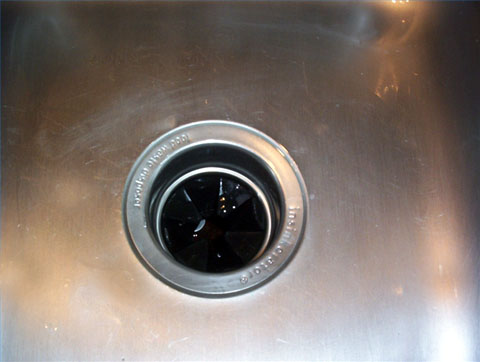
If your garbage disposal stopped working suddenly, there few things you can do to try and fix the problem yourself. If nothing happens when you flip the disposal switch, get down and take a look under the garbage disposal.  There is usually a small red button under the garbage disposal that resets the system. Push the little red button and see if anything happens. If your disposal was just overworked or if there was a power surge, this could fix the problem.

If that doesn’t work, you will need to use a wrench-like tool (it usually comes with the garbage disposal) that is shaped like a squared “S” and is hexagonal in shape. On the end, there should be a flat piece of metal with 6 sides. With the tool, look at the bottom of the garbage disposal. There should be a hole in which this tool will fit. Stick it in there and turn the tool a few times. This will manually force the garbage disposal to turn, breaking up any hard pieces that may have caused the disposal to stop. A few turns should unclog the disposal. Try to flip the garbage disposal switch again and see if it is working properly. If you lost this tool or need a replacement, you can find it at your local hardware store for around $3.

Did both solutions not work for you? You can either buy and install a new garbage disposal yourself, which costs no more than $100, or you can hire a professional to look at it and fix it, which will likely cost a few hundred dollars. To find a high quality plumbing service that offers a reasonable price, use TalkLocal to get in contact with local businesses. TalkLocal will comparison shop for you to find a business that can accomodate your needs.

Installing Electrical Wiring in a Wall Oven

Friday, October 5th, 2012

Installing Electrical Wiring in a Wall Oven Appliances Repair

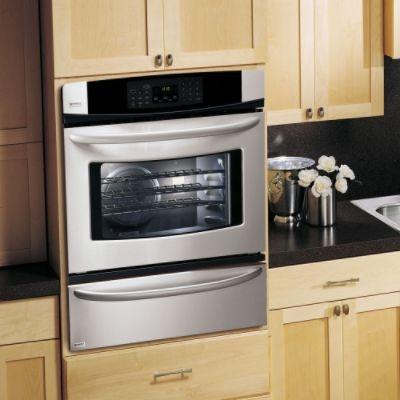
If you recently purchased a new oven and would like to install it on your own, the most difficult step will probably be getting it connected to your home’s electrical system.  For most of us, wiring a major appliance like an oven is a daunting task.  It can be very confusing figuring out which wire goes where and how exactly to connect everything safely.  Here are a few steps to keep in mind to help you cut down on the stress and strain of installing electrical wiring in a wall oven.

The first thing to do before getting started is read up on your local electrical wiring codes.  Many localities now require a separate neutral and grounding wire, which means that you will need to have four different wires connecting your oven to your house. These wires are: a black power wire, a red power wire, a white neutral wire, and a bare or green ground wire.  If your local code does not require a separate grounding wire, you will only need the red, black, and white wires.  You will be connecting the wires from your oven to the junction box in your kitchen.  Before installing, consult your oven’s user manual and check that the amp requirements are met by the circuit breaker the junction box is connected to, and then disconnect the power supply by tripping the breaker for the circuit.  Be absolutely sure that you flip the correct fuse or you could seriously injure yourself.

Now you should be ready to connect your oven.  Simply connect the black wire from your oven to the black wire in your junction box, and the red oven wire to the red junction box wire.  If you need to use separate neutral and grounding wires, connect the white oven wire to the white junction box wire and the green/bare oven wire to the junction box itself.  Otherwise, connect both of these two wires to the casing of the junction box.  Once all of this wiring is installed safely and securely you can turn the circuit breaker back on and your oven should be ready to use.  If something went wrong or the oven will not turn on, you might need to bring in a professional electrician.  Luckily, you can find one in your area in just minutes by using TalkLocal to automatically connect you for free.  All you have to do is enter your name, contact info, and a short description of your problem.  Try it out today for all your home service needs!

How to Network Computers With Windows XP

Friday, October 5th, 2012

How to Network Computers With Windows XP Computer Repair

Setting up a home network has become much easier in Windows XP than it was in previous versions.  Windows XP network creation is a relatively simple process that anyone can handle.  There are many benefits of creating and maintaining your own home network including the sharing of printers, files, and internet connections.  This article will give you the basics of home network creation and show you how to network computers with Windows XP.

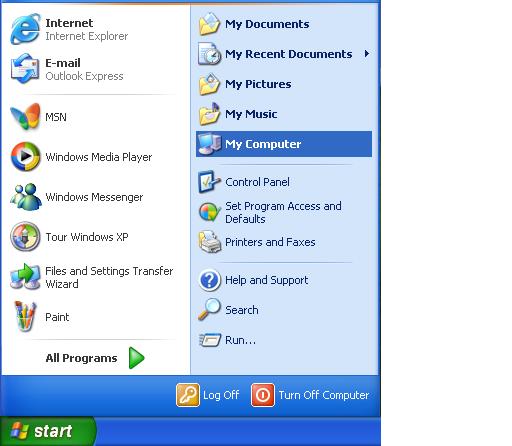
The first step is to make sure you have the necessary hardware to connect to your network.  There are three main types of networks: wired networks, wireless networks with routers, and wireless networks without a router.  If you are setting up a wireless network, you will need a wireless router to connect to your internet modem and wireless adapters for any computers you want to connect.  Ad-hoc networks without a router are also possible between computers that each have a wireless adapter.  Many laptops and computers come with built-in wireless adapters; if yours does not come with one, there are USB connecting adapters available for purchase at online sites like Newegg, or at any local computer/technology store.  For a wired network, you will simply need Ethernet cables to physically connect your computers together.  If you are connecting multiple computers in this way, you may need to get an Ethernet switch with many ports; these switches are also available online or at computer/technology stores.

To get the most out of your home connection, you will want to connect it to the internet.  This is the easiest way to share internet throughout your home.  Connecting your internet modem to your network is as simple as plugging it into you wireless router or wired Ethernet hub switch.  Once all of the connections between modems, routers, and computers have been made, follow these steps and choose either a wireless network with a router, an ad-hoc wireless network without a router, or a wired network adapter.

Once your network is installed and all of your computers are connected, there are a couple things you might want to do to keep it secure.  First, you will want to be sure that Windows Firewall is running to keep your network safe.  You can find a guide to setting up and using Windows Firewall here.  If you have a wireless network you should set up a WPA security encryption key.  You can find details on how to encrypt your network here.  Now that your network is secure, you should be ready to use it to share and to connect with all the computers in your house.  If you have problems setting up your network, you can use TalkLocal to find a local computer technician.  Just enter your location, availability, problem and TalkLocal will have you on the phone in minutes with someone who can help.

How to Fix a Doorknob that Keeps Falling Off

Friday, October 5th, 2012

How to Fix a Doorknob that Keeps Falling Off Locksmiths

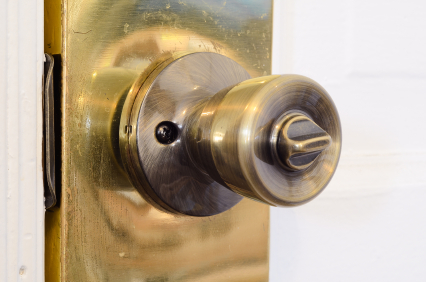
Frustrated by a doorknob that keeps falling off? This could be happening for a couple reasons. First, the locking mechanism on the door handle might be malfunctioning and failing to properly open and latch the door. The second reason the handle might fall off could be a result of loose or missing screw in the doorplate. Whatever the reason, this is a simple problem that can be fixed on your own at home, saving you time and money. Read on for tips on how to fix a doorknob that keeps falling off.

Steps:

1.      Remove the door handle. Either unscrew the external screws to loosen the handle, or hold one side of the handle still while untwisting the other side.

2.      Remove the doorplate, and fill the screw holes with putty, which can be purchased at your local hardware store. Let the putty dry for a few hours. The putty will create a tighter fit for the screws when you reassemble the doorknob. Use a power screwdriver to replace the screws when you’ve finished.

3.      Reassemble the doorknob working in reverse order.

4.      Use a screw locker fluid on the external screw of your doorknob, and screw clockwise until it no longer turns. Let dry completely for a full 10-12 hours.

If you’ve successfully completed these steps and your doorknob is still loose and/or falling off, consider hiring a professional to help you fix your problem. TalkLocal can connect you to a highly rated local professional within minutes.

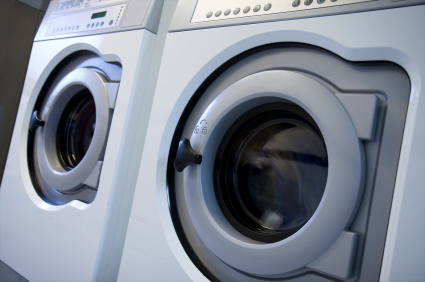
Washing Machine Moves Across Floor

Thursday, October 4th, 2012

Washing Machine Moves Across Floor Appliances Repair

It’s important to keep your washing machine on a level ground if you want it to do its job. A washing machine that isn’t positioned evenly will not work efficiently and will move around. Balancing it isn’t too difficult, so if your washing machine moves across the floor, continue reading.

First you will want to check and see if your washing machine is level. Check underneath the machine and ensure you can see all four feet are firmly planted on the floor. If you’re reading this, chances are they aren’t all firmly on the floor.

Identify which side of the washing machine isn’t level by placing a carpenters level on the top of the front edge of the washing machine and checking for the air bubble to see which side of the washing machine is low. The bubble will be on the side of the washer that needs to be lower.

On the feet of the washing machine will be locknuts that need to be adjusted. Using a wrench or pliers, loosen the locknuts and turn the front feet until the bubble on the carpenters level is in the center. Now that the front feet have been evenly leveled, the back feet are next. Tilt the washing machine forward so that the back of the washer lifts off the floor. Since back legs of a washing machine are almost always self-adjusting, this step allows the back legs to easily adjust.

After placing the machine back down and in place, place the carpenters level on the left or right edge of the machine so as to check whether the washing machine is level from the back to front. If they aren’t, turn the front feet until the bubble is in the center of the carpenters level. When you finally manage to level the washing machine, tighten the locknuts to ensure it stays in place.

This process isn’t too complicated, but if you followed these steps and still need help or if you have a different issue with your washing machine, consider using TalkLocal. TalkLocal is a free service that will connect you with top-quality, reputable appliance repair companies in your neighborhood within minutes. Just enter in your specific problem, location and availability, and up to three companies will call YOU directly, saving you the time and stress of finding one yourself.


Macbook Pro Freezes When Connected to External Monitor

Thursday, October 4th, 2012

Macbook Pro Freezes When Connected to External Monitor Computer Repair

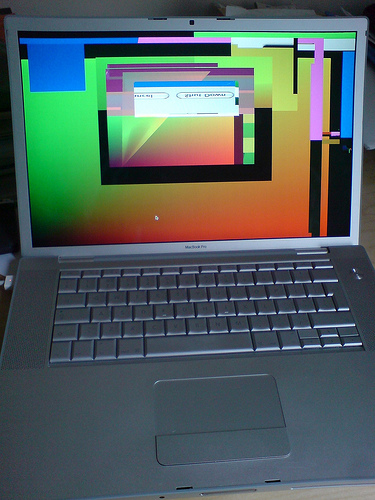
“Use an external monitor,” they said. “It will be useful,” they said. I tried it out and, lo and behold, my workspace doubled and I was a happy camper—that is, until my Macbook froze. No one warned me about the red screen of death (yes, red) on my laptop, which occurred five minutes after connecting to an external monitor. Other Mac users have reported similar problems of random screen colors on their laptop—rainbow screens of death, if you will. Alongside the colorful Macbook screen, the external monitor turns completely black. Read on for some possible solutions if your Macbook pro freezes when connected to an external monitor.

This problem has been most common among Macbooks and Macbook Pros from 2010 (mine is a late 2010 MacBook).  Apple has yet to release an official support article for why the laptops have been freezing when connecting to an external monitor, but the following solutions have worked for some users in the Apple Support Community:

Reset The System Management Controller (SMC)

  1. Turn off your computer.
  2. Connect a MagSafe power adapter from your computer to an outlet.
  3. Press and hold Control+Shift+Option+Power button for 15 seconds.
  4. Release the keys at the same time.
  5. Turn on your computer.

Reset the Parameter Random Access Memory (PRAM)

  1. Turn off your computer.
  2. Turn on your computer.
  3. Press and hold Command+Option+P+R before the gray screen appears. Hold the keys until you hear the startup sound again and the computer restarts for the second time.
  4. Release the keys.

Some users have fixed the freezes by replacing their logic board or RAM memory. See if your warranty covers this replacement or have a professional take a look. TalkLocal can connect you with high-rated computer repair services in your area. Help is just a short service request away. Tell TalkLocal your service need, availability, and location and talk to a service provider in minutes! Meanwhile, keep your laptop away from external monitors. Don’t be greedy; you’ll survive with one screen for now.