Archive for the ‘services’ Category


Acer Crashed: How to Fix

Friday, September 21st, 2012

Acer Crashed: How to Fix Computer Repair

Acer Crashed: How to Fix

Acer laptop crashes could be a result of many different problems with your computer, and depending on the cause of the crash, it may be feasible to repair your computer.  Understanding the cause of the crash should be your first priority, since that will give you the most information about how to specifically address your problem.  Potential causes could be loose RAM, corrupted system files, new hardware, or even overheating.

New Hardware

If you recently installed new hardware, you should try to remove the hardware and then see if this fixes your problem.  Often times, new hardware isn’t compatible with the system and may cause a system crash.

Overheating Laptops

This is also another very common cause of crashes, so make sure that the fan ducts are clear and the fan is spinning while your laptop is working.  Place the laptop on a flat tabletop surface so that the air can flow unobstructed around and below the laptop.  You may also need to purchase a laptop cooling pad to lower your laptop’s temperature if all else fails.

If these previous two reasons did not cause the crash, then the easiest next step to take would be to use the Windows Start-up Repair.  Insert the Windows installation disk, boot the system, and click “Repair  your computer”.  Simply click the correct option for “Operating System” and click on the “Registry” or “Startup” option in the recovery menu.  This tool will automatically repair your system and then restart.

For most cases, the Startup Windows repair tool should fix the problem.  In the rare case it does not, TalkLocal can help you find a high quality local computer repair professional to help you in just minutes.  It’s fast and free, and you’ll a computer professional working with you almost instantly.
Troubleshoot projection TV

Friday, September 21st, 2012

Troubleshoot projection TV TV Repair

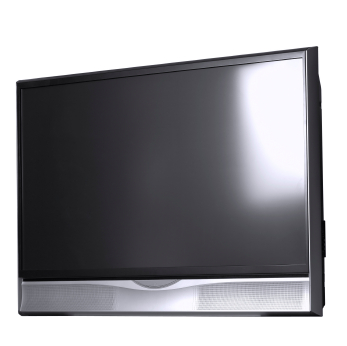
When you are trying to troubleshoot projection TV, it can be frustrating, especially if there is a room of people waiting for you to figure it out. Sometimes, the instruction manual just can’t help you out no matter how thick it is. In your time of need, remain hopeful—this article is here to guide you through the process for fixing your projection TV, as well as provide insightful tips and tricks.

Plug

The easiest fix is one that you have probably tried – unplugging and plugging the TV. If you have tried this and still have no luck, then check that there is power coming from the outlet itself. Make sure the vents of your computer are not clogged and that your computer is fully ventilated to avoid overheating.

Bulb

The most common culprit for a troublesome projection TV is the bulb. Many times, the bulb is burnt out and this makes the whole system not function properly. If this is the problem, simply Google your brand of TV and find the corresponding bulb. If there is some picture showing—regardless of its quality—then the bulb is not the problem.

Alignment

If you are experiencing blurry or smeared looks, more than likely the projector is out of alignment. To fix this problem, recalibrate your TV by going to the calibration part of the menu. If your project was moved recently or bumped, that may be the cause of this issue.

Still having issues?

If you have checked all of the common problems and still have a malfunctioning projection TV, perhaps you should contact a professional. Check out TalkLocal to be directly connected to local, high-quality TV technicians that are willing to help you at the time that is most convenient for your schedule. Just go to the website and enter your location, availability, and service need. It’s that easy!

Toddler Teething Symptoms

Friday, September 21st, 2012

Toddler Teething Symptoms Dentists

Every toddler goes through that dark period where he or she is beginning to sprout their first teeth.  This process, known as teething, can start as early as three months and can last till your toddler is three.  Teething is painful for toddlers, though the level of pain that a baby can handle will be different for each.  Continue reading for more information on the teething process, as well as some toddler teething symptoms to look for.

Toddler teething symptoms

During this period of teething, your toddler will likely act very differently, being more irritable, eating less, and just being a general pain.  This is because your baby’s gums are becoming swollen and aching due to the upcoming teeth causing pressure and pain in the gums.  Additional symptoms include gums that seem swollen and tender, rashes along your babies cheeks or chin (caused by drooling), the rubbing of gums or ears, drooling, biting, or chewing things that help your toddler with its pain, and general unhappiness and irritability.

Like mentioned, your baby’s gums will be sore as the teeth work their way to the surface of the gums.  The gum may appear swollen and bulging, meaning your toddler is likely feeling the pressure and discomfort from the tooth.  At this point, you can help your baby relieve the pain by giving him something cold to chew on.  A clean, cool, damp towel is something that babies seem to love.  Cold teething rings (as long as they are sturdy and will not break) are also recommended.

Another sign your baby may be teething is changes in his sleeping patterns.  Pressure from the gums may cause your baby to wake up in the middle of the night or during a nap.  When woken up, some babies need comforting before they fall back asleep, so be sure to have a way of monitoring this.

Don’t worry though, there are ways to help your toddler with teething.  Besides giving your baby something cold and chewy to bite down on, offering your baby cold foods such as yogurt or applesauce can help numb the pain a little bit.  There are also medicines and topical teething gels that can help (check with a doctor first).  To keep rashes away from your baby’s skin, you can use a soft cloth to remove drool and a mild moisturizer to soothe the skin.

If you believe your toddler is going through teething and prefer professional help, consider using TalkLocal to find a top-quality dentist in your area.  Within minutes, you will be connected to multiple dentists willing to help.

How Well Do You Know Africanized Killer Bees?

Friday, September 21st, 2012

How Well Do You Know Africanized Killer Bees? Pest Control

Created by: http://www.propacificbee.com/

Africanized Killer Bees (AHB) are indistinguishable in appearance from their cousins, European honeybees. However, these two types of bees differ in behavioral characteristics. AHBs are much more aggressive during attacks and will pursue victims in a larger group for further distances.

Texas was the first U.S. state to confirm the presence of Africanized bee colonies. Since then, AHBs have spread north to 10 states. Geographical barriers and climates have limited these bees from migrating to northern U.S. but Africanized colonies are still being confirmed in new territories each year.

Africanized bees are a hybrid mix of African & European bees that developed after a group of African Bees were accidentally released from an apiary in Brazil. Although, killer bees are feared by most, it is the preferred type of bee for beekeepers in Central America and tropical areas in South America because of their enhanced productivity.

It is recommended to treat all bees as Africanized to prevent encountering an aggressive hive and have a professional remove any unwanted hives from properties.

Take a look at the infographic above that illustrates the migration and behavior of Africanized “killer” bees.  If you are in need of a pest control company, try TalkLocal and get connected to a top professional in your area who can help you get rid of these pests.

When to Change a Laptop Battery

Friday, September 21st, 2012

When to Change a Laptop Battery Computer Repair

You just got a new laptop, and you do everything in your power to keep the laptop like new for as long as possible. However, with all your careful efforts, there’s going to be one component of the laptop that will degrade no matter how much you baby it: the battery. Even by following all the recommended ways to drag out your battery’s max capacity, you’ll have to replace it eventually. Typical lithium batteries will have anywhere between 300-1200 charge cycles, but usually 500 charge cycles is the lifetime of a typical battery. In human time, this usually equals out to around 1.5-2 years. So if you want to know when to change a laptop battery, the estimated date is after two years. Your new battery should be the same model as your old battery, and can probably be found on your laptop manufacturer’s website if your laptop isn’t too old.

Switching in the new battery itself is surprisingly easy. First, make sure your computer is turned off and disconnected from the power source. Flip your laptop over, and there should be release latches somewhere on the back to keep the battery in place. If you can’t find them, consult your manual. Open these latches, and pop the battery out from the back of the laptop. Insert the new battery in the same position as the old battery, and then lock the battery in place. Plug in your laptop, and wait for the battery to charge.

If you switch in the new battery, and it either doesn’t work or your computer is eating up too much power, it probably means there’s something wrong with your computer. Take it to a professional computer repair technician to get it checked out, and there’s no better service to find you one for free than TalkLocal!

Speedometer Drops to Zero Randomly, Here’s What To Do

Friday, September 21st, 2012

Speedometer Drops to Zero Randomly, Here's What To Do Auto Repair

The problem with cars is that they’re notoriously unreliable. Even the most trustworthy cars from the most trustworthy manfacturers will develop problems now and again. And perhaps the most frustrating types of car issues are those that have no clear cause. Got a flat tire? Replace it. Car not starting? Check the starter motor. But a problem where your speedometer drops to zero randomly can be very hard to pin down. It’s also very dangerous – not knowing what speed you’re doing when you’re going full speed on a highway isn’t easy for anyone! So let’s take a look at the possible reasons that your car’s speedometer is dropping to zero and staying there.

Water damaged wiring

With the number of car loans available these days, it’s never been easier to get your hands on a car. But not everyone knows how to deal with the problems that come with it, particularly not electrical problems. There’s hundreds of feet of cabling in every single vehicle, so it’s no surprise that problems can occur – especially in wet weather. If your speedometer has been dropping to zero, it’s possible that your wiring has been damaged by water. When water comes in contact with certain connections in a car, it can cause blown fuses, each of which controls something different. If the fuse that controls your speedo is blown, it probably won’t work. In this case, replace the fuse and have your wiring looked at by a professional.

A faulty speed sensor

This is the most likely explanation for a speedometer being glued to zero, but it’s not always cheap to repair: a faulty speed sensor. If you bought your vehicle with car finance, you may already be covered for mechanical issues, so one of the first things to do in this case is check with your car insurer or car credit provider – they’ll let you know whether you’re covered for mechanical damage to the car. On most vehicles, the speed sensor is located near the front axle, and its job is to judge the speed at which the wheels are turning. If it’s broken, it won’t report speed properly – or at all. One good tip is to choose the right vehicle financing option when you buy future vehicles, to ensure you’re covered in the case of a broken speed sensor.

A malfunctioning ECU (Engine Control Unit)

Just like us humans, modern cars are equipped with a ‘brain’ of sorts. This ECU, or Engine Control Unit is essentially a computer that keeps an eye on every bit of the car’s operation: oil levels, temperatures, water, condition of the brakes, and speed. This last point is the important bit: the ECU is responsible, at least in some cars, for reporting the speed of the vehicle from the speed sensor to the speedometer. If there’s a problem with the ECU, this process can be interrupted – meaning the speedo either reports speed inaccurately (not good with speed traps around), or not at all. To fix the ECU, it must be reprogrammed by a professional mechanic. They will also be able to carry out a full diagnostic of the ECU to check on potential problems. Usually these can be done at the same time in the space of one visit, and unlike a faulty speed sensor, you shouldn’t need any extra parts to fix the problem.

If your car is suffering from a speedometer that keeps dropping to zero, the first thing you should do is to follow the steps above. Check all of the fuses in your car, in particular, because fixing a problem like this is often a case of simply replacing a blown fuse. The fuse box in most cars is usually behind the glove box or under the hood somewhere. If this fails, or you can’t identify the cause of your malfunctioning speedometer, you should consult with a professional mechanic in your area that will be able to give your car a good check over and find out exactly what’s causing your speedo to be on the fritz. And remember: if your car can’t read speed accurately, driving it is a bad idea, so try to stay off the road until it’s fixed.

If all else fails, and you are in need of an auto repair shop, use TalkLocal to find one local to you.  TalkLocal will find a highly rated company in your area and have them call you immediately

Mac vs PC Laptop Pros and Cons 2012

Thursday, September 20th, 2012

Mac vs PC Laptop Pros and Cons 2012 Computer Repair

The battle between Macintosh and PC users has been going on pretty much since the beginning of time. Now that Apple’s market share is growing, the battle is stronger than ever. Users are usually extremely attached to their choice in computers, which can make for some ugly online arguments. However, both choices have their merits, and it really all depends on your personal needs. Here we’ll list the features of both Macs and PCs and leave the decision making up to you.

Mac vs PC Laptop Pros and Cons 2012

Macs:

Pros

– Stylish and attractive. Macs have been consistently voted the most attractive computers on the market, having slick hardware and user interface designs.

– Rarely get viruses due to their closed OS and relatively small share of the market, which results in less Mac viruses being created.

– High quality software that is bundled with Macs, as compared to most bloatware that comes with PCs.

– Higher resolution than most PCs, and are widely used by creative professionals due to the better software and monitor.

– Less poorly written programs that can cause conflicts and crash your computer, since Apple monitors the app for Macs closely.

– Macs generally have a faster boot up and shut down time.

Cons

– Overheating in their unibody Macbooks, since they tend to be built very compactly.

– Hard to upgrade your Mac, since parts tend to be Mac specific and owned by Apple. Scarcity equals an increase in price, which means Mac parts can be very expensive.

– For the same reason, it’s difficult to replace parts in your Mac by yourself. Even the iMac is hard to open and replace since the parts are packed in tightly in comparison to replacing PC parts.

– Smaller range of software. However, you could use Bootcamp to run a Windows OS on your Mac along with the original Mac OS.

– Most newer games don’t do well on a Mac, as many do not have a Mac version available and the Mac graphics card cannot be updated.

– Hard to customize due to their closed operating system.

PCs:

Pros

– Wide variety available, from budget computers that cost around $300 to heavy duty custom machines that cost a couple of thousand.

– A lot of customization available on the market.

– Much easier to replace and upgrade parts on your own. Desktop towers tend to be quite roomy, and it’s not too hard to determine the function of each part.

– More computer repair places fix PCs. PC parts also tend to be much cheaper than Mac parts, and also come in greater varieties.

– All Mac software works on PCs, but not nearly as many PC software work on Macs.

– Easier to fix PC problems yourself, since it’s easier to access the operating system.

Cons

– Because Windows has very little control over the software, low quality software tends to be more common and can crash your computer.

– The quality of Windows computers have a wide range, and tend to be hit or miss. For someone who doesn’t know much about computers, looking at PC specifications can be confusing.

– PCs tend to get more viruses since PCs make up a greater part of the market. However, anti-virus software tends to be very comprehensive nowadays.

– PCs require more maintenance than Macs, and you’ll have to fix computer problems more often than on a Mac.

No matter what kind of computer you decide to get, you’ll probably have problems somewhere down the road. Mac repair technicians are especially hard to find, so why not use TalkLocal to find one that definitely repairs Macs instead of looking up numbers in a phone book?

What are the best dusting methods

Thursday, September 20th, 2012

What are the best dusting methods Maid Services

Home cleaning is not finished without dusting. Dusting can be an easy, but are some methods that are better than others in making your home spotless. Some dusting methods may damage your household items, so read on to learn about the best dusting methods.

Top to Bottom

Dusting from top to bottom is the best dust method. A duster cannot pick up every dust particle, so the excess dust will go into the air and fall to lower surfaces and the ground. By working from top to bottom, you don’t have to re-dust, but instead, make one clean sweep of the room. For this method, dust the highest surfaces in the room and work to the next highest item in the room until all the dust is on the floor or trapped in the duster.

Vacuum

Vacuum cleaning is best after dusting. The vacuum can clean the floor of the dust that fell to ground.

Electronics

Electronics could be damaged in dust accumulation. Electronics should always be unplugged when dusted. Use a microfiber cloth to gently swipe the surfaces of an electronic. For crevices of electronic devices, use a soft, long-handled brush. Then, vacuum around the cords and vents to prevent dust from clogging outlets and electronics. For desktop computers, open them up and use a compressed air can to spray dust off of the computer components.

Soft Toys

Soft toys cannot be cleaned of dust using conventional dust methods due their texture. You can clean soft toys by following these steps.

1. Put soft toys into a large plastic bag.

2. Put one or more cups of baking soda into the bag.

3. Seal the top and shake the bag.

4. Remove each item and shake off the baking soda.

5. Vacuum the toy for remaining baking soda.

To find professional cleaning services, use TalkLocal. TalkLocal will connect you directly maid cleaning within your area.

Porch Light Flickers

Thursday, September 20th, 2012

Porch Light Flickers Electricians

A flickering light may be a fire hazard, but in most cases, you are probably safe. Oftentimes, it is just annoying. If your porch light flickers, check out these helpful tips!

Solution

1. Turn off both the breaker and the switch.

2. Rotate the bulbs between fixtures to see if the problem has to do with the bulb or the light unit itself. If the fixture works with a different bulb, buy a new bulb and you are all set.

3. After replacing the bulb, check out the wires behind the fixture. In order to access the wires, unscrew the screws that hold the fixture up.

4. As you examine the wires, look for loose connections. These loose connections can result from severe storms and winds if the fixture was damaged. Tighten the connection if there appears to be a loose connection. Many times this is the problem and simple tightening can do the trick.

5. If there are no loose connections, replace the socket.

6. Check out the wire nuts and make sure they are secure.

Check the Timer

Still flickering? If you have a programmable timer, the problem may be with your programming. Check the settings to make sure they are correct. In addition, look at your surroundings. Perhaps the porch light is receiving vibrations from a heavy, slammed front door.

If your problem persists, there is still hope. Check out TalkLocal to get connected to a high quality professional right in your neighborhood. Within minutes you will be speaking with professionals that can help you with any electrical issues. Check them out – best of all, the service is free!


Microwave is not Heating Up

Thursday, September 20th, 2012

Microwave is not Heating Up Appliances Repair

Your microwave is a helpful device that makes cooking a lot easier.  It speeds up the process of defrosting, heating up, etc.  When your microwave begins to malfunction it can really make life difficult.  When your microwave stops heating, the entire device becomes useless. However, you should still try to fix it by first determining the problem. Below are a few possibilities for why your microwave is not heating up.

Magnetron Failed

A magnetron is the part of the microwave that actually produces the heat to warm your food.  This component is a major part of the microwave and actually makes up 95% of the cost of the entire oven. For this reason many people opt to simply replace the entire microwave rather than pay for a replacement part. The problem may also be that the circuit providing power for the magnetron is faulty and you will need to take it apart to find the problem. You will need a voltmeter to find exactly where the issue is.

High Voltage Capacitor Defective

The high voltage capacitor in your microwave oven could be defective, causing your microwave to stop heating properly. This part of the microwave store electricity. If this component is defective then not only will your microwave not heat but you will also hear a buzzing noise. You should replace this part if you want to fix the problem. Before you test to see if it is indeed the capacitor causing problems, you should discharge to avoid injury.

Diode Malfunctioning

A third possibility is that the power diode that passes current in one direction is malfunctioning.  You should test the diode to see if it is defective and replace it if it is.

Continuing Problems

If you continue to have problems with your microwave not heating you should seek professional help.  Use TalkLocal to be put in contact with reliable local businesses within minutes.  You don’t have to do any work! Simply input your problem and availability and TalkLocal will do the rest. Almost immediately you will be connected with someone who can help you out on the phone.