Archive for the ‘services’ Category


Best Electronic Toothbrush for Kids with Braces

Tuesday, August 7th, 2012

Best Electronic Toothbrush for Kids with Braces Dentists

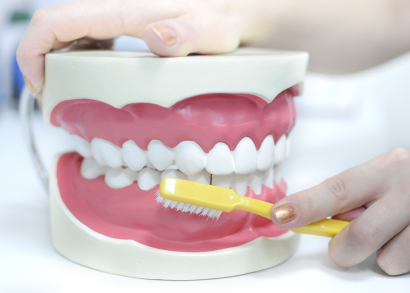
Dental care and hygiene become even more important for a child who is getting braces.  All of the orthodontic bands, brackets, and wires can get in the way and make it very difficult to keep your teeth clean.  They can also cause a lot of irritation which leads to sore inflamed gums and decaying enamel.  One of the best ways to combat this additional strain that braces cause is to use an electric toothbrush.  There are a lot of different kinds, so check out these tips on how to choose the best electronic toothbrush for kids with braces.

Two brands are commonly touted as the best electric toothbrushes at their individual price points.  Oral-B brushes are a great value brand, while Phillips Sonicare are a more high end option.  Both brands offer a variety of different brushes, with many aesthetic choices like color, weight, size, and shape that will depend on individual preference.  The most important thing to keep in mind is the brush heads and the stiffness of their bristles.  Metal braces will wear bristles out very quickly so you will need to stock up on replacement heads.  You should buy soft or medium stiffness bristle bush heads to avoid excess irritation on the gums and teeth.

You should expect to pay around $30 for the cheaper OralB electric brushes, and anywhere from $80-$140 for different Phillips Sonicare brushes.  Remember that you will also need to purchase replacement heads separately.  You may also want to look into getting a dental floss pick, which can be useful for getting tough bits of food that are stuck in between metal brackets.  Be sure to consult with your child’s dentist and orthodontist before buying any dental equipment.  They may have suggestions to tailor to your individual needs.  If you do not have a dentist/orthodontist in your area, you should try using Seva Call to match you up with one.  Seva Call does all the work for you and automatically connects you with a quality local professional in just minutes.

Home Electricity Safety

Tuesday, August 7th, 2012

Home electricity safety is not something that should ever be taken lightly.  While we frequently take our use of electricity for granted, it is important to be aware of potential problems that could arise in a system.  Here you’ll find a quick list of things to watch out for in order to keep your electrical system running safely.

First, it is important to be up-to-date on your electrical inspection.  If it has been more than 40 years since your wiring has been checked out, you should immediately schedule an inspection.  If it has been between 10 and 40 years since your last inspection, an inspection is still a good idea, especially if the home or building has undergone remodeling.  If an inspection has taken place within the past 10 years, another is probably only needed if you witness any of the following warning signs.

While some serious electrical problems are easy to spot, there are a couple less obvious things to watch out for.  Loose plugs or small shocks in electrical sockets are not safe for your home.  You may think these are just side effects of having electricity, but this is not normal.  Loose plugs should be fixed immediately. Prongs not inserted completely into the wall are dangerous as well.  When it comes to shocks, you may have a more serious issue on your hands.  The wiring to one or more areas in your home may be faulty.  Again, these may seem like minor problems at first, but it is best to contact a professional electrician to take a look.

Some more obvious signs of electrical problems may come in the form of sparks or buzzing noises from electrical equipment, overheating smells throughout the home, or temporary to complete power outages.  Simply use common sense with these indicators – they seem dangerous because they are!  These warning signs can signify any number of problems in an electrical system, and an electrician should be consulted immediately.

Perhaps the most important thing to remember with electricity is these are generally not do-it-yourself fixes.  Electrical systems are extremely expansive, and one wrong move could put you and your home in severe danger.  There are plenty of available professionals who can quickly and safely put you back on the right track, so don’t put yourself at risk!  Your job is to simply to be aware of these warning signs to keep the electrical system in your home functioning properly.  If you feel like your home electrical system is not functioning properly, use TalkLocal to find an quality electrician to fix any problems you might be having.

Discretion with Twitter

Tuesday, August 7th, 2012

Discretion With Twitter Computer Repair

Discretion with Twitter

Twitter has exploded in popularity in recent years–to no surprise, as instant information is on high demand in today’s fast-paced culture.  Celebrities, politicians, and likely your own friends have tapped into this online world, sharing tweets at a click.

While Twitter has its advantages in quick, large-scale networking, there are some things to watch out for while using it.  First of all, it is important to simply stay smart in content.  Steer clear of revealing too much information, approaching dangerous topics, or going on highly emotive rants (look to some celebrities as prime example of this).

Like any other social networking website, Twitter also has some problems with spamming.  Since you do not need a valid email address to launch a Twitter account, spammers can easily create multiple accounts and set up automatic activities that occur on your page as spam (Twitter is working to correct this problem).  Most spam is annoying, but watch out for links to malicious websites.  This is where viruses and malware have opportunities to enter your system.

Twitter’s prominence online has also beckoned a flood of advertising.  Large corporations are creating profiles in order to tweet news of promotions and links to their retail websites.  Again, this is more bothersome than dangerous, but beware of entering sites where a click could be a purchase!

Twitter’s popularity has unfortunately put it at the mercy of hackers.  Even large corporations, celebrities, and politicians have been known to be victims of these break-ins. There are people and programs out there designed to access your information, so it is important to choose a password wisely.  Generic strings of numbers, letters, or words should always be avoided.  Choosing diverse characters in a password is a good policy to follow.

If you think you are the victim of a hacker or have acquired a virus from Twitter, you may want to contact a computer repair service to see how to remedy the situation. TalkLocal can easily connect you with a company near you.

Macbook Pro Battery Calibration

Monday, August 6th, 2012

Macbook Pro Battery Calibration Computer Repair

Why Calibrate Your Macbook Pro Battery

The purpose of calibrating the battery on your Apple Macbook Pro is to keep your battery running functionally. Calibrating your battery ensures that the onscreen estimate of how much time/percentage you have left to run your computer on battery power is accurate. You should calibrate the battery of you Macbook Pro every few months, and even more often if you rarely run your Macbook on battery power. Read also to learn why macbook pro battery calibration is important.

How to Calibrate Your Macbook Pro Battery

1. Plug in your Macbook Pro and charge the battery until it is full.

2. Leave your computer plugged in for at least two hours after it is fully charged. You can use the computer during this time, but do not unplug it.

3. Unplug the computer and use it on battery power.

4. Leave the computer on until the battery power is very low.

5. At this time, save anything you are working on and close all applications.

6. Let the computer go to sleep and leave it asleep for at least five hours.

7. Reconnect your battery and charge it until it is at full capacity again.

You can find more information on Mac batteries here. You can set a reminder on you computer to alert you every few months to recalibrate your batter. If you are having problems with the battery in your Macbook Pro and calibrating it isn’t working, you may want to visit a Genius Bar at your Apple store or get in contact with a computer repair professional. If you are not near an Apple store, you can use TalkLocal to receive phones call within minutes from up to three high quality computer repair professionals in your area that are available when you are. Simply visit TalkLocal’s website and submit your computer problem, location, and availability.

Estimate Size of Moving Truck Needed

Monday, August 6th, 2012

Estimate Size of Moving Truck Needed Moving and Storage

So you’re moving and its it is a huge life changing event.  You need to estimate size of moving truck needed to get everything to your destination.  Picking up and completely changing your surroundings is no easy task.  On top of figuring out what you need to bring, you have to actually think of the logistics of moving. Estimating the size of moving truck you will need is not a precise science, but there a few tricks you can learn from veteran movers.

The first step you will need to take is to figure out what you will need to move in the truck.  This will include all furniture, large decoration pieces, and boxes of items.  When taking inventory you should consider downsizing and getting rid of things that are not entirely necessary.  When trying to estimate what size of a moving truck you will need you should know exactly what you need to move. Declutter your life so you don’t pay to move things you don’t need.

Once you have considered everything you need to move, you can start determining the size of truck you need.  You should not be too conservative when coming up with a truck size because if your truck is too small then making an extra trip can be way more expensive than just getting a larger truck.  The service fee and gas charge will increase twofold for both local and long distance moves.  Find a happy medium that prevents two trips or wasted truck space.  Try to condense your things and find the best way to organize them so they take up the least amount of space.

The general rule when moving is that you need to allow about 150 cubic feet of space in the truck for each fully furnished room.  Here is a guideline to general sizing:

Truck Size

   Cubic Feet

Bedrooms

10 foot

350 cu. ft.

1 small room

15 foot

750 cu. ft.

2 rooms

20 foot

1,250 cu. ft.

3-4 rooms

25 foot

1,550 cu. ft.

5-8 rooms

Once you know what size truck you are looking for you should make your reservation.  You will need the moving date, size needed, a credit card, and your destination.  If you are looking for a reliable local moving company use TalkLocal to be put in contact with one in minutes.  Simply enter the information about your move into the service form online and TalkLocal will do the rest.  After submitting, you’ll receive a call someone who can help you move on the phone.

Replace Car Key Remote

Monday, August 6th, 2012

Replace Car Key Remote Locksmiths

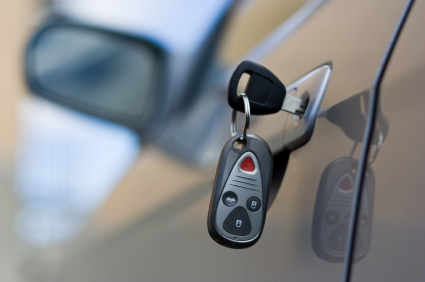
Most modern cars come standard with an electronic key remote, which is also known as a “fob.” Fobs allow car owners to unlock their cars quickly as they approach, without having to stop and use the manual key. They also often control the alarm system of the car. Losing this remote can be a huge hassle as they are coded specifically for your car and you cannot just go buy a new one. Fortunately, there is a process for getting a new fob in the event that you lose yours or the battery dies. Read on to find out how to replace car key remote and get back to the automatic unlocking that you are so used to.

The first thing to do is determine whether your key remote simply needs its battery replaced, rather than the entire unit. If this is the case, you can usually switch out the battery yourself and save some significant cash.  Check out this tutorial for information on getting your fob open and buying the right type of battery.

For situations where battery replacement is not going to cut it (such as when your unit is completely wrecked or just lost), you will need to get a completely new replacement key remote. To do this you will need to go to a dealership that makes your exact type of car. Before going, be sure that you know your vehicle’s make, model, and year. You will also need to know your Vehicle Identification Number (VIN). The VIN can be found in your car’s owner’s manual, as well as the bottom left corner of the windshield and the inside of the driver’s side door panel. With this info, head out to the right dealership and they will have the equipment to program a new key remote that works on your individual car.

If you have lost your keys as well as your remote and need to access your vehicle, you can use TalkLocal to find a locksmith in your area. All you have to do is enter your availability, location, and a description of your problem and TalkLocal will automatically connect you to a quality professional in just a few minutes.

Best Type of Toothbrush for Gingivitis

Monday, August 6th, 2012

Best Type of Toothbrush for Gingivitis Dentists

If you are noticing that your gums are bleeding or swollen, you may have gingivitis, an early stage of gum disease.  If left untreated, your gingivitis could lead to periodontitis, a most severe form of gum disease.  This can cause recession, tooth sensitivity, root decay, and even tooth loss.  The most effective way to treat your gingivitis is to brush and floss regularly.  Read on for more information on the best type of toothbrush for gingivitis.

Electric toothbrushes are more effective than manual toothbrushes in fighting gingivitis.  An electric toothbrush will also allow you to brush an increased amount in the same amount of time as when you brush with a manual toothbrush, and they can rotate at a faster speed.

However, if you have particularly sensitive teeth, you may not want to purchase an electric toothbrush as the high speed rotation may be uncomfortable for you.  An electric toothbrush also costs more than a manual toothbrush and you will need to replace the toothbrush head as often as you would replace a manual toothbrush.

Additionally, regardless of whether you choose a manual or electric toothbrush, make sure to keep the hardness of the bristles of toothbrush in mind.  If you brush particularly vigorously, medium or hard bristles may damage your gums by destroying the protective enamel layer.  A toothbrush with soft bristles and rounded tips will be just as effective in removing stains and plaque, but will better for you gums.

For more information about what kind of toothbrush would be best for you specifically, you should ask your dentist.  If you do not have a dentist, use TalkLocal to find one.  In minutes you will receive phones calls from up to three high quality dentists in your area who are available to make an appointment with you whenever you are free.

Connect Laptop to HDTV with HDMI Cable

Monday, August 6th, 2012

Connect Laptop to HDTV with HDMI Cable Computer Repair

When watching a video on your laptop, sometimes you just want the big screen in high definition on your HDTV. It can be an annoying process when you burn DVDs and load them, only to find out the DVD does not work. If you want to do it the easy way, just use the HDMI port on the TV to watch your laptop on the big screen.  Here is what you can do to connect laptop to HDTV with HDMI cable.

HDMI Cable

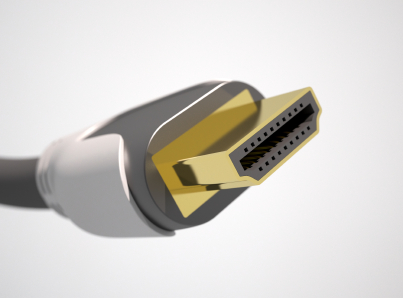
For a computer and HDTV to connect, you need a HDMI cable. HDMI cable is an abbreviation for “High Definition Multimedia Interface.” There are two types of HDMI cables: one with a fat cable and one with a skinny cable. There is no difference between the two except the skinny one is easier to travel with. HDMI cables are usually under $20 at your local computer supply outlets.

Before Connecting

1. Turn off the TV and the computer.

2. Check the label for the input name of the HDMI input. This will make it easier to find the HDMI input on the TV.

Connect

1. Connect one end of the cable to the USB-type HDMI port. There is no specific end designated for the computer.

2. Connect the other end of the cable to the HDMI Port on the HDTV.

3. Turn on the TV.

4. Toggle the “Input” button until the input name for the HDMI Input comes up.

5. Turn on the computer. After sign-in, the Windows should detect the HDTV and duplicate the screen on the computer and the HDTV.

6. Press “Windows” and “P” at the same time. The multi-monitor display window comes up.

7. Click the “Extend” icon. The laptop screen will only appear on the HDTV.

8. If the Windows does not detect the HDTV automatically, configure the computer to recognize the HDTV.

a. To do this go to Start > Control Panel > Adjust Screen Resolution.

b. Click on Monitor 2 > Extend onto this Monitor > Apply.

A relaxing and exciting time will now commence as the HDTV can be used to watch movies. If an error occurs with the HDTV or computer with the HDMI connection, call TalkLocal for all your electronic repair needs.

Laptop Plugged in but not Charging

Friday, August 3rd, 2012

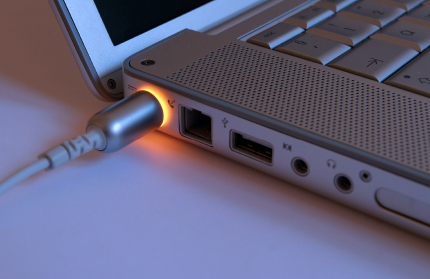
If you have your laptop computer plugged in, but it does not appear to be charging, there are a number of problems you could be having. This article will help you with the problem of  laptop plugged in but not charging and how to fix it.

Make Sure You Are Actually Plugged In

Check that the cord is pushed in all the way to both your computer and the outlet. Then, check that any detachable parts, including power strips and extension cords are attached all the way. Make sure the power switch for the outlet is turned on. If everything is plugged in, you should also try plugging your computer into a different outlet to see if there is a problem with the outlet.

Make Sure Your Battery is Working
To check if it’s working, remove the battery from your computer and plug your computer into an outlet. If it turns on and works correctly, then the problem is most likely your battery and you will probably have to get a new one. If it is a new computer, contact wherever you bought it from and let them know they sold you a defective battery.

Check For Problems With Your Charger
Inspect your power cord. Are there any kinks or breaks? Have any parts been chewed by a pet or caught in a vacuum cleaner? Is the brick discolored, warped, or expanded? Does it smell like burnt plastic? If you said yes to any of these questions, it is likely that you have a problem with your charger and you will probably have to replace it. If there are detachable parts, you may only have to replace the part that is broken.

Your Laptop May Be Overheating
If your laptop is overheating, it can cause the battery not to charge until it has cooled down. This can worsen if you are using an older laptop with outdated cooling technology or are resting your laptop on a soft surface, like a blanket. If your laptop feels very hot, turn it off, unplug it, and rest it on a flat, fully ventilated surface until it cools down. After it has cooled down, check to see if it will charge properly.

Update Your Drivers (Windows)/Do an SMC Reset (Mac)
Update Drivers for Windows

1. Open the Control Panel.

2. Click Device Manager.

3. Open each option under Batteries (battery, charger, and “Microsoft ACPI Compliant Control Method Battery”).

4. In each Properties window, click Update Driver in the Driver tab.

5. Restart your laptop.

 SMC Reset for Mac

1. Shut down your computer.

2. Unplug your charger from your computer, if it’s still connected.

3. Remove the battery.

4. Press and hold the power button for five seconds.

5. Release the power button.

6. Reconnect the battery and charger.

7. Press the power button to turn on the computer.

Contact a Computer Repair Professional
If your computer is still not charging, contact a computer repair professional.  With the help of TalkLocal, you can receive phones calls within minutes from up to three high quality computer repair professionals in your area that are available when you are.

Roof Wind Damage Repair

Friday, August 3rd, 2012

Roof Wind Damage Repair Roofers

Roof Wind Damage Repair

It’s generally a good idea to check for any wind damage on your roof following a wind storm. This is because roof damage spreads and rain can seep under the damaged shingles and rot the wood. Rotting wood also spreads, so you may soon have to face a much bigger and more expensive problem than before.

How to Fix Damaged Roof Shingles

Materials needed:

Hammer

Knife

Roofing Nails

New Shingles

Roofing Sealant

Brick

1. Take the nails off the damaged shingles with the back of the hammer.

2. Lift up the damaged shingle by leveraging the knife.

Warning: Be careful as to not cut yourself on the nails or lift up the wrong shingles next to the damaged panel. A cut from a rusted nail may require more than just antibiotics for treatment.

3. Dispose of the damaged shingle and the old nails.

4. Slide the new shingle into place.

5. Hammer the nails to fix the shingle in position.

6. Apply roofing sealant under the fixed shingle.

7. Weigh down the replaced shingle with something even and heavy (like a brick) to hold it in position. If you roof is too sloped for this, find something with more surface area for better traction to the roof.

Other Advice

So say a hurricane or a tornado came in your area and you need new shingles. Well, you probably aren’t the only one looking for new shingles and other materials to replace your roof in your area. Your local store might run out of materials for the job due to the demand, putting you in a bad situation.

So be prepared. It’s always a good idea to have spare materials for your house stored somewhere in your house. Good maintenance is a part of it, too. A well maintained roof is less likely to break down in the event of a storm.

If you feel that the damage is too extensive for you to do the job yourself or you would like to get advice, consult local professionals around your area. TalkLocal can help with finding the correct local experts to fix your roof, saving you time and energy in what may be a stressful situation.