Archive for the ‘services’ Category


Reviews of free antivirus software

Thursday, August 9th, 2012

Reviews of free antivirus software Computer Repair

Reviews of free antivirus software: AVG, Avira, Avast, Microsoft Security Essentials, Immunet

Finding reliable free antivirus software is a daunting task, so below is a table that compares the features of the five top rated antivirus programs:

 Program  AVG  Avira  Avast Microsoft  Security Essentials  Immunet
 Updating  Automatic  Manual  Annually with reregistration  Automatic  Automatic
 Features – Email scanner- Antispyware- link scanner- various other scanning options – Protects against viruses, trojans, worms, spyware, adware, malware – Antivirus/ antispyware against threats from internet, email, files, IM’s – Protects against all sorts of malware – Protects against bots, worms, viruses, trojans, keyloggers, spyware
 Works with – Windows 7- Vista- XP- 2000 – Windows 7- Vista- XP- 2000 – Windows 7- Vista- XP- 2000 – Windows 7- Vista- XP – Windows 7- Vista- XP
 Extras – Free version has a lot of premium features – Has version for UNIX too – Heuristics engine can detect previously unknown viruses and malware – Direct form Microsoft- very reliable – Can run alongside any of these other antivirus programs
 Other notes – Install-it-and-forget-it aspect – Slightly difficult configuration after installing – Asked to install Google chrome with it/must register online and reregister every year for free – Fairly new program- easy to use – Unique cloud based program- Must be connected to internet at all times

If you cannot make up your mind or want professional help, use TalkLocal to be put in contact with a reliable local IT businesses almost immediately.  Simply input you problem and availability and within minutes you will be talking to someone who can help you out!

How to Prepare for a Snow Storm

Thursday, August 9th, 2012

How to Prepare for a Snow Storm Snow Removal

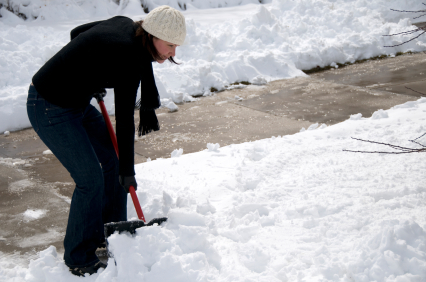
Severe winter weather can be unpredictable. Sometimes only a few degrees is the difference between a blizzard and freezing rain. As winter approaches, it is important to prepare your home for severe snow and other severe winter weather. Follow these steps to learn how to prepare for a snow storm.

Have the basics on hand before the threat of a snow storm:

·      Shovel

·      Flashlights

·      Food

·      Can Opener

·      Blankets and warm clothing

·      A camping stove or barbeque grill

·      Matches

·      A battery operated radio

·      Prescription medications

·      A wall phone with a cord, or a portable cell phone charger

·      Any other household necessities, such as diapers, formula, batteries, etc.

Winterize your home and any other buildings you or your family will use during a storm.

·      Insulate walls and attics, caulk and weather-strip doors and windows, and install storm windows or cover windows with plastic.

·      Clear rain gutters and repair roof leaks in order to avoid clogging and flooding.

·      Place salt on your sidewalk and driveway. This will make them easier to shovel after the storm.

·      Cut away tree branches that could fall on a house or other structure during a storm.

·      If necessary hire a contractor to check the structural strength of the roof. Make sure your roof can withstand the unusually heavy weight of snow or water.

·      Insulate pipes with insulations and allow faucets to drip a little during cold weather to avoid freezing.

Anticipate a long power outage.

Decide what to do with the food in your freezer and refrigerator.

·      If the power will not be out for long leave the doors closed, keeping the air inside, and your food will most likely be fine.

·      If it seems like the power will be out for one or more days move the food. With the winter weather, there will be plenty of cold to store your food. Frozen items can be left outside (keep an eye on the temperature) and refrigerated items left in an enclosed porch or other cold area.

·      Eat perishable foods first, keeping canned goods for more lengthy outages.

Keep tabs on your family members.

·      May sure you know where everyone in your family is and that they have proper shelter before the storm hits.

Stay aware of approaching storms.

·      Watch weather reports, listen to emergency radios, and pay attention to the warnings at the top of your TV screen warning you about storms.

Keep warm

·      Already have a fire or furnace running before the storm hits. Keep blankets on hand. Drink hot liquids and eat hot foods to stay warm.

Have entertainment on hand

·      Make sure you can stay entertained in the event of a power outage.  Keep entertainment such as books, board games, cards, crafts, and other electric-free entertainment in the house.

If you end up getting snowed in during a big storm, use TalkLocal to connect you to a highly rated, local snow removal company. Simply enter a brief description of your service needs along with your location and availability, and TalkLocal will do the rest.

Restore Bookmarks in Chrome

Wednesday, August 8th, 2012

People use bookmarks to save time when they are visiting the same websites repeatedly. Bookmarks are simple way to keep your favorite sites at your fingertips in one location, so your destination is just a click away. Chrome has a hidden bookmark backup file that stores your bookmarks, so you are in luck if you accidentally delete bookmarks in Chrome. Chrome will perform these backups automatically on a regular basis, so your bookmarks should be safe. To restore bookmarks in Chrome, follow these steps:

1)     Do not open and close Chrome because it only saves one version of your backed bookmarks file. If Chrome is closed, leave it closed. The bookmarks file will be overwritten each time you open up Chrome.

2)     Put this code into the Windows Explorer address bar:

C:\Users\NAME\AppData\Local\Google\Chrome\User Data\Default

Make sure that you change “NAME” to your Windows user account name.

3)     Look for “Bookmarks.bak,” which is the backup of Chrome bookmarks. You will also see “Bookmarks” file.

4)     Restore the backup of the Chrome bookmarks by closing all open Chrome browser windows.

5)     Rename “Bookmarks.bak” to “Bookmarks.” If a window warns you that the file may become unusable, just click yes.

6)     Delete the original “Bookmarks” file. You can also perform this step after step 7 if you want to play it safe.

7)     Open Chrome. Your deleted bookmarks should be back to normal.

To prevent this issue from happening, regularly export your Chrome bookmarks into a file. Recovering deleted bookmarks in Chrome will be much easier!

If you need additional computer help, you should contact a local IT support service. TalkLocal can connect you to high rated local businesses to help you with all your computer problems. Just go to TalkLocal’s website and state your specific problem, availability, and location. You will be on the phone with help just minutes after submitting your request.

How to Choose a Lawn Maintenance Company

Wednesday, August 8th, 2012

How to Choose a Lawn Maintenance Company Landscapers

Sometimes we just get lazy and tired of the sweat and tears of constant yard cleaning. It is time for a professional who can provide lawn maintenance, but how do we know which one to pick? Here are some strategies you should know on how to choose a lawn maintenance company that will provide you great service.

1. What do you need?

Lawn maintenance companies do several jobs other than mowing the grass, such as fertilizing, weeding, lawn-damaging pest control, aerating, mowing, and small tree and shrub maintenance. Choose one or a combination of these services that is right for your lawn, so you can find companies who have expertise in these specific services.

2. Do your Research.

First, ask friends, family, and neighbors to see if they have any recommendations. Ask these companies if they can provide you with references of past customers. If they decline, then that may be a bad sign. The references are a good way find a company’s methods and philosophies.

3. Compare quotes.

After the research, begin to narrow down the companies to which is the best. Ask them to come over for a quote of your lawn and other services that you want them to provide. The face-to-face contact is the best way to weed out companies. If they are not actively listening to want you want, they may be a company you can eliminate from the list. Lawn maintenance professionals have different analyses of a lawn even within the same company, so ask the company to bring two representatives. With two people, there can be a comparison of the two analyses and you can choose what’s right for you. If they cannot give you two people, ask for the most experienced employee in the company for a for an analysis.

With these strategies, you should be able to find a lawn company that is right for you. If you prefer someone else do all this work for you, then call TalkLocal. TalkLocal comparison shops for you and connects you with the best lawn maintenance companies in  your area who can give you what you want.

Check Engine Light Flashing Before Starting

Wednesday, August 8th, 2012

Check Engine Light Flashing Before Starting Auto Repair

Check Engine Light Flashing Before Starting

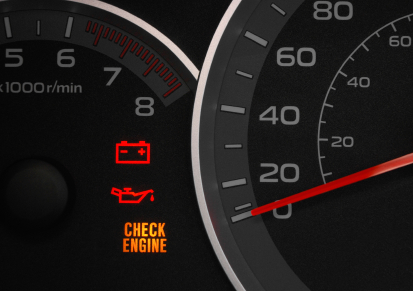
One of the scariest moments is when the Check Engine Light, or CEL, comes on when driving. But what if CEL starts flashing before the engine has even been turned on? CEL is nothing to be “light” about. CEL checks the car engine and informs the driver of problems in the engine. If the CEL comes on before starting the car it’s usually nothing major.  This article will explain what to do when check engine light flashing before starting the car.

CEL On Before Starting

If the CEL is on before turning the key, relax. When the CEL is flashing when the key in and the engine is off, the emission test is running. The emission test is to check the emission control system to reduce the amount of pollution from the CEL. Emission test reads by an oxygen sensor. The sensor reads the air and fuel mixture. You should only worry about it if the engine is running.

CEL during Driving

If the CEL is on when driving, pull over immediately and begin to inspect:

Misfire — A flashing light mean there has been a misfire in the engine which can cause damage to your expensive catalytic converter.  If this is the problem, stop driving and call a car mechanic.

Gas Cap — For a loose gas cap, the CEL is on, but not flashing. Tighten the gas cap and check if the CEL has turned off.

Spark Plugs — If the CEL did not turn on, check the spark plugs. Spark plugs can deteriorate over time and become dangerous. Check the spark plugs if there are any deterioration. If so, replace the spark plug. If the CEL is still on, go to a car mechanic.

If the CEL is red, immediately go to a car mechanic to get a diagnosis. To find car mechanics, use TalkLocal. TalkLocal can connect you to with the high quality mechanics in your area in minutes.

Mobile Home Roof Repair

Wednesday, August 8th, 2012

Mobile home leaks can occur at the worst possible times and disrupt your day. Don’t let a leaky roof ruin your plans! The following tips will help you fix your roof quickly and easily, so you can get other things done in the day.

How to make a Mobile Home Roof Repair

  • Apply a roof coating, such as Silver Dollar, to prevent and fix pinhole leaks. This gets the job done in just a couple of hours for around $100. It involves spending time on the roof, so use caution if you have a fear of heights.
  • Check the roof for particularly rusted spots and larger holes. Fix pinhole leaks with roof coating.
  • Repair larger leaks with sheet metal to fit over the rusted spot/hole. Use silicon caulk to put it into place. Once dry, cover the sheet metal with the roof coating.
  • Consider replacing the roof if the leak is too large to fix with sheet metal. This should be pretty rare.

Safety Tips!

  • Don’t work outside in the middle of the day, especially in summertime. Start early in the morning or wait until later in the evening.
  • Don’t do the job by yourself. Recruit a friend or neighbor to help you. You need somebody to hold the ladder and check for safety.
  • Be careful with cut sheet metal. The edges are extremely sharp!
  • Dispose of any leftover coating according to label directions.

Best Toothpaste for Receding Gums

Wednesday, August 8th, 2012

Best Toothpaste for Receding Gums Dentists

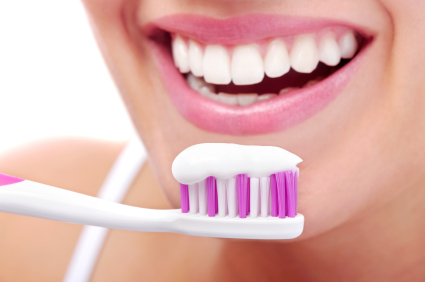
Maintaining a healthy mouth is an important hygienic task, and even with daily brushing, flossing and mouthwash, you may still find that you experience uncomforting pain from receding gums.  There are solutions to this problem, however, including specialty toothpastes.  Continue reading for more information of the best toothpaste for receding gums.

One tip is to brush gently.  While you may think that vigorous brushing is appropriate to really get in those crevices to remove germs and food remnants, your teeth are surprisingly fragile.  Hard brushing can alsoirritate your gums, making them raw and sore.

Once you’ve began brushing more gently, make sure you find the right toothpaste.  If you have sensitive teeth and gums, Sensodyne may be a big help.  It is less harsh than the more common, minty toothpastes and can help retain the health of your receding gums.

Or, it may be a good idea to meet with your dentist, who can prescribe you a specific fluoride gel for your gums.  This is usually the most effective choice.

Need a dentist?  Use TalkLocal to locate one near you.  TalkLocal is a free service that will connect you with top-quality, reliable dentists within minutes.  Simply enter in your specific symptoms, location and availability, and TalkLocal will contact multiple professionals in your area who will then call you directly, ready to help.  Save time searching through directories and phonebooks for the right, most affordable dentist, and let TalkLocal do it for you.

Ways to Back Up Your Files

Wednesday, August 8th, 2012

Ways to Back Up Your Files Computer Repair

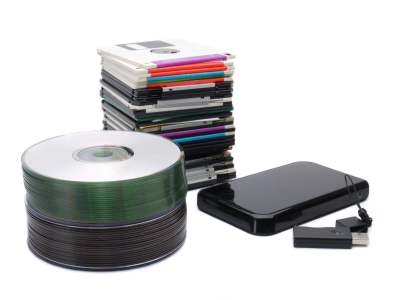
It is a good habit to regularly back up your files from your computer. Even if your hard drive has never crashed before, it is better to take a few precautions to prevent losing irreplaceable data like family photos. Take a look at the following ways to back up your files. Their pros and cons are listed as well to help you find the storage device best suited for your needs.  Here are ways to back up your files:

External Hard Drive

Pros: External hard drives are small and portable. When you take them with you, it ensures that no one else can access your files. External hard drives work for multiple operating systems and are generally a reliable, simple method of backing up your files.

Cons: You must replace your external hard drive after a while because their average lifetime–or Mean Time Between Failure (MTBF)–is about three years. Since they are small, external hard drives are more susceptible to theft.

 Online Storage

Pros: With services like DropBox and Mozy, you don’t need to purchase additional hardware. Files are stored online through a third party where they are distant from your computer, so local damage—such as a fire—will not affect them. Online storage is convenient because files are accessible from multiple computers.

Cons: If the online storage company shuts down, it may be hard to retrieve your information. Hackers may also be able to retrieve your information if they break into the system.

USB Flash Drive

Pros: Flash drives are portable, easy to use, and can back multiple computers on the same drive.

Cons: Flash drives have a smaller capacity for storage and are not recommended as a complete backup solution. Because flash drives are so small, they are easy to lose.

DVD/CD/Blu-ray

Pros: Optical storage is very cheap. Many computers have CD burners, so no additional hardware is necessary.

Cons: Rewritable discs are becoming less common, and therefore, harder to buy. If you don’t use rewritable discs, you will have to continue to purchase new disks to back your files. Optical storage also takes up space if you end up using many discs.

Redundant Array of Inexpensive Disks

Pros: RAID makes data access faster and more reliable.

Cons: RAID is not recommended as a complete backup solution, but rather a way to lessen the chance of losing your data. It is also difficult to set up, so a less advanced computer user may need assistance.

Built-in Solutions

Some operating systems have built in back up solutions such as Time Machine for Mac and System Restore for Windows.

Pros: These programs are already in your computer and are simple to use. Time Machine saves backups every hour…

Cons: …which can fill up your backup drive. As for Windows, system restore can wipe out new accounts if they were created after the last restore point. System restore does not work in Safe Mode.

If you need assistance in backing your files, contact Seva Call to find local IT support services.

Headphones Not Working Macbook Air

Tuesday, August 7th, 2012

Headphones Not Working Macbook Air Computer Repair

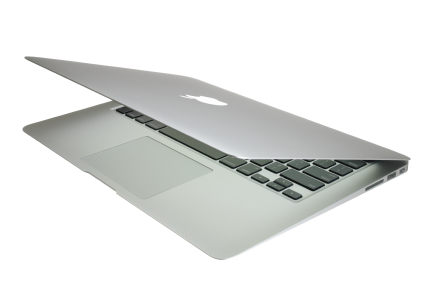
Being able to listen to music, videos, and audio clips on your computer is a fantastic ability, but what happens when there are other people around and you don’t want to disturb them?  This is when you should use headphones. Unfortunately, your headphones may not always work properly when you need them. Many people with Macbook air computers seem to have a few common issues with their listening devices. Read on to learn the solutions for these problems that involve headphones not working macbook air.

Problem: The output sound is muted.

Solution: If the output sound is muted for some reason, you will not be able to hear the sound when your headphones are plugged in. You can change this by going to Sound > Output. Another way to adjust the output volume is to go to System Preferences. Click on Hardware > Sound > Output > headphone port > Output Volume and un-stick the mute button from there.

Problem: The wire in headphone jack is malfunctioning.

Solution: When the wire in your headphone jack isn’t working, use a needle or paperclip to probe the jack and bend the little copper connection. You should also try to apply some pressure to the wire itself to see if it helps the computer connect better.

Problem: The updated operating system is missing a driver.

Solution: There is a possibility that when you update your operating system, your headphones will stop working properly.  Sometimes the new versions of the systems will be missing the driver needed for the headphones to work.  You should go to the website and download the older version or see if the specific driver is available.

Problem: The headphone jack does not work.

Solution: Your entire headphone jack could be broken, in which case, you will need to change the logic board from your computer. This costs a lot of money and you should consult a professional to help you instead of attempting to do this yourself.

Continuing Problems

If you continue to have problems with using your headphones with your Macbook air, you should ask a professional before taking any action.  Use Seva Call to be put in contact with a reliable local business within minutes. Simply input your problem and availability and Seva Call will do the rest! You will receive a call almost immediately from a qualified IT service company who can help you.

Auto Cook Microwave Buttons do not Work

Tuesday, August 7th, 2012

Auto Cook Microwave Buttons do not Work Appliances Repair

First, try the other buttons on the microwave to see if they work. If it’s only the auto cook buttons that do not respond, you must settle for manually punching in the cook time. If you find that to be annoying, keep reading this guide to figure out why the auto cook microwave buttons do not work.

Technical Problems

Depending on the particular microwave set you use, the interface (the panel with the buttons) and auto cook buttons may work differently under certain conditions. Try resetting your microwave and testing the auto cook button. Simply unplug the microwave and then try the auto cook button.

If that doesn’t work, check the functions of the microwave by referring to the microwave’s manual.  If you don’t own or can’t find the manual, find the microwave’s manufacturer and the model number at the back of the microwave and google the information; there should be a manual available online.

Physical Problems

If the problems described above do not fix your problem/are not an accurate description of your problem, it may be that the microwave doesn’t heat properly when you press the auto cook button. If the food inside the microwave isn’t cooking even though the microwave reacts to the button, lights up, and makes a whirring sound, then the magnetron is failing.

The magnetron creates the microwaves that heat up your food. Needless to say, you will not be able to microwave anything until you fix the magnetron.

It is cheaper to buy a new magnetron than to fix an existing one in the most cases. Unfortunately, magnatrons cost nearly as much as the microwave itself. So it is generally recommended that you buy a new microwave.

Additional Help

If you feel like you need professional help on fixing auto cook buttons on your microwave, TalkLocal can help with finding the correct local experts in this case, saving you time and energy in what may be a stressful situation.