Archive for the ‘services’ Category


Ants in the Kitchen

Friday, August 3rd, 2012

Ants in the Kitchen Pest Control

Having an infestation of ants in any part of your house can be irritating, and when they are all over your kitchen it can be even more so.  It seems like they come out of nowhere and it can be really hard to keep them out.  In order to prevent and/or eliminate ants in the kitchen, follow these few tips.

The first step to an ant-free kitchen is simple: keep your kitchen clean.  Avoid leaving any food out over night or for long periods of time during the day.  Any food that is left out should be in sealed containers at all times.  Make sure that any dirty dishes left in the sink have at least been rinsed to remove any leftover food bits, and wipe down all counters and surfaces.  You can try wiping surfaces down with a little bit of vinegar; the smell of the vinegar will repell ants.  Take out the trash and make sure the inside of your can is clean as well.

Once your kitchen is clean you will want to get rid of any ants already there.  There are numerous ant-killing insecticides out there but you may want to use something more natural in your kitchen to avoid getting any chemicals on your food, appliances, or silverware.  Filling an empty spray bottle with water and several table spoons of dish soap and spraying down any ants in sight can be used as an alternative to harsher poisons.  Wait a few minutes and use a paper towel to wipe up the water and the ants.

Your kitchen may be clear for now, but you still need to worry about the remaining ants in the nest.  You can put down commercial ant bait traps that contain poisonous food that ants will bring back to the rest of the colony.  There are several commercial ant traps that are available for this use.  You should also use an insecticide spray around the outside perimeter of your house at least once a month in order to prevent more ants from getting in.

After completing all of these steps, it is important to remember that it takes time to completely get rid of an ant infestation, even as long as a few weeks.  Be vigilant in keeping your kitchen clean, spraying any ants you see, and keeping ant bait traps around until those pesky insects stop popping up, and even afterwards.  If nothing you do seems to have an effect, you may want to hire a pest control expert.  Use TalkLocal to get in contact with a reliable local professional within minutes.  Simply enter a brief description of your problem, availability and location, and TalkLocal will connect you directly to someone who can help.


Different Types of Braces for Adults

Friday, August 3rd, 2012

different types of braces for adults dentists

There are many different types of braces for adults.  Choosing the right type for you can be difficult, but once you’ve figured it out, you will surely be pleased with the results.  Read on for more information on the various different types of braces that orthodontists offer for adult patients.

Ceramic Braces

–  Appearance: Ceramic braces are made of composite materials.  Due to the way they are produced, they blend in with the natural color of your teeth.  Many adults prefer this type of braces due to their natural appearance.

–  Pros: Natural color, less gum irritation

–  Cons: Susceptible to staining.  If you are a smoker or frequent coffee drinker, ceramic braces are not for you.

–  Pricing: Ceramic braces are generally more expensive compared to their counterpart, metal braces.

Metal Braces

Metal braces have been the most popular type of braces for quite some time.

–  Appearance: Metal braces are composed of a metal bracket on each individual tooth along with a wire connecting them all.  Each brace also has a rubber band (of your choice color) holding the wire to the bracket.

–  Pros: Metal braces are durable and can withstand for quite some time.  In addition, they are some the best way to achieve a straight smile and properly aligned teeth.

– Cons: Visible metal when smiling is one of the downsides to metal braces.  In addition, the time it takes to acclimate your gums can be painful.

–  Pricing: Metal braces are expensive, but they are lower on the pricing scale compared to tooth-colored braces.

Invisalign 

–  Appearance: Invisalign is a more popular option for adults because of its seemingly invisible appearance.

–  Pros: Barely visible, removable and more comfortable than other options.

–  Cons: The patient needs to be refitted for a new set every month or so.

–  Pricing: Invisalign is more expensive due to the frequent refitting and appeal.

Still have more questions and not exactly sure which type of braces will best suit you and your teeth?  Use TalkLocal to find a dentist/orthodontist to help you make the right decision.

How to Check Overheating Laptop

Friday, August 3rd, 2012

If you’ve ever been writing a paper or browsing the Internet on your laptop and your legs have started to burn, you’re not alone. Overheating laptops are unfortunately a fairly common problem that many users experience.  This article will explain how to check overheating laptop.

A laptop can overheat for a number of reasons, ranging from a clogged fan to an incorrect electrical voltage. Whatever the reason, continued use of an overheated laptop could result in a complete system fail, or even a small fire.

When your laptop feels like it is beginning to overheat, there are a few things you can do yourself to check things out. First and foremost, check to make sure that nothing is blocking the air vents. When you’re checking for this, also make sure that no dust or other particles are clogging the vent. Also check your laptop’s operating manual to see what the normal temperature and humidity ranges for operation are; you might just be sitting in too hot of a room. If none of those issues seem to be causing the problem, then your problem is stemming from one of these three sources: power, firmware, or hardware.

Power

Power issues are caused by incorrect voltage from the power supply, frayed cables or broken power bricks, or a problem with the battery. First, check your electrical outlet. If this seems to be the problem, try plugging your charger into a surge protector. If this doesn’t change anything, make sure the heat isn’t coming from the place on your laptop where the power cord plugs in. Lastly, unplug your laptop to test the battery. If it happens to feel particularly hot, this might be your problem. Try powering down, replacing the battery, and working from there.

Firmware

Your firmware is the software that’s installed on a memory chip inside your laptop’s hardware. If your firmware is what’s causing the problem, it will most likely be because the BIOS firmware version is not up to date. Follow your manufacturer’s directions to open up the BIOS set-up. From here, check to make sure the settings for the laptop temperature match the settings listed in your manual.

Hardware

Hardware issues can be harder to identify on your own, so calling a service professional might help. If you think you are up to diagnosing it on your own, follow the instructions in your manufacturer’s manual to open up the casing. Once inside, there are a few things to check out. Make sure the RAM isn’t too hot, check the internal fans to make sure they haven’t accumulated any dust or dirt, make sure the thermal grease isn’t dried, and look for any obvious signs of burning or any unusual smells.

If none of these tips helped your problem, try contacting TalkLocal to be connected to a trained local professional within minutes.

How to Network Computers on Windows 7

Thursday, August 2nd, 2012

How to Network Computers on Windows 7 Computer Repair

Are you tired of having to e-mail documents to colleagues or classmates in order share them? Are you annoyed with having to sign into GoogleDocs to access shared files? Does it bother you that your colleagues or classmates can edit and save over the files you share through your Dropbox? Windows 7 has the solution built right in! Here are some tips  on how to network computers on Windows 7.

Create or Join Homegroups and Workgroups — Homegroups and Workgroups are groups of computers that share folders. Using Windows 7, you can easily define which of your folders are shared and which are private and then customize how you share files with people on your network. For more information on which one of these groups will best suit your needs, check out the Microsoft Help Page that explains the nuances in different types of file sharing groups.

When you are inside of a folder in Windows 7, there is a dropdown menu across the top that says “Share with.” Clicking the dropdown will give you a series of options of whom you share the folder with. These options are:

– Nobody: You are the only person with access to the files in this folder.

– Home/Workgroup – Read: The files in this folder are visible to everyone in your group but you are the only one who can edit them.

Home/Workgroup – Read  and Write: The files in this folder are fully available to all people in your group. They can both view and edit the files. 

– Specific People: This option allows you to make this folder available to specific people in your network.  When you click this option, you will be prompted with a File Sharing Wizard that will help you further.

Use your Public Folder: Another more basic option for file sharing is the Public Folder option. Files you place in this folder are instantly available to other people in the network. You have public folders located inside every one of your document libraries. Although these are easy and quick, be aware that you cannot edit permissions within your public folders. Everything you put in these folders is available to everyone in your network.

If you have having difficulties getting your files to sync with other computers in your network, or if you are having other computer-related problems, visit TalkLocal, a service that will find you local computer repair professionals and have them call you back within minutes.

How to Replace a Circuit Breaker Fuse

Thursday, August 2nd, 2012

How to Replace a Circuit Breaker Fuse Electricians

Circuit breakers are used to protect your home from overloaded circuits.  If you have too many electrical devices plugged into too little circuitry, your circuit breaker will automatically trip and turn that entire section of circuit off.  Otherwise, the wiring in your walls has a high possibility of overheating and setting fire to your entire house.  Usually, you can just turn the circuit breaker back on, but make sure you unplug all your electrical appliances from the outlet before you do so, as overloading circuits are extremely dangerous.  Circuit breakers usually trip when the wires are dangerously hot, but if it’s turning off too often, or even worse, not turning on when it’s supposed to, you’ll need to replace it.  When you replace your circuit breaker, make sure your replacement circuit breaker is of the exact same model as the original, as replacing it with a different model could be have dangerous results.  Read on for more information on how to replace a circuit breaker fuse.

1.   Turn off the main circuit breaker and also all the branch circuit breakers.  Check for voltage on the circuit breakers to make sure that they’re definitely turned off, never assume.

2.   Take off the panel cover to get access to the branch breaker.  Do not attempt to take the cover off the main breaker or try to replace it.

3.   Disconnect the wire from the breaker you want to replace and carefully take out the broken breaker.  Note how it’s attached.

4.   Put in the new circuit breaker and attach the wire.

5.   Check that none of the other breakers and wires are loose.

6.   Turn the main circuit breaker back on, and then test the other breakers one by one.

Messing with electricity can be very dangerous, and if you’re having problems, it’s highly recommended to find a professional to fix your circuit breaker problems rather than put yourself in extreme danger.  Use TalkLocal to find a reliable electrician right now at no additional charge!

What to Use to get Red Wine out of Carpet

Thursday, August 2nd, 2012

What to Use to get Red Wine out of Carpet Carpet Cleaning

The last thing you want to spill on your carpet is red wine.  However, if you do, don’t panic- there are a few at-home remedies that can help remove a red wine stain.  Continue reading to learn what to use to get red wine out of carpet.

1.    Club Soda and Table Salt

If the red wine has dried up, club soda and table salt are the perfect combination to remove it.  First, apply the club soda to the stain so its carbonation can lift up the red wine from the carpet.  Then, use table salt to soak up the red wine.  We recommend leaving the salt on the stain over night so it fully absorbs the stain.

2.    Talcum Powder and Corn Starch

Both of these items can soak up red wine very easily.  Once again, leave the substance on the stain overnight to ensure it soaks the stain up completely.  Vacuum the next day, if necessary.

3.    White Wine

White wine is the neutralizer to red wine and makes it easier to lift red wine off the carpet.  First, pour some white wine on the stained area and then blot with a thick towel.  Never rub, as this puts a stain deeper into the carpet.  If this does not completely get rid of the stain, use the club soda and table salt method to complete the process.

4.    Vinegar and Soap

Vinegar and soap can be mixed to be a remove red wine stains as well.  Apply the vinegar first, then the soap.  Let them both soak and then wash and rinse.

5.    Oxy Stain Cleaners

These inexpensive cleaners are great for lifting and cleaning red wine stain on carpets.  They can be purchased at your local grocery store.

If none of these methods work and you’re looking into hiring a professional cleaning, use TalkLocal.  TalkLocal will connect you to up to three high quality carpet cleaners in your area today.

What is Disk Defragmentation Used For

Thursday, August 2nd, 2012

What is Disk Defragmentation Used For Computer Repair

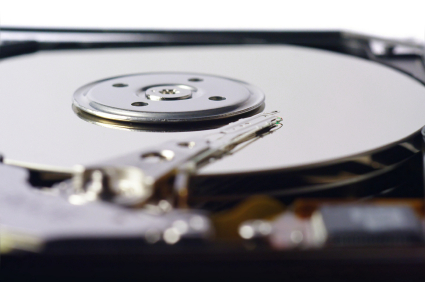
So what is disk defragmentation used for?  Disk defragmentation is for Windows only and it is supposed to help speed up your computer. When hard drives get old and filled with files, the files become fragmented. Deleted files are also scattered and take up space in an inefficient way. When new files are stored, they must fill the space around these fragments. As you can see, the files become scrambled and harder to access. The computer tends to get slower because it must search for files in many locations. A disk defragmentation rearranges and consolidates your files so that they can be located easier, making your computer run more efficiently. Disk Defragmenter is a tool in Windows that performs this task; it runs on a regular schedule and automatically keeps your computer files organized, though you can also make manual adjustments.

Is disk defragmentation necessary?

Disk defragmentation is not required, though it can help your computer run faster. Disk defragmentation rarely occurs today because newer operating systems do not need to be defragmented. Disk storage capacity and speed has increased substantially so the advantages of a defragmentation don’t offer much of an incentive.

Necessity also depends on the age of your computer. If you have an older Windows computer, then you can perform a disk defragmentation, but this process can only do so much to speed up an old system. There is almost no need for manual defragmentation because most tools have an automatic setting. Unless your computer is in an extreme condition, the automatic setting should be enough to maintain the good state of your files.

If your computer is extremely slow, contact an IT technician. Seva Call can put you in touch with the best professionals in your local area. Fill out a short service request on Seva Call’s website and talk to someone who can help within minutes!

What is the Best HVAC System for Homes

Thursday, August 2nd, 2012

What is the Best HVAC System for Homes Heating and Cooling

So what is the best HVAC system for homes.  There are several well-known HVAC system on the market. Before you reach for the most expensive and popular system, you should assess your needs to avoid buying a system you don’t need.

High-efficiency 16 to 23 SEER (seasonal energy efficiency ratio) central air has low running costs and many energy saving features, although it costs more at initial investment. This HVAC system is appropriate for those that live in hotter climates that require longer running air conditioning. Mid-range efficiency 14.5 to 17 SEER are less expensive initially and fair well in terms of utility bill costs. These systems are most appropriate for milder climates that do not experience intense heat waves.

As you can tell, the best HVAC system available on the market is difficult to assess. If there was a superior HVAC system for homes, then everyone would only be using it. However, there is no best HVAC system because people have different requirements.

The secret behind a quality HVAC system in your home is proper installation. You should be more concerned about who installs the HVAC system than the actual brand name or system. You could get the best system installed by the worst contractor, which would lead to quicker malfunctioning in your system. Correct installation ensures that your HVAC system functions efficiently without increasing your utility bill or breaking down.

Sit down with a quality contractor to discuss HVAC systems. You should be paying careful attention to points about climate control and comfort. If you need help finding a reliable contractor, TalkLocal can help connect you with the best HVAC system contractors in your local area. All you need to do is submit a service request on TalkLocal’s website, stating your service need, location, and availability. Then, TalkLocal does the rest, comparison shopping for you and connecting you within minutes to someone who can help.

How to Fix TV Projector

Wednesday, August 1st, 2012

How to Fix TV Projector TV Repair

TV projectors are devices that project images and videos onto screens that are usually larger than normal sized televisions.  TV projectors can be used to display television programs, presentations, movies, and more.  Many people prefer projectors to normal televisions due their ability to display their favorite programs at a much larger size.  Although these devices are often great, they are occasionally known to malfunction.  Read on for more information on how to fix your TV projector.

How to fix TV projector:

In the projector’s service manual is a diagram of the circuits inside it.  In order to diagnose a problem within the projector, you will need a Phillips head screwdriver, a flathead screwdriver, and a circuit tester.

Common problems include blurred/snowy pictures, blotches, random blackness and static.  In order to solve any of these problems, you will first need to unplug the projector so it is not receiving any power.  You should also take out any other devices plugged into it.  Take out the screws on the back shell and pull it off.  Examine the manual and the circuits to try to find what the problem might be.  Replace anything that you cannot fix by yourself.  Replace the shell and see if the projector works.  Plug everything back in and attempt to use the devices together.

Continuing problems

If you’re having trouble diagnosing the problem or cannot figure out how to fix it, hire a professional.  Use TalkLocal today to be connected to several TV repair professionals in your area.  Simply enter your problem, location and availability, and let TalkLocal do the rest.  Within minutes, you will be on the phone with a highly rated TV repair company willing to help.

System Restore Windows Vista

Wednesday, August 1st, 2012

system restore windows vista computer repair

System Restore Windows Vista

Windows Vista has a feature called System Restore that automatically backs up the registry and system files whenever new software or drivers are installed. System restore is useful when you accidentally install malicious software that can make your computer run slowly.

There are two places from which you can use System Restore. In Windows, you can just type “restore” into the Start menu search box and System Restore will immediately pop up at the top of the Start menu. Alternatively, you can type “rstrui” into the search box and hit enter. This will bring up a screen where you can choose to roll back the system to the last restore point you set up. You can click “Recommended restore” and click next, or you can choose a different restore point.

If you choose a different restore point, there will be a list of restore points that you can choose from. If there are any problems or errors while restoring, then try booting up in Safe Mode. For best results, you should always run System Restore from Safe Mode.

If your system won’t boot

If for some reason you can’t even get into Windows, then follow these instructions:

1. Boot off the installation DVD.

2. Choose the “Repair your computer” option on the lower left hand side. If you don’t have an installation disc, you can look up how to make one online.

3. Click next again.

4. Choose System Restore from the System Recovery dialog. It will take a few seconds to load

5. Click next.

6. Choose the drive that your copy that Vista is installed on.

7. Click finish. Windows will restore itself back to its previous restore point.

If you tried all these options and none of them worked, use TalkLocal to quickly get in contact with local IT professionals who can help you.