Archive for the ‘services’ Category


How to Take Care of Trees after Storm

Wednesday, August 1st, 2012

How to Take Care of Trees after Storm Tree Removal

So you might have just experienced a big storm and there are a lot of trees that have fallen.  This article will explain how to take care of trees after storm.  Trees have to withstand high velocity winds and rains during a storm, which can damage the tree’s structure to the point where it’s unable to recover. However, trees are resilient, and many are able to recover from the effects of a storm. So how do you tell the difference between a tree that’s beyond recovery and one that can still be saved? Here are some basic points to consider when you’re deciding to trash or save that favorite tree.

The tree cannot be saved if:

– more than 50% of the crown (the branches and leaves) of the tree is gone.

– the tree is split down the trunk.

– the tree is leaning over with its roots unearthed.

If the tree adds significant value to your property, then it’s probably a good idea to keep it for now and assess the damage later, unless it poses as a danger or is close to collapsing. Remember that in cases where the tree is not dangerous to your property and people, you’ll always have time to decide if you want to take it down later.

Important: NEVER top your tree! Topping your tree involves cutting the top of the tree, which includes the main trunk. It makes your tree much weaker and more susceptible to damage in the next storm.

The tree has a good chance of living if most of the branches lost were small branches, and not main ones. If you do decide to save your tree, pruning is advised to get rid of damaged branches. If a branch is ripping form the tree, always cut at the base of the rip, where the bark is hanging off the main tree. Don’t use chainsaws unless you have been trained or are experienced in using them, as they could be extremely dangerous! You may want to hire a professional arborist to assess the situation, but don’t accept offers from people who go from door to door after a major storm since they’re often unreliable. Instead, you can rest assured that you will find a reliable arborist using TalkLocal, as they only contact quality tree removal professionals in their database. TalkLocal chooses local professionals based on social reputation, online ratings and reviews, and call analytics so you know you are getting the best in your area.


Wiping a Flash Drive Completely

Wednesday, August 1st, 2012

USB flash drives are an easy way to transfer files from computer to computer. After your USB becomes full from storing many files, you may want to clear all of its contents when they are no longer needed. There are three ways to handle wiping a flash drive completely. You can format the drive, manually delete all files, or use a secure data-wipe program.

For all three methods, first insert your USB drive into the port. Then, follow the corresponding steps for your preferred method of data removal.

Format the Drive

1. Click the Windows Start button > Computer.

2. Right click the flash drive.

3. Click “Format” on the menu.

4. Click the check box that says “Quick Format” if you want to erase the flash drive completely. Leave the box unchecked if you want to go through files and clear the content yourself.

6. Click the “Start” button to begin formatting. You will see a pop-up message when the process is done.

Manually Deleting All Files

1. Click the Windows Start button > Computer.

2. Click Organize > Folder and Search Options.

3. Click the “View” tab.

4. Click the radio dial next to “Show Hidden Files an Folders.”

5. Click “OK.”

6. Open your USB file. For Macs, click on “Finder” to access it.

7. Click in the blank area of the USB window.

8. Hold Ctrl+A (Command+A for Macs) to highlight all files.

11. Press the “Delete” key and wait for the files to delete.

12. Right click the “Recycle Bin” (“Trash” for Macs) and choose “Empty Recycle Bin.”

Using a Data-Wipe Program

With the first two methods, your USB drive will be cleared, but you can still access files with data recovery software. You can completely erase these files using a data-wipe program such as Roadkil’s Disk Wipe.

1. Download Roadkil’s Disk Wipe, available from http://www.roadkil.net (This program can be run from a Windows desktop).

2. Extract the contents of the compressed file.

3. Open Disk Wipe.

4. Right click the program icon.

5. Click “Run as Administrator.”

6. Click the drive you want to wipe.

7. Click the type of wipe you want to perform: zero-fill the disk or write random data.

8. Enter the number of passes.

9. Click “Erase” to start the process.

10. Once the process finishes, close the program. Your flash drive is now completely cleared.

If you need additional assistance with your USB drive or computer problems in general, TalkLocal can connect you with local IT support and computer repair technicians.


Safety when Shoveling Snow

Wednesday, August 1st, 2012

Safety when Shoveling Snow Snow Removal

Do you have a driveway and walkway covered in freshly fallen snow?  It’s that time of the year again– time to bring out the shovel and start clearing the sidewalks.  However, remember that shoveling snow can be a potentially dangerous task, and it is very important to practice safety when shoveling snow to avoid any injuries.

– First, it’s likely going to be very cold, so dress in several layers before starting.  As you get warmed up from shoveling, you can easily remove layers.

– Snow shoveling can be a rigorous activity, so be sure to drink plenty of water before, during and after. Warm up before beginning by taking a walk around outside or stretching indoors.

– Pace yourself while shoveling.  This is especially important for the elderly because shoveling can be very physically demanding and can sharply increase your heart rate.  Don’t risk a stroke or heart attack because you’re not used to such a strenuous activity.

– Protect your back.  It’s important to bend with your knees as opposed to bending over with your back when lifting the shovel.  Tighten your abdominal muscles as you lift and try not to use too many twisting movements.  It may even be easier to push the snow to the side, rather than to lift.

– Listen to your body.  Work at a steady pace, and if you are feeling pain, take a break.

– Pick the right shovel.  Plastic shovels usually weigh less than metal ones.  Shovels with smaller blades are also easier to lift and maneuver.

– Avoid caffeine or nicotine before you start shoveling.  If you have a history of strokes, heart attacks, heart disease or smoking, please contact a doctor before taking on this task.  Safety is always most important.

If you have too much snow to remove on your own, or you’d feel better hiring some help, try using TalkLocal, a completely free service that connects you with high quality snow removal companies in your area.  Simply enter in your problem, location and availability, and TalkLocal will do the rest.  Save time searching for the right company, and let TalkLocal do it for you.

Efficient Internet Search

Tuesday, July 31st, 2012

Efficient Internet Search Computer Repair

The skill of efficient internet search is a must-have in a world where everything you could possibly want to know can be found online. Efficient internet searching is not as easy as it may seem–at times, it can even be a frustrating, time consuming process.  With a few tips and tricks, however, you can learn to eliminate the stress of the search.

First, the basics:  a search term that is too general is futile.  You know what you are looking for, so type it!  Specificity is the key to a quick search. If you want to find a solution to a removing a stain, typing “wine stain in satin” is obviously a better choice than simply “stain removal”  Also, if it is a specific term or phrase you are looking for, put your words inside quotation marks.  This will only return hits with the words exactly as you gave them and not sites merely containing the words at various locations.

Another way to narrow search results is to include extra commands in your search.  The easiest of these to use is called Boolean operators (don’t worry, this is a fancy name for a simple concept).  The use of words like “and,” “or,” and “not” restricts the word combinations.  Read what each term will do for your search below:

And:  This operator will only return pages containing all the words or phrases you have given. A general search may return pages related to only part of your query.

Example:  Treasure Island AND Robert Louis Stevenson

Or:  This operator will only return pages containing either of the words or phrases you have indicated. This is a way to conduct multiple, related searches at once.

Example:  public transportation OR subway transit

Not:  This operator will narrow down your results by excluding pages that contain the second phrase you have indicated. With this term you are able to proactively ignore information you do not want.

Example:  Australian Outback NOT steakhouse

Another manner of using extra commands in Internet search is the “+/– ” approach.  By including either of these symbols right before a word or phrase, you specify your intended results.  The “+” sign works like the term “and,” and the “–” sign functions as a “not” (see above explanations).

It is important to remember that not all search engines are the same.  They use different formulas for returning results and may use variant lists of websites from the start.  Therefore, if you are experiencing difficulty with one engine, try another.  You will likely get a new set of results and find what you are looking for.  An even faster way to perform this process is through the use of metasearch engines.  Sites falling under this category pull results from multiple search engines at once, getting you to the information you need faster.

Getting Rid of Stink Bugs

Tuesday, July 31st, 2012

Getting Rid of Stink Bugs Pest Control

Stink bugs, (pictured above,) are some the most annoying pests that invade your home because of the pungent odor that they give off. The smell can be difficult to remove, and it also acts as a signal, notifying other stink bugs in the area that your house is a nice, warm, light place to hibernate for the winter. Because of this, once you get one, you are bound to get more. Getting rid of stink bugs can be difficult, especially because of the even stronger odor they release when crushed.

Preventing Stink Bugs

The best way to deal with stink bugs is to prevent them from entering your home in the first place. If you already have stink bugs, you can try these things to prevent getting any more. You should also keep these tips in mind future years.

1. Make sure you seal everything, especially towards the end of fall when the temperature begins to get cold. This is when stink bugs will be looking for a warm place to hibernate for the winter.

– Put screens on your windows and doors.

– Make sure your screens do not have any holes.

– Check for cracks around your windows, doors, utility pipes, and chimneys.

– Cover any cracks with boards or cement sealant.

2. Spray chemical repellents around your house.

– Spray outside of your house and the area around it with cypermethrin.

– Because of the toughness of the stink bugs’s skin, you may want to use a “spread sticker” to ensure that the chemicals work faster.

– You will need to use about 2-3 gallons of chemicals to effectively spray your house.

Getting Rid of Stink Bugs

If you already have stink bugs in your house, you are going to need a way to get rid of them. Remember, do not squish them, as this will let out a particularly unpleasant odor in your home that will be extremely difficult to remove.

1. Suck up the stink bugs with your vacuum.

– Make sure you seal the bag immediately after vacuuming the stink bugs.

– Make sure you do not crush them until you have gotten the bag far away from you home.

2. Contact a pest control professional.

– If there are too many stink bugs, or you just don’t want or don’t have time to deal with them, you can contact a pest control professional to get rid of the stink bugs for you.

– Use TalkLocal to be put in contact with high quality pest control professionals in your area that are available when you need them.

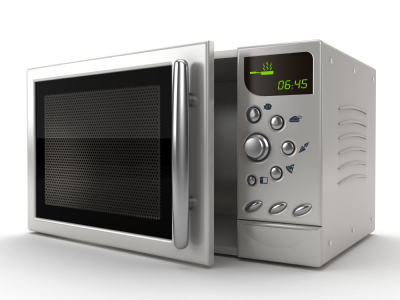
Microwave is Making a Loud Humming Noise

Tuesday, July 31st, 2012

Microwave is Making a Loud Humming Noise Appliances Repair

If your microwave is making a loud humming noise, first check to see if it still heats efficiently. Often, the humming noise is associated with a microwave malfunction. The following tips will help you troubleshoot the problem in either situation.

Replacing your Microwave:

If your microwave is old, it may be more affordable and efficient on your time to purchase a new one rather than trying to repair the existing one. You can purchase a new microwave from Amazon and have it shipped overnight starting at $59.50.

Microwave still heats:

It is likely that grease or food debris is causing the humming sound. Sometimes grease or food becomes stuck behind the stirrer/waveguide cover and creates the noise. Make sure to clean behind the cover to clear away any debris.

Microwave does not heat:

If the microwave does not heat, the humming is likely caused by a malfunction of one of three parts: the power diode, high voltage capacitor, or magnetron.

1) Power Diode — This is an electronic component that readily passes current in one direction only and blocks the flow of current in the opposing direction. If your microwave’s diode has become defective, then your microwave will not heat and you will hear a buzzing noise. Test the diode to determine if this is the cause of your problem. Replace it if it is defective.

2) High Voltage Capacitor — This device stores electricity. Test the capacitor to determine if this is the cause of your problem. A defective capacitor will have to be replaced before your microwave will work again. Make sure you discharge the capacitor before you test it.

3) Magnetron — This is the device that creates the “microwaves” that heat your food. Test the magnetron and replace if necessary.

Caution: Your microwave oven is capable of giving you a serious electrical shock, even when it is unplugged. We strongly suggest you seek the assistance of an appliance repair technician when conducting any microwave oven repair.

You can use TalkLocal to get connected with a reliable appliance repair professional in minutes! TalkLocal will only match you with local businesses that can meet your specific service needs and time restraints.


Should I Make a Trust or a Will

Tuesday, July 31st, 2012

Should I Make a Trust or a Will Lawyers - Family

Every person has to make plans for the future.  These plans will eventually include plans for after death.  There are two options for people making such plans.  You can either create a trust or will.  You might be wondering, “Should I make a trust or a will?”  There are differences between these two procedures and it is up to each individual to decide which suits them best.

There are three things you need to consider when debating between a trust or a will.  First, the probate is the legal procedures needed to be undertaken when someone dies.  These include administrative duties all having to do with a person’s estate.  It is a long arduous process that can be expensive.  The second thing that needs to be considered is estate tax.  Unless the estate exceeds $3.5 million you will not have to deal with this.  The last thing you should think about is the way you own your assets because this prevails even when you are dead.

When you have a will there are both advantages and disadvantages.  When properly prepared, your will can be an easy thing to deal with.  It is quite inexpensive to have a will drawn up.  There are certain disadvantages which include the probate.  The probate is the process of administering the assets by the executor.  This can take up many months and is subject to many fees such as attorney expenses and court costs.  However the will and estate is not subject to probate taxes and costs.

If you decide to go with a trust you will have a lot of advantages.  You can avoid the probate, have more professionalism when your assets are being administered and qualify for a tax advantage if you are married.  The cons of using a trust is that it is more expensive and difficult to create.

Your decision whether to use a will or a trust is entirely personal.  Each individual has their own choice and should not be coerced into something they do not want.  You should consider the value/nature of your assets, whether you want to bear the expenses now (trust) versus after death (will), your lawyer’s advice, and the relatives/people you are leaving behind.

If you are looking for advice on creating a will or trust, you should seek professional help.  Use TalkLocal to be put in contact with reliable local law offices.  You don’t have to do any work! Simply tell TalkLocal your issue and availability and–within minutes–you will be connected with a qualified company.  TalkLocal does all the work and you will have someone who is ready to help you on the phone almost immediately.

How to Network Two Mac Computers Wirelessly

Tuesday, July 31st, 2012

How to Network Two Mac Computers Wirelessly Computer Repair

Macs are seen as one of the most user-friendly computers in the world. The user interface has made for simple ways to perform actions that can be complex on a Windows system. Connecting a Mac computer to another is simple and can be done in minutes without the need of Ethernet cables. Macs can create an Ad-Hoc network which connects the macs wirelessly.  Here we explain how to network two mac computers wirelessly:

Materials

– Airport Base Station ($99.99 at the Apple Store)

– Cable Modem

– BNC Cable (Installed by cable company)

– Cat5 Ethernet cable

– Two Macs computers that are AirPort enabled.

How To Connect Airport Base Station

1. Put the cable modem beside your Airport and connect to BNC cable (if there is only one connection to the TV, use a splitter to split the connection in two).

2. Connect the cable modem to the AirPort by using the cat5 Ethernet cable (the connecting port on the Airport is the one with the circle above it).

3. Turn on the cable modem.

4. Turn on the Airport Base Station.

Connecting the Macs

1. Turn on both Macs.

2. On the Mac that is creating the connection, click the Airport Icon on the finder Bar menu.

3. Click “Create a Network” in the drop down menu. A “Create-to-computer network” dialogue box will appear.

4. Create a name for network in the name box.

5. Below the name box, choose a channel from the “Channel” pull down menu.

6. Check the “Require Password” box if you want a secure connection. You will have to enter and verify the password.

7. Click the blue “Ok” button.

8. On the Mac whose is connecting to the network, click the Airport icon.

9. Click “Computer-to-Computer network.”

10. If a password was made, enter the password.

11. Open a new finder window.

12. Click the “Shared” arrow on the sidebar of the window and choose the network you created.

13. Click “Connect” to log into remote Mac.

14. Disconnect through “Airport Icon.”

In using these simple instructions, the Macs should successfully connect with each other and be able to share files, printers, etc. If there are problems with your wireless connection after troubleshooting, you should contact a computer professional. TalkLocal can connect you with the best computer professionals in your area for free.

Mouse Keeps Jumping

Monday, July 30th, 2012

Mouse Keeps Jumping Computer Repair

Your mouse keeps jumping and its getting incredibly annoying and frustrating. In order to fix this problem, we must first identify the source. The following are common causes for why your mouse keeps jumping:

Optic mouse is reflecting off a glossy surface

If you are using your optic mouse on a glossy surface, such as glass, metal, or even a varnished table, the cursor will have a tendency to jump sporadically. Place your mouse upon a mouse pad or a non-reflective surface instead. If you’re already using a mouse pad, try changing it.

Mouse ball is dirty

If you are using a ball mouse, try cleaning either the ball or the wheels that come into contact with the ball. Oftentimes, debris such as hair and dust get stuck in the wheels and prevent the ball from rotating around. Cleaning the small wheels inside the mouse, in addition to the mouse ball itself, should solve a dirty mouse problem.

Wireless mouse is low on batteries

If you are using a wireless mouse, you might be running low on batteries. Erratic behavior often occurs when batteries are dying, so an easy solution is to change the batteries.

Driver conflict

Newly installed hardware and their associated drivers may conflict with the driver for your mouse. If there is a driver update for your new hardware, try installing it.

Virus infection

Viruses that affect mice are becoming more common nowadays; your best line of defense is virus protection software. There is plenty of free virus protection software out there, such as Avast! and AVG.

Running low on RAM

When the system is low on RAM, many system functions may behave strangely, including the mouse. You can install additional RAM, or perform a defragmentation on your hard drive.

Mouse is broken

The mouse may simply be broken, as wires in the cord can fray and small pieces inside the mouse can fall apart–especially if it’s an old mouse. At this point, it’s probably easiest to replace the mouse with a new one.

TalkLocal is a free service that can connect you to a computer repair technician immediately!

Bay Window Replacement Cost

Monday, July 30th, 2012

Bay window replacement cost Window Replacement

Factors in Pricing

The factors that affect a bay window replacement cost can be divided into three main aspects: size, style, and material. Due to the wide variety of these factors across homes, the cost for a bay window can range from a hundred to a couple thousand dollars for an average sized home.

The size of the bay window will depend on the area where it will be installed. Generally, bay windows that are installed in the living room are bigger than the ones installed in the bedrooms or the kitchen; thus, the former are more expensive to replace.

Bay windows are typically high maintenance. Bay windows have to have a very solid construction and are very expensive relative to other windows, which drives up the price. The mechanical work involved in installing the bay window, such as the crank close/open, has a significant effect on the price as well, depending on the complexity of the work needed.

The material involved in replacing the bay window is probably the most important factor in regard to the price. A range of materials vary from PVC to wood, and specific metals such as aluminum and steel. PVC and plastics are the cheapest materials. Wood and metals are higher end materials.

 Hiring a Professional vs. Doing It Yourself

Replacing or installing bay windows is generally complicated due to the construction involved in the setting of the windows–it is not usually tackled as a DIY project.

It is recommended to contact a major manufacturer of bay windows to get a specific price estimate–based on materials used–on fixing your specific bay window. Then, contact your local window replacement businesses for assistance with setting up the windows.

TalkLocal can help with finding the best local experts to replace your bay window quickly, saving you time and energy in what may be a stressful situation.