Archive for the ‘services’ Category


Moving to College Checklist

Thursday, July 26th, 2012

Moving to College Checklist Moving and Storage

Congratulations! You made it through high school and you’re getting ready to start college, arguably the best four years of your life. While you’re wrapping up your summer and anxiously awaiting the start of the school year, keep in mind the most important things you need to do to get ready for your move-in date.  Here is what you will need when moving to college checklist:

1. Find a roommate—if you have not already done this, make sure your roommate situation is all sorted out. Whether you’re requesting a roommate you already know or being randomly assigned, make sure you connect with him or her and sort out who’s bringing what. In addition to this, learn a little bit about each other to make the whole process much easier.

2. Go shopping—the list is endless, but make sure to get things in each of these eight major categories:

Clothing—casual clothes, dress clothes, extra socks, underwear, etc.

Toiletries—shampoo & conditioner, lotions, razors, toothbrush & toothpaste, and don’t forget a shower caddy and extra towels!

First Aid—Band-Aids, Advil, vitamins, hand sanitizer…stock up on it all.

Electronics—find out the rules of appliances such as microwaves and coffee makers. Don’t forget about lamps, fans, power strips, and extension cords.

Extra furniture—if you have room, bring an extra chair for visitors or a bedside table for more storage room.

Decorations—be creative! You and your roommate can choose to decorate your room however you’d like. Print out some pictures of family and friends to hang and get a poster to brighten things up.

Food—stock up on your favorite snacks in case you get hungry when pulling an all-nighter and the dining hall is closed.

School supplies—laptop, notebooks & folders, pens & pencils, etc.

3. Take care of any last-minute things—if you still need to sort out your schedule, parking, your meal plan or anything else, take care of this now so you can spend less time worrying about it when you get there and more time having fun.

Once all of these things are taken care of, you’re ready to go! Make sure you go over the list a few times to make sure you’re not missing anything, and make an additional list of extra things to get if needed. If you need to contact a moving service last minute, TalkLocal can connect you to a local moving service in minutes!


Stepped on Laptop Screen

Thursday, July 26th, 2012

Stepped on Laptop Screen Computer Repair

Did you stay up late again and then woke up and accidentally stepped on laptop screen? The sound of a cracking laptop screen as you step on it is the only sound that is worse than an early alarm clock. Find out how you can overcome this issue if you accidentally stepped on your laptop screen.

Damaged Laptop Screen Symptoms

You can determine if you need a new screen by connecting your laptop to an external monitor. If you see the problem on the external monitor, then the issue is the motherboard or internal workings of the laptop, not necessarily the screen. If the image on the external monitor is clear, then the issue is likely the laptop LCD screen and it will need to be replaced.

White or colored lines on your screen might mean a few pixels might be missing, in which case you may need to replace the LCD laptop screen.

A series of jumbled images could mean your video card is damaged, and will need to be replaced.

The laptop screen might be dark or flickering, which means your backlight is having technical issues. Or, if the laptop screen is white or dim then it is an inverter problem. The inverter gives power to the backlight, and it is significantly cheaper to replace than the entire screen.

DIY: Fix your laptop screen

You can order an inexpensive screen replacement online via ScreenTek. They also provide LCD screen removal instructions. If the warranty on your laptop is still valid, contact the manufacturer for a screen replacement.

Keep your laptop screen undamaged

Do not place your laptop on the floor. This increases the risk of it being stepped on so always store your laptop on a flat and stable surface, such as a desk.

Do not put anything heavy on top of your laptop. Applying significant pressure to the fragile laptop can increase the risk of damage.

If you must transport your laptop in a bag, try to use a certified laptop case that will protect it. Avoid carrying your laptop in a backpack with books.

Routinely backup your data just in case the damage goes beyond a cracked laptop screen. It is worse to have to replace the entire laptop than to just replace the screen.

Need help?

If you do not feel comfortable fixing your laptop screen by yourself, contact TalkLocal to help connect you with an IT professional who will assist you.

What is Adware and What Does it Do

Wednesday, July 25th, 2012

You might have read about viruses, trojans, worms and other malicious things that can harm the computer.  Another one that falls into this category is adware.  You might be wondering, what is adware and what does it do?  Adware is a malicious program that installs itself on your computer and feeds advertising to your screen, which causes problems with other programs and disrupts the whole operating system. Some adware may redirect your computer to sites that you you do not want to use. Adware makes it hard to reconfigure original settings on your computer because it basically hijacks your computer and integrates itself into the system.

Even seasoned computer users will have trouble removing the adware from computers. Some adware can track your computer usage and send you targeted pop-up ads that are aimed at your particular interests. Adware is essentially the same thing as spyware and the two names can be used interchangeably.

There are three malicious things that adware can do to your computer:

– Adware can slow your computer down by adding sites and using up all the available memory you have on your computer. It may change your home page and take you to sites you don’t want intend on visiting.

– It can create pop-up ads that are annoying and disruptive to your system.

– It can cause your computer to severely slow down, as well as cause software conflicts that make your computer unstable and unusable.

Luckily, there are ways to make it less likely that adware or spyware will be installed on your computer. There are also ways to detect and remove malicious software you may already have. Read the following tips to stay safe from adware:

– DO NOT download software from unreliable sites.

– Be cautious whenever asked to install something new on your computer.

– Use a reputable pop-up blocker or a browser with a built-in pop-up blocker.

– Run an antivirus program and update it often.

If you are still having problems after trying all these things or have questions about adware, then you should use TalkLocal to get the best help in your area from local IT service professionals.

How to Install a Deadbolt Strike Plate

Wednesday, July 25th, 2012

How to Install a Deadbolt Strike Plate Locksmiths

A deadbolt is a very secure type of locking mechanism.  It reinforces the lock on a door by making it more difficult to open.  It cannot be moved into the open position unless the lock cylinder is rotated. Adding a deadbolt will add resistance to entering without the right key do so your home will be more secure.  It is most commonly used as a complement to a normal spring bolt lock at the entrance of the building.  Learn how to install a deadbolt strike plate with the information we’ve provided below.

Installing the strike plate for a deadbolt has to be a very exact process.  A lot of people make the same mistakes when attempting to self-install a deadbolt’s strike plate.  Most commonly, they do not align the strike plate in the exact position to line up with the spring.  Many people also try to install a new strike plate in the same hole formed by the previous strike plate.  They may also be using the wrong size screw because a strike plate requires long ones.

Installing your deadbolt strike plate

When you install a strike plate, there are three parts.  You have to assemble the strike frame reinforce, metal liner and finished strike plate.  You must make sure that you are not installing this new strike plate in the same hole that the old one used because otherwise it will not have good wood to attach to and your plate will fall loose almost immediately.  You will first have to create a slightly large hole.  Then, screw in the rough strike plate.  Next, using two long (3 inch) screws, penetrate the wall frame.  You will need to drill pilot holes for them first.  Then insert both the metal liner and finished strike plate.  You should make sure to test your lock and make any necessary adjustments.

Continuing problems

If you cannot seem to install the deadbolt strike plate properly, have questions before starting, or would like a professional to help you should find qualified companies who can help you out.  Use TalkLocal to be put in contact with reliable local locksmiths immediately.  Just input your problem, location and availability and TalkLocal will do the rest.  Within minutes you should be on the phone with someone who is ready to help you out.

How Much Does a Taxi Cost in Washington DC

Wednesday, July 25th, 2012

How Much does a Taxi Cost in Washington, D.C. Taxicabs

How much does a taxi cost in Washington DC?  Traveling in D.C. can be complicated, but knowing how much it will cost allows you to be prepared and have more control over your travel plans. Check out this Washington D.C. taxi calculator to calculate how much it costs to take a taxi in Washington D.C.

Updates:

As of April 21, 2012, Washington D.C. cab fares increased

– Cab fare – Increase from $1.50 to $2.16 per mile

– Wait time – Up from $15 to $25 per hour

– Luggage – additional fees apply

– Pets ($1) and personal service fees ($2), and gas surcharge ($1) – charges that are no longer in effect

Common costs:

Base Charge – $3.00

Cab Fare – $2.16 per mile

Related taxi costs:

Traffic wait time – $25.00 per hour

Luggage – $0.50 for each piece of luggage placed into the trunk. Small items such as purses, bags of groceries or briefcases are excluded from this charge.


Instead of calling around trying to find a taxi, use TalkLocal to be connected to a taxi service in your area within minutes. This quick, free service makes finding taxis much more efficient and easier.

Is it Safe to Connect an Extension Cord to a Power Strip

Wednesday, July 25th, 2012

Is it Safe to Connect an Extension Cord to a Power Strip Electricians

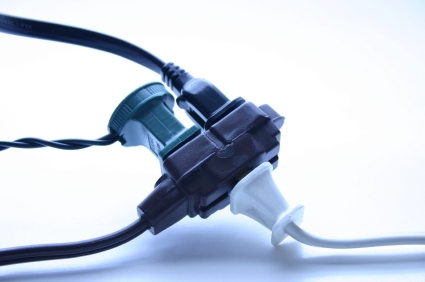
Is it safe to connect an extension cord to a power strip?  Power strips and extension cords are commonly used to increase the number of outlets in your home and to shorten the distance between an outlet and an appliance you want to plug in, respectively. One option to consider is purchasing a surge protector with a longer cord. You can find the highest rated surge protectors with long cords on Amazon and have them shipped overnight starting at $14.98. However, the incorrect use of power strips and extension cords can provide high risks in causing overheating and fires in your home. This article will explain the basics about where, when, and for how long these items should be used.



If you have several appliances that need to be plugged into an electrical outlet (such as having a desk with a computer, lamp, printer, etc), but find that there is no wall outlet nearby, you may have thought of plugging an extension cord into the nearest wall outlet, and then using a power strip to connect to the extension cord, making several new outlets available.

This is an option you can choose, but be aware that in general, the use of extension cords and power strips should usually be for short-term situations as opposed to permanent solutions. In the case above, it might be a better solution to move the desk and any appliances closer to a rooted wall outlet. In addition, when not in use, it is recommended to unplug any cords and turn off any power strips to save electricity and to reduce the risk of sparks and fires. You can find the highest rated extension cords and have them shipped overnight starting at $6.48.

If you are unsure of whether connecting a power strip to an extension cord is a plausible solution in your particular situation, or if you have experienced any sparking or blowing of fuses, you should contact a professional electrician for help. To locate one near you, try using TalkLocal, a FREE service that will connect you with top-quality, reputable electric contractors in your neighborhood, within minutes. Simply enter in your specific problem, location and availability and TalkLocal will contact multiple specialists who will then call YOU directly, ready to help. 

The owner of this website is a participant in the Amazon Services LLC Associates Program, an affiliate advertising program designed to provide a means for sites to earn advertising fees by advertising and linking to Amazon properties including, but not limited to, amazon.com, endless.com, myhabit.com, smallparts.com, or amazonwireless.com.

Ice Maker Dispenser Not Working

Wednesday, July 25th, 2012

Ice Maker Dispenser Not Working Appliance Repair

Ice maker dispensers seem to have a mind of their own sometimes. Fortunately for all of us, there are remedies that can take care of most issues for an ice maker dispenser not working. To be clear, there are many types of ice dispensers, so these directions may not apply to all models.

There are a few reasons for an ice maker dispenser to stop working. The filter may be loaded with too much sediment causing low water pressure. The temperature may not be set properly. Something may be loose. No matter the reason, it can be fixed.

Mechanical or electrical problem?

If you push the switch to get ice and hear a noise but no ice comes out, the problem is mechanical. If mechanical, the problem lies in the ice bin, the ice chute, or the augur housing. If you don’t hear a noise when pushing the button to get ice, the problem is electrical and an electrician will likely have to be called.

Mechanical problem

If it’s mechanical, start off by removing the ice bin and placing that aside. Next, open the freezer door and push the switch to get ice. When everything is working properly, the auger motor (the fork sticking out from behind where the ice bin was) should turn and the solenoid (the device to the right of the auger motor) should jump up. If the solenoid jumps up but the motor doesn’t turn, the motor is frozen. This means there is too much moisture within the freezer, so it will need to be reduced. To reduce the moisture, take out these parts and try pointing a hair dryer on the motor to quicken the process.

If the solenoid works as described, the problem lies in the ice bin or ice shoot. Check the ice bin and make sure there isn’t too much ice in there. If there is, clean it out with hot water. If there is no ice, check and see if the auger motor is broken and if it needs to be replaced. You should also check and see if the ice separator (the divider between the ice storage and the ice dispenser) has a hole in it. This is a common problem so if it does have a hole, it will need to be replaced.

There are also a few things that can go wrong with the ice chute. If the ice cubes are in the ice chute but not coming out, the flapper needs to be fixed. To attempt this, open the door and remove the ice bin, then push the ice switch to open the chute. If it opens but not all the way, check and see if something is blocking it. If not, the problem is more complex and there is an issue with either the flap, spring, crank, or solenoid. You can determine which one is at fault by opening up the front cover of the dispenser, removing any screws and then removing the dispenser control. Once that is done, you should see the flap. Inspect the spring, crank, and flaps and if anything appears broken, they will need to be replaced.

If you have tried all of these and your ice dispenser is still not working or if you want to hire an electrician to fix an electrical problem, consider using TalkLocal, a FREE service that will connect you with top-quality, reputable electricians in your neighborhood, within minutes.

IRS Free Tax Assistance

Wednesday, July 25th, 2012

IRS Free Tax Assistance AccountantsIt’s that time of the year again: tax season. But don’t worry- there are many ways you can prepare for April 17th.

The first thing you should do is organize your papers and documents. Do this at least a few weeks before the dreaded tax day. You could try use a computer program like TurboTax, or keep it low-tech and organize everything by hand.

If you’re experiencing problems, use the IRS free tax assistance online that offers plenty of information on doing your taxes properly. Simply download the IRS’s Publication 17: Your Federal Income Tax from www.irs.gov. The IRS also has a toll-free TeleTax service at (800) 829-4477, with recorded messages on 150 tax topics. Have more questions? You can call the IRS’s 24-hour help line at (800) 829-1040. However, be careful because the IRS does not hold itself liable for tax information given over the phone.

If this doesn’t help, or you’re feeling very overwhelmed, you should get the help of a professional. One way to find help for your tax returns or to figure out which tax bracket you’re in this year, is to use TalkLocal. This free service will contact numerous accountants for you so you can get the help you need when you want it.

Printer Problems

Wednesday, July 25th, 2012

Printer Problems Computer Repair

Printer problems are among the most common computer repair problems. Your printer may fail when you change the printer’s settings or install a new printer driver. If you’ve done either of these things try undoing the changes to see if the printer starts working again.

Check that you sent the print job to the correct printer.

Other times, the printer cannot access the paper in the tray. If you are using a printer where the paper supply sits on a platform rather than inside an enclosed tray, push the paper in toward the printer. If the paper is accessible and the printer still doesn’t work, the printer may have grabbed too much paper beforehand. Clear a paper jam by opening the printer and carefully removing any paper. If an entire sheet of paper is stuck, grab the corners firmly and slowly wiggle the paper side to side until it is free.

If you’re trying to print too many documents at once, you may overload the printer. The printer can freeze if it receives too many documents to print at once. Fix this problem by clearing all the print jobs on the queue. Turn off the computer. Turn it on again and print your documents one at a time.

If these tips don’t fix the problem, it may be time to call for help. TalkLocal is a free online service that can help you find high quality computer repair services. A solution is just a click away; fill out TalkLocal’s service request online and–within minutes–you will be receiving calls from up the three reputable computer repair business who can solve your printer problem.

What is a Trojan Horse and What Can it Do

Tuesday, July 24th, 2012

You might be wondering, what is a trojan horse and what can it do?  Well, a Trojan horse is a type of virus that gives a hacker remote access over your computer system.  Following the myth, a Trojan will pretend to be useful software, and then compromise your system once it is installed in your computer. Usually, users will open them because they believe they are obtaining legitimate software from a trusted source.  This can result from opening a link in an email message or downloading software directly from a site.  However, unlike many other types of viruses, such as worms, Trojans do not replicate themselves once they’ve infected your computer.

A hacker with remote access to your computer can use your computer to do a variety of different functions, ranging from harmless and annoying to malicious and damaging.  The less malicious Trojans can just change your desktop background or replace your icons with annoying smiley faces.  However, the truly malicious Trojans can compromise your computer’s safety.  Trojans can install keylogging software, allowing hackers to capture your keystrokes as you enter specific websites (like banking websites).  Trojans will also create backdoors to your computers, which can allow hackers to automatically upload or download files, crash your computer, or steal personal data.

How can I protect my system?

First, if you think your computer has been compromised, download anti-virus software and run a scan.  This can be any anti-virus software, such as Microsoft Security Essentials or Malwarebytes; use it to detect and remove the infection.

Keep your operating system updated protects your system from security vulnerabilities that Trojans can exploit.  Likewise, installing and using a firewall will protect your computer from outside attempts to gain access or control of your computer.

If you feel your computer is still infected or would like professional advice, use TalkLocal to instantly find highly-rated local IT professionals to repair your computer!