Archive for the ‘services’ Category


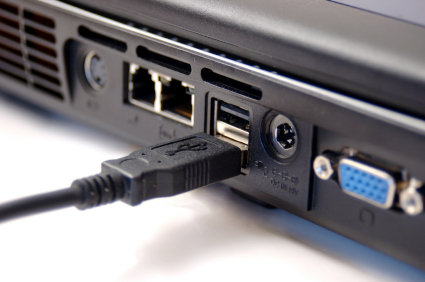
USB Ports Not Working

Thursday, July 12th, 2012

USB Ports Not Working Computer Repair

We use Universal Serial Bus (USB) ports for everything: sharing documents, installing devices, and transferring data. So, when “unknown device” or “USB device not recognized” pops up, a mini panic attack is sure to follow. Luckily, there are a few ways to solve the issue of USB ports not working.

Causes of a malfunctioning USB port

A malfunctioning USB port could be attributed to outdated driver software. A USB port may stop working when you insert or improperly remove a device. Make sure you eject the volume appropriately so that you do not corrupt the files on the USB device or damage your USB port. Please note that a USB device that you formatted for use on a Mac may not work fully on a PC.

USB Port or Device Solutions

–Verify the source of the problem. Check the device manager to scan hardware changes and make sure the device is enabled and recognized. If it is not, plug the USB device into another port or another computer see if the problem is the device or the port.

–Try shutting down your computer for a few minutes and then restarting it to refresh the USB ports. Shut down your laptop and remove the battery for 5 minutes. Restart your laptop and test the device.

–Updating the USB driver can give your computer the boost it needs. Check your hardware manufacturer for the latest driver.

–Removing or uninstalling the USB drivers, followed by restarting your computer. Once your laptop is running, reinstall the USB driver(s) that you uninstalled and connect your device.

Still having problems with your USB port?

TalkLocal is your solution. If the USB port is still not working after these troubleshooting operations, then there may be a problem with the motherboard, which will need to be replaced. TalkLocal can help connect you instantly to the best local technicians and IT service companies to repair or replace your USB port or motherboard. Simply go to TalkLocal and put in a service request. You can get connected to help within minutes–and stop hassling with your USB port.
Apple Computer Is Not Charging

Wednesday, July 11th, 2012

Apple Computer Is Not Charging Computer Repair

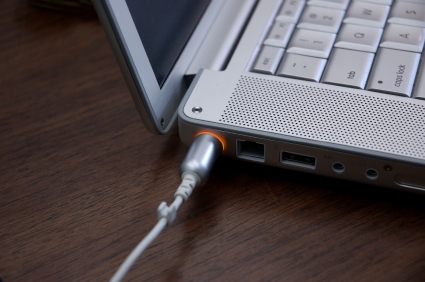
Believe it or not, even the foolproof Mac has issues. Has your computer failed to charge when the MagSafe power adapter is plugged into your computer and a power source?  What do you do when your apple computer is not charging?  Before heading to the frustrating confusion and long lines at the Genius Bar, try the following tricks.

Diagnose the problem area

1.  Go to System Profiler.

2.  Click on “Power” on the left side window pane.

3.  Scroll down to the bottom where it says “AC Charger Information” and it will tell you if your Mac is connected and charging. If it says “No” to both while your Mac charger is plugged in, then the issue is your power adapter. If so, read the next section titled Adjust the connector. If it says “Connected: Yes” and “Charging: No”  while your power adapter is plugged in, then the issue is your battery. Skip to the section titled Remove the battery.

Adjust the connector

–Flip the connector of the MagSafe Power adapter that attaches to your computer. Sometimes one side has better contact with your Mac than the other side.

–Check that the connector and port is free of debris.

–Make sure the pins in the connector are not stuck. Gently push on the pins with a small tool. If these tips don’t work, read on for more solutions.

Remove the battery

1.  Starting with your Mac charger plugged into the computer and connected to a power source, shut down your Mac.

2.  Remove the battery.

3.  Unplug the MagSafe power adapter.

4.  Hold down the power button for 5 seconds and then release.

5.  Plug the MagSafe back into the Mac.

6.  Don’t put the battery back in yet. Plug the MagSafe in and wait for the green light indicator to turn on.

7.  Put the battery back in.

8.  Turn on your Mac. If your computer still won’t charge, read on for more tips.

Reset the SMC

1.  Shut down your Mac.

2.  Plug in your MagSafe Power adapter into your Mac and into a power source.

3.  Reset the System Management Controller (SMC) by pressing “shift + control + option + command + power button (hold for 5 seconds)” and then release all the keys at the same time while your Mac is shut down. This will get the battery to charge.

4.  Press the power button to turn on your computer.

If you Mac still will not charge…

What if you cannot fix it yourself–no matter how many times you bang your computer out of frustration? Instead of wasting time searching for IT forums on the internet or facing long lines at the Genius Bar, contact TalkLocal to  find the best IT service provider to solve your problem.  Simply fill out a short service request on TalkLocal’s website to talk to a high quality local computer repair shop in minutes!

Brakes Squeal in Reverse

Wednesday, July 11th, 2012

Brakes Squeal in Reverse Auto Repair

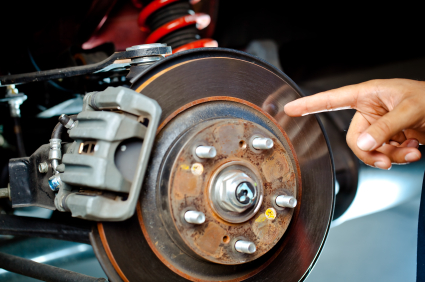
Are your brakes making an annoying squeal every time your car is going in reverse?  Squeaky brakes can be a huge nuisance for any driver and they are a problem that many people struggle to deal with.  If you don’t have much in-depth car knowledge and your brakes squeal in reverse, then you may want to read these tips for fixing this embarrassing problem.

The first thing to realize is that some amount of noise when braking is normal and unavoidable because your brake pads wear over time, though the severity depends on the make and model of the car.  Certain driving conditions, such as stop and go traffic and dusty, sandy, or humid areas can make your break pads worsen faster. Abusive braking practices can also contribute to hardening on the surface of your brake pads, which causes them to squeak when applied.  Depending on how far this hardening process has gone, you may be able to sand the surface smooth with sand paper. Otherwise, you will need to get your brake pads replaced.  It is also possible that there is a faulty part in the brake system other than the pads that needs to be tuned.

There are many spray chemicals sold as brake lubricants that can address the squeaking problem, but unless you are an auto expert, you should use caution putting anything on your brake pads. There is a good chance of messing up and doing even more damage.  There are a couple things that you can try yourself, including performing a series of backing up and braking maneuvers.  To do this, you just need to find an empty lot or stretch of road and drive in reverse while repeatedly hitting the brakes hard.  This can sometimes remove the hardened surface glazing that is causing your brakes to squeak.  Even if this method works, it is important to remember that this is not a long term solution.  The driving conditions that caused the surface hardening will eventually cause the squeaking to return unless they are changed.  You can try to use a gentler and more even braking motion in order to preserve your pad’s condition.

If you need to find an auto mechanic to replace your brake pads or inspect your braking system, you should check out TalkLocal.  You can use TalkLocal to get in contact with a reliable local auto technician within minutes.  Just enter a description of your problem, availability, and location on the website and TalkLocal will connect you directly to someone who can help.

How to Brighten Up a Dark Room

Wednesday, July 11th, 2012

How to Brighten Up a Dark Room Painters

Some rooms are unfortunately stick with bad lighting. However, this doesn’t mean you should settle for poor ambience. A well-lit room can boost your mood and increase productivity, so consider these tips if you are wondering how to brighten up a dark room:

·      Replace light bulbs with compact fluorescent light bulbs that have a higher light out put. “Soft white” bulbs produce a warm light whereas “daylight” bulbs produce a cool and vivid light. As an added bonus, CFLs use less energy than incandescent light bulbs.

·      Fill the room with light-colored furnishings like a white chair or pillow.

·      Add a lamp or two.  Browse sites like Etsy for unique lamps that can double as artwork. Lamps that can be displayed closer to the center of the room will be able to light a room better than ones that are shoved into a corner.

·      Add wall lights to areas where light is more often needed such as inside a closet or near cabinets.

·      Open curtains whenever possible. Sunlight is a easy and free way to brighten up any room. If you want more privacy, invest in some sheer curtains that still allow sunlight to shine through.

·      Add mirrors to reflect the light in the room. Mirrors also make a room appear bigger.

·      Change the detailing in the room using brighter colors. Even small adjustments can transform the look of a room. Try replacing light switch plates or fan blades to give the room touches of fresh color.

·      Repaint the walls. A variety of color choices can brighten and expand a room. Check out color suggestions here (hyperlink to “colors paint to use for rooms with no windows). TalkLocal can match you with a high quality painter in minutes. Just fill out a request form online to talk with painters who can help transform your room.

How to Remove a Very Large Fallen Tree

Wednesday, July 11th, 2012

How to Remove a Very Large Fallen Tree Tree Removal

Removing a large fallen tree by yourself tends can be very difficult and dangerous, especially if you don’t have much experience with tree removal. Using a chainsaw is also extremely dangerous, and if you’re a novice, you should never try to remove a large tree by yourself. Professional help is highly recommended, as fallen trees can occur in many different dangerous scenarios that can’t all be covered in one article. Partially fallen trees are the most dangerous, as they are usually supported by a few branches under great tension and can resume falling at any time. Some tips on how to remove a very large fallen tree are provided below.

–  Always have at least another person work with you. This is in case you get trapped or injured, there’s someone to call for help.

– Partially fallen trees are extremely unpredictable, so always have an exit strategy and a path cleared in case the tree falls or starts rolling.

– You must wear appropriate safety gear, do not even consider using a chainsaw on a fallen tree unless you are well protected.

– Make sure your chainsaw is sharpened before you start the job. Dull chainsaws get caught more easily and makes the job much slower.

– Always stand on the opposite side of the limb you’re cutting.

– Cut smaller branches off first, gradually leaving only the trunk behind.

– Start at the base of the tree if possible, and work your way up.

– Before cutting a branch, check if it’s under pressure first. If it is, cut as close to the pressure point as possible, as branches can whip extremely quickly.

– If large branches are propping the tree trunk up, always leave them on the trunk to prevent the trunk from rolling.

– Every couple of branches, clear the debris from where you are working, as tripping or stepping on a branch could result in horrific injuries.

– If your chainsaw blade ever gets stuck, turn it off immediately. Do not turn it back on until you have removed the blade from the tree. Use a wedge to remove the chainsaw, as pulling with brute force can be dangerous.

– If the trunk is flat on the ground, cut the trunk into multiple pieces first. Make sure your chainsaw is large enough to cut through the trunk of the tree, as one that is big enough to cut off the branches may not be big enough to cut through the trunk.

Removing large fallen trees should always be done by an experienced professional, so use TalkLocal for free to find a highly rated tree removal company in your area today.

How to Handle a Virus

Wednesday, July 11th, 2012

How to handle a virus - Computer RepairNot many people know how to handle a virus. One of the most frustrating things about owning a computer is not knowing what to do when something goes wrong. And to make matters worse, these problems always seem to happen when you’re working on a major paper or when you just finished filing away all your taxes.

One of the worst things that can happen to any PC owner, no matter if it’s a Sony, Toshiba, Compaq, Dell, is the Blue Screen error. It’s also known as the “Blue Screen of Death” amongst its victims.  This error can be caused by device driver problems, programming errors, page faults, or a variety of other errors.

This type of error and many others can cause the system to become unbootable. It renders your hard drive inaccessible and the only way to access data is to use a backup file to restore the data.  The first thing to do is restart your computer.  Sometimes that will fix the problem. If that doesn’t fix it, you may have to optimize your system by upgrading to a new driver, but that can cost a pretty penny.

Regardless of whether or not you upgrade your driver, you should scan your computer for viruses and malware, especially if you download a large amount of files. If no viruses are detected, try to figure out if a specific file or application is causing the error.  If you find that a specific file or application is causing the error, uninstall it.  If you can’t pinpoint any specific file and the problem persists, it’s time to consult an IT professionals.

TalkLocal can put you in touch with several IT businesses who will be on call to help you out during the time you need. It’s up to you to decide when you can get help with any computer repair issues, including the Blue Screen of Death, from any local IT businesses.

Hard Drive Noise on Startup

Tuesday, July 10th, 2012

Hard Drive Noise on Startup Computer Repair

Does your computer sound exasperated or like it’s on the verge of going kaput? Usually all computers make have hard drive noise on startup due to a low hum  from the fan, but a clicking noise could indicate a problem with the hard drive.

Fans

Usually, the fan begins spinning in order to cool off the computer. The power supply fan, CPU heatsink fan, or graphic card heatsink fan may be the source of the noise. This is normal and important for the regular functioning of your computer. Some fans may need lubrication every now and then in order to spin smoothly.

Hard Drive

Hard drives become noisy as they age. Make sure the screws holding the hard drive are tight in order to ensure stability. If your hard drive is making a clicking noise, this could signal an imminent hard drive failure, so routinely save all important files just in case.

Where is the noise coming from: hard drive or fan?

In order to verify the source of the noise, carefully put a long thin stick, such as a coffee stirrer or similar object, in the fan area the next time you start your computer. This will prevent it from spinning, and will allow you to judge if the noise is the fan or something else. Do not block the fan longer than you must for the test.

If the noise continues while the fan is blocked then it is probably the hard drive. You should run a diagnostic scan for any potential errors on your drive and consider claiming the warranty to get the disk repaired or replaced. Make sure to backup important data regularly!

How to deal with a broken hard drive

Don’t replace your hard drive just yet. Hard drives may not function properly on uneven surfaces, such as your lap. Make sure your computer is on a flat, solid surface, such as a desk. Avoid putting your laptop on a bed or other cushioned surface as this could overheat your device and cause it to breakdown much quicker.

If you want to have your hard drive examined by a professional before replacing it, TalkLocal can find you further assistance. TalkLocal connects you instantly with the best local IT service businesses in your area that can help you at your convenience.

How Much Does it Cost to Remove a Fallen Tree

Tuesday, July 10th, 2012

How Much Does it Cost to Remove a Fallen Tree Tree Removal

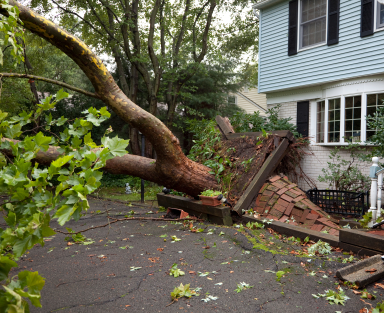
If a storm has caused a tree to fall in your yard, you will likely need a professional to remove it (if the tree fell near any overhead utility lines, make sure you contact your utility company before having any work done). As tree removal is probably not something you commonly need, you may not have much frame of reference for how much this should cost. So how much does it cost to remove a fallen tree?  Read below to get a better idea of costs for this service.

Standard Cost of Tree Removal

Standard tree removal pricing will typically range from around $100 to $1,000. A tree from 25-30 feet tall will typically cost an average of $100-$400 to remove. A tree from 30-75 feet high will usually average $400-$1,000 to remove. A tree over 75 feet will probably cost over $1,000 to remove.

Additional Fees for Tree Removal

– Tree removal companies will typically charge an extra 25-50% if there are utility lines, buildings, roads, or other obstructions under or near the tree.

– You can have the stump removed as well, but this will typically cost an additional $100-$500. Companies usually don’t take care of roots, but they will remove exposed roots around the stump.

– Some companies may charge an extra $65-$150 to chip branches or an extra $50 or so for hauling. Make sure to ask the company if clean up and hauling are included in the estimate they give you.

Finding a Company to Remove Your Tree

It is recommended that you make appointment with multiple companies to give an estimate, so that you can compare the prices they give. One easy way to contact tree removal companies in your area is TalkLocal. In minutes, you will be on the phone with up to three high-quality tree removal companies in you area, that are available when you are.

Noisy Pipes in the House

Tuesday, July 10th, 2012

Noisy Pipes Plumbers

Noisy pipes in the house can be frightening and worrisome. You may assume that they aren’t working, but that is not always the case. Many noisy pipes just thump and groan because the pipes have lost their “air cushion.” Air cushions absorb the shock of water when it is turned off. Air cushions can leak out and result in less “padding” for the water, which causes noise. Luckily, there is a quick fix for this common problem. In order to get the air cushion back, just turn off the main valve by following these steps:

1.  Find the main water valve in your house. If you live in a warmer climate, the main water valve will be located by your water meter. If you live in a cooler climate, the main water valve will probably be in the basement. It should be set in the wall or on the water pipe leading to the water heater. If your water comes from a ground well, it will be on either side of the pressure tank (turn off both in this case).

2.  Shut off the valve by turn turning it clockwise until it won’t turn anymore.

3.  Open all the faucets both inside and outside your home. Leave them open.

4.  Turn on the main valve again.

5.  Turn off all your faucets.

This should solve the problem of having noisy pipes. However if this doesn’t, there’s always help. It may be time to call a pipe repair professional. To find a local service provider that can help with your noisy pipe problem, go to TalkLocal. This free online service will connect you directly to high rated repair services in your area. Just fill out a short online service request describing your problem, availability and location. After you submit, you will receive up to three phone calls from repair services that can tackle your specific problem.

Web Browser Rankings

Tuesday, July 10th, 2012

Web Browser Rankings Computer RepairHow Safe Do You Surf? Here are the web browser rankings below:

#4: Apple Safari

Hacking Safety: Poor

Operating System Safety: Good

Ease of Surfing: Good

Safari benefits greatly from being exclusive to Apple’s OSX Operating System and having a clean interface. Pages load quickly and the toolbar is unobtrusive. However, Safari is actually the easiest major Internet browser to hack, despite the advantage of existing on an OS famous for its lack of viruses. This was discovered after Safari was the first to be hacked at a conference of elite hackers. This makes sense, given that Safari probably has less protection due to the lower rate of virus incidents it experiences. Essentially, Apple is used to not having viruses that they haven’t felt the need to put as much encryption on their browser as Windows based browsers may be pressured to do. While Safari is still an effective browsers, the potential for exploit exhibited by recent epidemics like the MacDefender and MacGuard malware make it the least safe platform to surf on.

#3: Microsoft Internet Explorer 9

Hacking Safety: Fair

Operating System Safety: Fair

Ease of Surfing: Good

Previous iterations of Internet Explorer have earned the browser a bad reputation, but the latest version, IE9, has received widespread critical praise from tech sites such as Ars Technica. With a significantly cleaner interface, IE has gone from by far the ugliest browser to one of the better-looking ones. Unfortunately, it is still probably the most victimized browser in terms of virus infiltration, with almost every virus designed to work through IE. However, this has also resulted in large amounts of encryption by Microsoft to reduce the chance of viruses getting opportunities to infect your PC, making IE a browser unlikely to be hurt by a few viruses the way Safari is. While still not the safest option you could choose, IE does a pretty good job of keeping its surfers well protected from the biggest threats, even if it can’t stop every one of the many viruses that run through its browser.

#2: Mozilla Firefox 4

Hacking Safety: Fair

Operating System Safety: Fair

Ease of Surfing: Great

What gives Firefox an advantage over Internet Explorer is a combination of improved aesthetics and a dedicated community. Thousands of users are designing better, safer ways to surf Firefox through add-ons, a system Mozilla has really pioneered in the browser industry. While these add-ons don’t make a huge difference, they show attention to the individual web surfer in a way that Microsoft and Apple’s browsers don’t. However, this still means that Mozilla is roughly as open to viruses as Internet Explorer is. The reason I give Mozilla the overall advantage is that it has the most user-friendly interface of any web browser. This easy-to-understand layout makes it more enjoyable to surf.

#1 Google Chrome

Hacking Safety: Good

Operating System Safety: N/A

Ease of Surfing: Great

In one of the biggest new hacking tournaments, Chrome was the last of these four web browsers to be hacked. There are a number of reasons that make Chrome more difficult to manipulate, especially the fact that it runs as a “Sandbox”, which means it doesn’t interact with the computer’s operating system, making the Windows/Mac OSX debate irrelevant for this particular browser. This factor makes hackers want to steer clear of Chrome entirely when making their viruses just because they are so used to incorporating the operating system within said virus; so the “sandbox” is an unwelcome change for hackers that requires extra work. This isn’t to say that Chrome doesn’t have its share of bugs, but its system definitely makes these bugs more of a challenge for hackers to take advantage of. Google Chrome is the safest and cleanest system because it has an interface that does away with the toolbar entirely and integrates the tabs into the top of the browser. It may not have Mozilla’s community or personality, but it is superior in safety aspects.