
Mouse Keeps Jumping

Monday, July 30th, 2012

Mouse Keeps Jumping Computer Repair

Your mouse keeps jumping and its getting incredibly annoying and frustrating. In order to fix this problem, we must first identify the source. The following are common causes for why your mouse keeps jumping:

Optic mouse is reflecting off a glossy surface

If you are using your optic mouse on a glossy surface, such as glass, metal, or even a varnished table, the cursor will have a tendency to jump sporadically. Place your mouse upon a mouse pad or a non-reflective surface instead. If you’re already using a mouse pad, try changing it.

Mouse ball is dirty

If you are using a ball mouse, try cleaning either the ball or the wheels that come into contact with the ball. Oftentimes, debris such as hair and dust get stuck in the wheels and prevent the ball from rotating around. Cleaning the small wheels inside the mouse, in addition to the mouse ball itself, should solve a dirty mouse problem.

Wireless mouse is low on batteries

If you are using a wireless mouse, you might be running low on batteries. Erratic behavior often occurs when batteries are dying, so an easy solution is to change the batteries.

Driver conflict

Newly installed hardware and their associated drivers may conflict with the driver for your mouse. If there is a driver update for your new hardware, try installing it.

Virus infection

Viruses that affect mice are becoming more common nowadays; your best line of defense is virus protection software. There is plenty of free virus protection software out there, such as Avast! and AVG.

Running low on RAM

When the system is low on RAM, many system functions may behave strangely, including the mouse. You can install additional RAM, or perform a defragmentation on your hard drive.

Mouse is broken

The mouse may simply be broken, as wires in the cord can fray and small pieces inside the mouse can fall apart–especially if it’s an old mouse. At this point, it’s probably easiest to replace the mouse with a new one.

TalkLocal is a free service that can connect you to a computer repair technician immediately!

Bay Window Replacement Cost

Monday, July 30th, 2012

Bay window replacement cost Window Replacement

Factors in Pricing

The factors that affect a bay window replacement cost can be divided into three main aspects: size, style, and material. Due to the wide variety of these factors across homes, the cost for a bay window can range from a hundred to a couple thousand dollars for an average sized home.

The size of the bay window will depend on the area where it will be installed. Generally, bay windows that are installed in the living room are bigger than the ones installed in the bedrooms or the kitchen; thus, the former are more expensive to replace.

Bay windows are typically high maintenance. Bay windows have to have a very solid construction and are very expensive relative to other windows, which drives up the price. The mechanical work involved in installing the bay window, such as the crank close/open, has a significant effect on the price as well, depending on the complexity of the work needed.

The material involved in replacing the bay window is probably the most important factor in regard to the price. A range of materials vary from PVC to wood, and specific metals such as aluminum and steel. PVC and plastics are the cheapest materials. Wood and metals are higher end materials.

 Hiring a Professional vs. Doing It Yourself

Replacing or installing bay windows is generally complicated due to the construction involved in the setting of the windows–it is not usually tackled as a DIY project.

It is recommended to contact a major manufacturer of bay windows to get a specific price estimate–based on materials used–on fixing your specific bay window. Then, contact your local window replacement businesses for assistance with setting up the windows.

TalkLocal can help with finding the best local experts to replace your bay window quickly, saving you time and energy in what may be a stressful situation.

Steering Wheel Shakes When Braking

Monday, July 30th, 2012

Steering Wheel Shakes When Braking Auto Repair

If your steering wheel shakes when braking, you do not want to ignore the problem for too long or else it could result in an expensive mechanic bill or worse—a car accident.

Why does the steering wheel shake when braking?

Warped brake rotors cause the steering wheel to vibrate when braking. The brakes clamp down on these discs, or rotors, in order to slow or stop your car. Rotors wear down over time, which causes the metal to become warped or thinner. They cannot dissipate the heat from heavy braking and can warp until they cool down.These defects cause the brake to vibrate when the brake pads grip the rotor. This rumbling is then relayed to the steering wheel, hence the steering wheel’s shaking when you brake.

The uneven tightening of the rotors is an issue that should be looked at by a professional car mechanic. They will tighten in a star pattern. You can usually feel the rotor imperfections with your hands or you can test it by spinning the wheel. It should rotate without resistance, however if there are bumps, then your rotor is warped.

It is NOT SAFE to Drive When Steering Wheel Shakes

You should get your distorted rotors looked at immediately because the constant shaking and vibrating could lead to more serious car problems. All the quivering in the steering wheel can cause bolts, brake pads, calipers, and other part of the car to loosen or erode. You will be stuck with a very expensive repair bill if you ignore the initial problem.

Furthermore, a vibrating steering wheel can lead to loss of stability and control over your vehicle. Don’t force yourself to clutch a wobbly wheel because this could increase your chances of a car crash.

TalkLocal can help you find the best and most affordable car mechanics in your local area.

How to Setup Pop Email on iPad

Monday, July 30th, 2012

How to Setup Pop Email on iPad Computer Repair

An email is made up of two parts.  One half is Post Office Protocol 3 (POP3) and the other half is Simple Mail Transfer Protocol (SMTP).  Both of these aspects are important for sending and receiving emails.  Installing/configuring your POP3 or SMTP account is very important but many people don’t know how to do this. Follow the steps below that explain how to setup pop email on iPad.

What is it?

POP3 is the protocol language used to download your email from internet service provider (ISP) and SMTP is the protocol used to send mail. POP serves a communications purpose in connecting your email, a POP client, and your ISP server.  The 3 in POP3 simply stands for third version.

How to Configure

There are three things you need to configure your POP account.  You will need the name of your ISP’s mail server such as something.mail.com, the name of the account you are using (probably same as your email name), and  the password for your account.

Installing a POP3 account on your iPad is similar to setting up a normal account. Follow these steps to install a POP3 account on your iPad:

  1. Click Settings >> Mail >> Account >> Add account.
  2. When it asks the type of account, you should click Other.
  3. Enter all the information it requests.
  4. Click Save.
  5. Two options, IMAP and POP, will show up at the top.  Click POP.
  6. Fill it out the following form completely.
  7. Wait to see if it verifies. If so, you are done.

Problems

If the iPad cannot verify the server, it will show an error.

  1. Click Details >> Accept.
  2. Click Home >> Settings >> Mail, Contacts, Calendars
  3. Click the email you set up earlier.
  4. Double check to make sure POP and SMTP settings are correct.

If you continue to get errors or have problems when installing POP3, you should consult with a professional.  While the apple store Genius bar can help, it may be expensive.  If you’re looking for an alternative, use TalkLocal to get the help you need from local professionals. TalkLocal will connect you with a reliable IT service professional within minutes.

Effective Income Tax Preparation Tips

Monday, July 30th, 2012

Effective income tax preparation tips Accountants

Filing for annual income taxes can be a confusing process. Filling out numerous forms as well as making sure you meet all the deadlines can also be very stressful. Referring to a list of effective income tax preparation tips will make the whole process much more simple. Here are some general tips that will assist you in filing your annual income tax:

1. Plan ahead. Never wait too close to the deadline to get started. Planning ahead can even increase your chances of obtaining a higher refund. It will also help you avoid mistakes and miss out on extra exemptions that can reduce the total amount you pay in taxes.

2. Try out E-filing. Completing your taxes online will definitely quicken up the process. E-filing is considered to be one of the fastest ways to file your taxes and process your refund, and it will help you avoid a lot of paperwork.

3. Use Reliable Software Programs. There are a lot of available software programs that are designed to help people with income tax preparation. These programs are extremely useful in accurately and quickly filing your income taxes, and they can be updated annually. Make sure that you look for a program that is compatible with the operating system that you are currently using. Download the complete version online or install it using a set of disks that can be purchased locally.

If you’re still looking for help filing for taxes, consider hiring a professional. TalkLocal can connect you with a highly rated local accountant within

How Often Should You Get a Wheel Alignment

Friday, July 27th, 2012

How Often Should You Get a Wheel Alignment Auto Repair

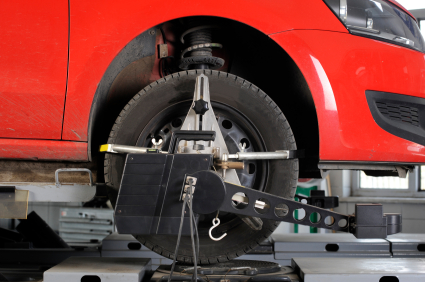
If you are wondering how often should you get a wheel alignment, the first thing you should do is look at your tires. Uneven tire wear—usually more on the outside of the tires—is a prime indicator that your car’s wheels are out of alignment. Here are a few other indicators you should look for:

– Your car seems to drift to one side, even when you are driving straight.

– Your steering wheel vibrates.

– You are driving straight, but your steering wheel is not centered.

Even if you don’t notice any of these indicators, you should have your wheel checked if it has been awhile since your last alignment. Check your owner’s manual to see how often your car manufacturer recommends having this service.

Don’t worry if your car is out of alignment; it is a common result of everyday driving. Normal driving causes your car’s suspension to become worn and the springs to be stretched out. Even a small accident such as bumping a curb can disrupt a car’s suspension, making your wheels sit at improper angles. A proper alignment restores these angles to correct their measurements, making sure your wheel sits straight.

The biggest benefit of an alignment is less tire wear. When tires do wear down, they will do so evenly on a properly aligned suspension. Tires are expensive, they can easily reach over $100 per tire; an alignment costs $50-$100, which makes it a cost effective procedure that should be apart of your regular car maintenance. A proper alignment will make sure that your car drives straight and handles properly, which makes driving safer. Another big benefit is better gas mileage because your tire will be properly aligned with the road, decreasing resistance.

If you still have questions about when you should get a tire realignment, or if you need one done, use Seva Call to get in contact with local tire repair shops immediately.

How to Pick a Window Replacement Company

Friday, July 27th, 2012

Much of the process in finding a good replacement window at an affordable price is literally “window shopping.”  There are many different window companies out there, each with a large range of quality and prices. This article will explain how to pick a window replacement company.

You must compare windows from across multiple companies to determine the one that’s perfect for your needs. Home improvement companies usually give free estimates, which is something you should take advantage of when you’re looking for a replacement window. Don’t work with companies that do not give free estimates, as there are usually plenty of local window replacement companies that do. Always sit down and compare prices after talking to different window companies and never make a decision on the spot. Once you gather a range of estimates, there is always the chance that you can haggle the price of one company’s windows down using the quote from another company. Window companies are used to offering you their high to medium range windows first in order to make a bigger sale. If you’re just looking for a cheap window, you should be stubborn with your budget limitations.

Bigger firms tend to have access to better materials than home improvement stores; they also tend to be more like to stay in business for longer periods of time. This guarantees that there will be someone there to consult with if there are problems with your window in the future. Make sure the company you work with has a long history in the area, as that establishes their reputation and generally means that they are a reliable company.

Looking for a reputable window replacement company can take a long time and a lot of effort, which is why Seva Call has a free service that can find a highly reliable window replacement service for you. Just go to their website and enter your service need, location, and availability. Seva Call then connects you with up to three high rated companies–so you don’t have to worry about comparing and researching dozens of companies!

No Computer Audio

Friday, July 27th, 2012

No Computer Audio Computer Repair


You’re trying to watch a movie on Netflix when you realize that your computer audio is not working.  The speakers are on max but no computer audio is coming out and the only way you can watch the movie is with Closed Captioning. This is a common problem amongst computer owners. But that doesn’t mean it’s not a frustrating computer problem that needs attention.

One way to fix this problem is to restart your computer. Sometimes a little rebooting is all that is needed. If you have a PC, you can try updating the sound drivers.

How to Update Sound Drivers:

1.  Click the Start button >> Control Panel.
2.  Click System and Security.
3.  Click System >> Device Manager. This will take you to the sound devices.
4.  Double-click the sound device for which you want to update the driver.
5.  Click the Driver tab >> Update Driver.
6.  Click OK and do this for each sound device.

If this doesn’t work, you might need a technology consultation with an IT specialist. One way to seek immediate service help for your computer problem is through TalkLocal. This free online service will connect you with computer repair services in your area who can solve your specific problem. Just fill out a short service request on TalkLocal’s website stating your service need, availability, and location. Within minutes, up to three reputable service providers will contact you over the phone to help you with your audio problem.

HP Touchpad is Not Working on My Laptop

Thursday, July 26th, 2012

HP Touchpad is Not Working on My Laptop Computer Repair

A common problem for people with HP laptops is that the touchpad/mouse gets stuck and does not work properly.  This article explains what to do when your thinking “why is this HP touchpad is not working on my laptop?”  This is a seriously disabling problem during which the user cannot really use their computer.  Why does this happen and how can you fix it? The following steps will attempt to explain why the HP Touchpad is not working on your laptop.

Why

Your HP computer touchpad could stop working for a couple of reasons.  It could be something as serious as the driver being corrupted or something as simple as a glitch in the system. Whatever the reason, the issue is serious and should be corrected as quickly as possible.

What you should do

The first thing you should do when your mouse pad freezes up is step back and give the computer time to catch up and cool down.  It could be a simple overheating problem.  If this does not work you should then try to reboot your computer.  The laptop may have had a minor glitch and a simple restore could set it right.  A more severe step to take would be to restore the entire system. A hard reset may be in order if nothing fixes the freeze.  To hard reset you should disconnect the AC adapter, remove the battery, hold the power button foe 2 minutes, reconnect both the AC and battery and turn the computer on.  If the problem continues to persist it may be an internal issue in which case you should contact a professional.  The touchpad is connected to the motherboard by a thin ribben cable with a clamping connector and it could have come loose.  This is an easy fix if taken to a professional.

Who can help me?

If your touchpad is still malfunctioning you should try and get in contact with an IT service professional. By using TalkLocal services you can make this process much easier.  Simply type in your problem and availability and TalkLocal will do the rest.  They will call reliable local computer businesses and put them in contact with you almost immediately.

Windows XP Corrupted Registry

Thursday, July 26th, 2012

Windows XP Corrupted Registry Computer Repair

A Windows XP corrupted registry prevents you from starting your computer. More recognizably, the Blue Screen of Death appears. One of the following messages also pops up when your Windows XP has a corrupted registry:

Windows XP could not start because the following file is missing or corrupt: \WINDOWS\SYSTEM32\CONFIG\SYSTEM

Windows XP could not start because the following file is missing or corrupt: \WINDOWS\SYSTEM32\CONFIG\SOFTWARE

Stop: c0000218 {Registry File Failure} The registry cannot load the hive (file): \SystemRoot\System32\Config\SOFTWARE or its log or alternate

System error: Lsass.exe

Don’t panic! Keep reading to figure out how to solve this issue.

Causes of Windows XP Corrupted Registry Error

Registry hives store all software installations and software settings. So as you use your computer and install more programs, you will have a bloated registry–which is likelier to corrupt and harder to navigate.

Windows XP Corrupted Registry Repair

You can quickly fix the registry error yourself. Windows has an Automatic System Recovery (ASR) that is included in the Windows XP operating system. Windows recommends trying this before manually restoring your system. The ASR detects computer failure and recovers your computer. Routinely backup your data using the ASR in case your registry is ever corrupted. ASR will restore the disk configurations from the saved backup file.

If this does not work, see Windows for a step by step guide to recover the corrupted registry via the Recovery Console. Print out the instructions since you will not have access to them during this process.

You may also turn to a registry cleaner that automatically cleans the excessive data in your registry. You do not need any computer knowledge to use this! Search for a Windows XP registry cleaner online.

If you prefer to have a professional take care of your registry woes, contact TalkLocal to help connect your with the best professionals in your area.