Archive for the ‘services’ Category


How to Unclog Air Ducts

Tuesday, September 18th, 2012

How to Unclog Air Ducts Heating and Cooling

Clogged air ducts can be damaging to your home and your health. Clogged air vents cause higher energy costs as it increases the amount of energy used to power air-conditioning or heating units.  Also, clogged air ducts can contain mold, dust, bacteria ,and fungi that are dangerous to human health.  However, don’t worry because it is easy to clean an air duct. For severely clogged air ducts, a professional is recommended.

How to Unclog Air Ducts:

Inspection

1. Turn on the central air-conditioning unit.

2. Go to each duct and evaluate air flow coming out of the vent.

3. Unscrew the vent and inspect vent for dust buildup.

4. Use a flashlight to inspect the inner duct for excessive buildup. If there is not excessive dust buildup, screw the plate back on.

Vacuuming

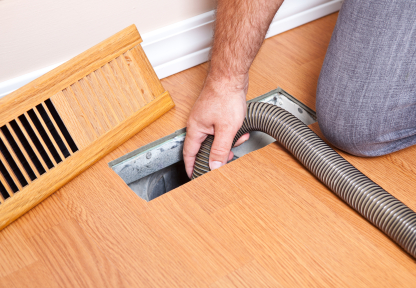
1. Find or buy a vacuum cleaner hose with strong sucking power. The more sucking power, the better the cleaning of the air duct.

2. Insert hose deeply into the clogged duct.

3. Begin vacuuming from the deepest point and work toward the vent opening.

4. After cleaning, screw plate back on the air vent.

Remember, air ducts cannot be completely cleaned without professional help. For professional air duct cleaning, use TalkLocal. TalkLocal will connect you to the best HVAC professional in your area.

Toaster Oven Timer Broken

Tuesday, September 18th, 2012

Toaster Oven Timer Broken Appliances Repair

Toaster ovens are a compact and easy way to cook for one or two without having to waste the energy needed to power a conventional oven. The timer knob on the toaster oven allows you to set some food in the oven and not worry about it burning.  The oven gives off a loud ding alerting you to when your food is ready. So if your toaster oven timer is broken, you should try to fix it as soon as you can and there are a couple things that you can do.

You can try to replace the knob or simply get a separate timer.  To replace the knob, open up the side panel on the oven; you will see the wiring for your toaster oven. Check that the two wires that connect the switch to the oven are intact.  If not, use electrical tape to fix them. If the wire is beyond repair, you should get replacement wires from the hardware store. You can also buy a replacement knob from the manufacturer for around $5. Pull the knob off from the front after you remove the housing screws and replace the wires and knob. Replace the side panel and see if the knob works again.

Another option you have is to get a side timer. You can set the timer and walk away, but be sure to return as soon as the timer goes off so that you can turn the oven off.  This option is not directly attached to the oven so the heat will not turn off with this timer.  You should be vigilant when you use this kind of timing option.

Continuing Problems

If neither of these options work you should either replace the entire toaster oven or seek professional help.  Use TalkLocal to be put in contact with reliable local businesses within minutes.  You don’t have to do any work! Simply input your problem and availability and TalkLocal will do the rest.  Almost immediately you will be connected with someone who can help you out on the phone.

How can I tell if my USB Port is 2.0 or 3.0

Tuesday, September 18th, 2012

How can I tell if my USB Port is 2.0 or 3.0 Computer Repair

Your computer has 5 USB ports on it but you are unsure if they will support your devices.  It could be because of the the type of USB port your computer has or the type of USB port your device will need.  If you are wondering, how can I tell if my USB port is 2.0 or 3.0 then you have come to the right place.   This article is here to provide you with answers.

Do 2.0 and 3.0 ports look different?

Yes, 2.0 and 3.0 ports look different. Check out this link to see a great picture demonstrating the different connectors. As you can see from the picture, the 3.0 USB port has what almost appears to be an additional section to it.

If I am using Windows, how can I check to see if I have a USB port 1.1, 2.0 or 3.0?

First, right click on My Computer. Find your way to the Hardware tab and then click on Device Manager. Device Manager will lead you to an option called Universal Serial Bus Controllers. By expanding this option, you will see the different USB names.

What do the different names mean?

– If you see “Universal Host,” then you have a USB port version 1.1.

– If you see a port name with both “Universal Host” and “Enhanced Host,” then you have a USB port version 2.0.

– If you see “USB 3.0,” then you have a USB port version 3.0.

If you don’t want to browse through your computer to determine your version, you can also use the model number for your computer to look up your USB port information in Google.

To learn more about your computer and your USB ports, check out TalkLocal, a free service that helps you find professional help that accommodates your schedule. You will be connected within minutes to professionals right in your neighborhood! It is easy and quick to use. Simply enter your service need, location, and availability onto TalkLocal’s website. You will have all of your computer questions answered!

Best Moving Truck Prices

Monday, September 17th, 2012

Best Moving Truck Prices Moving and Storage

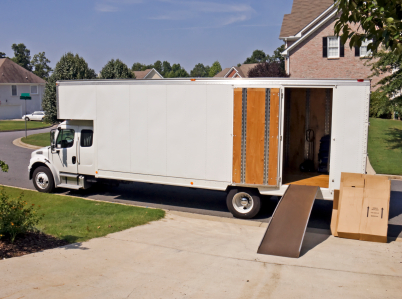
Whether you’re moving down the street or across the country, you may want to consider renting your own moving truck rather than the more expensive option of hiring a moving company to do the work for you. If you do opt for the former, often the biggest deciding factor is price: price of the truck rental itself, boxes and other moving materials, insurance, and moving per mile of travel.  Check out this article to learn about the best moving truck prices.

If you’re not sure of which moving company has the most affordable prices, here’s what you can do to evaluate all your options:

– Before calling different companies, figure out a list of what you’re moving and the number of boxes you think you’ll need.

– Figure out the location and the approximate number of miles your trip will be.

– Approximate the number of days you’ll need the truck rental.

– Decide if you want to purchase insurance for the moving truck and your valuables.

– Decide if you will need a car carrier or dolly.

– Make a list of companies to call (popular truck rental companies include U-Haul, Budget and Penske).

The next step is to individually call each of the companies on your list and ask them the approximate prices based on the above information. You can then evaluate and compare your quotes, and finally make a decision on which company to rent from. This review site gives an effective comparison of major moving companies in several categories relating to the moving process.

If you want someone else to do all the work for you, try TalkLocal, a free service that will connect you with top-quality, reliable moving companies in your area, within minutes. TalkLocal uses online ratings and reviews, social reputation, and call analytics to find you the perfect company for your job. Simply enter in your problem, location and availability, and TalkLocal will contact multiple movers who will then call YOU directly, ready to help start your moving process.

Pros and Cons of Solid State Drives

Monday, September 17th, 2012

Pros and Cons of Solid State Drives Computer Repair

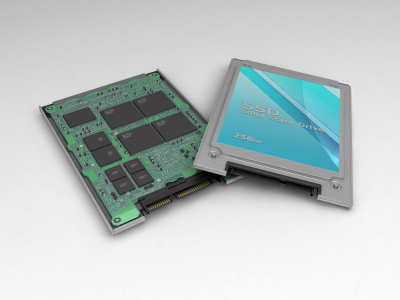
What are solid state drives? They are drives similar to the workings of the hard drive, but differing in a few ways. It is up to you to decide to use them instead of using a hard drive, if the need exists. Read this guide for more information about the pros and cons of solid state drives.

Pros

On the whole picture, solid state drives feature a consistent speed (little lag) once the data has already been prescribed and stored. So they are more reliable on the processing side as well as the hardware side (less likely to break down due to the factors in design). However the current technology has not yet made the storage space for the solid state drives to catch up with the hard drives. But in terms of MB/$ ratio, hard drives are by far cheaper and more compact (in terms of storage volume – bytes).

Another good thing about them is that they store data without moving, meaning that the device in itself is more durable and stable. It is less likely to break down because the internal components aren’t supposed to move around anyway.

Because there is no movement in internal components involved, there is no noise in operating a solid state drive as opposed to hard drives. Solid state drives have a higher tolerance for impact and humidity.

Cons

The downside to owning and operating a solid state drive is that they eventually wear out. The bits (information data storage units) inside a solid state drive are limited to a certain number of overwrites. Although the data is essentially recordable (can be erased and written), it has an expiration date.

Also, the flash/MLC based solid drives are said to be generally weaker (has a slower processing power) than the hard drives. Due to the slow speed it is generally not recommended for an active use. However, they do make good storage drives because already written files are easily retrieved.

Additional Help

If you feel like you need professional help on evaluating pros and cons of solid state drives, TalkLocal can help with finding the correct local experts in this case, saving you time and energy in what may be a stressful situation.

How to Program a Thermostat

Monday, September 17th, 2012

How to Program a Thermostat  Heating and Cooling

Knowing how to program a thermostat is a crucial skill to have. If you have a manual thermostat, that means you’ll need to set the temperature yourself and wait for the temperature to adjust. Rather than wasting your own time, energy, and of course, money, try switching to a programmable thermostat. Having a programmable thermostat allows you to set a temperature that adjusts itself when needed.

So how exactly do you program a thermostat? Well, first you need to find out whether your thermostat is programmable or not. If it has only a temperature setting and the ability to turn it on or off, then your thermostat is an older model.  If you have one of these types, you will need to purchase a programmable thermostat in order to start saving money.

The programming itself will vary from thermostat to thermostat. Most thermostats will have a way to program the thermostat directly by means of a schedule or program button. If you need help with this part, consult your user manual for directions on what to do.

To effectively and efficiently program your thermostat, there are some general rules to keep in mind.

1) Make sure to program the thermostat so that it turns off heat or air conditioning when you aren’t home. Schedule it to return to the regular temperature again roughly 20 to 30 minutes before you get home.

2) Program the weekend based on your schedule. Many people are home on Saturdays and Sundays so you’ll want to keep the thermostat on if you’ll be home.

3) Program your thermostat so that the heating or cooling turns off or is reduced when you’re sleeping. Once you’re asleep, you probably won’t notice any changes in temperature. Set the thermostat to turn back on about 20 to 30 minutes before your alarm goes off in the morning.

4) Should you decided to go out of town, make sure to shut down your programming for the duration of your trip. However, if you have pets in your home or you live in a very cold climate, keep the heating on and ensure the temperature is set above 55 degrees.

Once you program your thermostat correctly, the savings will be evident in your heating and cooling bill. Knowing how to program a thermostat correctly is a vital step to maintaining an efficient home air conditioning system.

If you have followed all these instructions and still need assistance, consider using TalkLocal. TalkLocal is a free service that will connect you with top-quality, reputable heating and air conditioning companies in your neighborhood within minutes. Just enter in your specific problem, location and availability, and up to three companies will call YOU directly, saving you the time and stress of finding one yourself.

Cost of Getting Locks Rekeyed

Monday, September 17th, 2012

cost of getting locks rekeyed Locksmiths

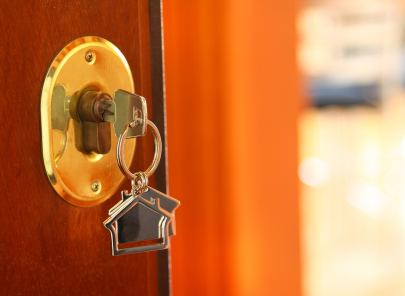
Buying new locks for a door can be expensive, so it is advised that you simply rekey your locks. Better yet, learn how to rekey your own locks so that you can save yourself the time and cost of getting locks rekeyed by a professional.

How to Rekey a Lock

You can buy a rekey toolkit for around $10 in a utility store, such as a Home Depot. Rekey toolkits exist for most popular brands — if you have a lock that is pretty old or is custom-made/foreign, consult a professional instead of reading this guide.

Buying a toolkit is a good investment because it is designed for a brand of lock and can be used multiple times (depending on the number of the pins that came with the toolkit). Most toolkits can be used around six times.

First, remove the knob of the door that you want to rekey. To remove the doorknob, insert a metal wire into the side of the knob, depress the knob, and pull it off. Then push the lock cylinder out from the knob by pushing it out after popping off the knob sleeve.

There is a retainer ring on the cylinder that secures the contents of the lock cylinder. Push the retainer tool against the proper slot of the retainer ring to remove it. If you don’t know the proper slot, refer to the instruction manual that came attached with the toolkit.

Remove the cylinder plug from the cylinder. The cylinder plug houses all the small pins that come down on the key to make sure the key is a match before unlocking. Once the cylinder plug is out of the cylinder, you can replace these small pins with the pins that came when you bought the toolkit.

Replace the color-coded pins to match your new key (that also came with the new toolkit). Then carefully put everything back and it should be set. Test the lock (without actually locking the door at the frame) to test if the key works. If it doesn’t work, take it apart to see what went wrong and fix the problem.

Additional Help

If you feel like you need professional help on figuring out the cost of getting locks rekeyed, TalkLocal can put you on the phone with the correct local experts in minutes.

How to Clean Out a Laptop Fan

Monday, September 17th, 2012

How to Clean Out a Laptop Fan Computer Repair

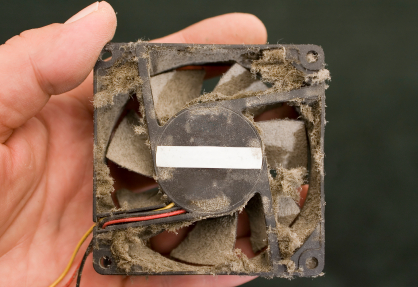
Have you been trying to figure out how to clean out a laptop fan? Perhaps you know that a dirty, dusty fan makes your laptop run inefficiently and heat up. As your computer heats up, it runs even slower. But what are you supposed to do? The following was written to provide you with information and tips when it comes to cleaning out a laptop fan.

Beware that if you take apart your computer to perform repairs and maintenance of your own, you may be voiding your warranty. Check your paperwork and warranty information online. Also, take your time and use caution as your operate on your computer. Before you begin, turn the computer off and unplug it from its power source.

Use a compressed air can as your primary tool in this repair. First, remove the screws from the back of your computer in order to access the fan. Once the cover is off, locate the fan. Use cotton tips and cotton balls to remove the dust and dirt from the fan blade.

After you have removed the main particles from the fan and surrounding area, get ready to use the compressed air can. The compressed air can is a great tool for clearing out very small particles that you may not see or that are in hard to reach places. Point the nozzle into the area you would like to clean and press to get the compressed air flowing. After you are finished, turn the computer upside down to release any loose particles. Return the computer cover to its original place and replace the screws.

A bit wary to try this on your own because you do not want to mess up your computer? Or think there is something else wrong with you computer? There is hope! Check out TalkLocal. You will be connected within minutes (for free!) to professionals right in your neighborhood that can help you with your problem!

How to Fix a Laptop Speaker

Friday, September 14th, 2012

How to Fix a Laptop Speaker Computer Repair

Your laptop speakers, unlike most desktop speaker sets, are integrated into the laptop case. This makes it very difficult to diagnose a problem of busted laptop speakers. Fortunately, there are some ways to diagnose your issue and resolve them.  However, if the speakers having a faulty connection, it may be easiest to call a professional to do the work, rather than personally disassembling your laptop (especially if you are uncomfortable with it). If you still want to learn how to fix a laptop speaker, then read on below.

Sound Drivers

Outdated sound drivers may also be a potential source of the speaker problems.  You should first open up the Device Manager in your system (you can simply search in the start button “Device manager”), then open the Sound tab and choose the speaker device.  Right-click on that device and then click on the Driver tab. Then click “Update Driver,” which should do the rest of the process automatically.

Sound Card Issues

The easiest thing to do first is to check that your speakers are not malfunctioning due to a faulty connection.  Simply plug some headphones into the headphone jack. If you hear sound, then there may be a faulty connection to your speakers.  Verify that the sound isn’t muted and the slider is all the way up.  If there continues to be no sound, you may also want to do a system restore to the point that you originally had working speakers to make sure that a software configuration did not cause the problem.

If you think there may be a faulty connection to your speakers, it’s highly recommended that you contact a computer repair professional to help fix your speakers, as disassembling and working with laptop internal parts is quite hard.  TalkLocal can put you in contact with highly rated local IT professionals in just minutes, so you’ll have this problem taken care of in no time.  Simply input your problem and you’ll get calls up from three professionals instantly!

Small Hole in Front Tooth

Friday, September 14th, 2012

Small Hole in Front Tooth Dentists

A small hole in your front tooth can be a frightening situation. You may be wondering if it can be fixed and if others will notice it. You don’t have to worry – there are solutions to make it look as good as before! Before fixing the hole, however, you should locate what caused it in the first place so you can discontinue the harmful practice.

Possible Causes for a Small Hole in Front Tooth:

  • One rarely published pain source results from bleaching trays and solutions. If you are using an intensive treatment on your teeth to make them whiter, there may be adverse side effects. These side effects can make your teeth weak and lead to damages, such as small holes.
  • Cavities — Enough said, right? Unfortunately, that little hole in your front tooth may be the result of decay and cavities.

How to fix it

Schedule an appointment with your dentist and get the hole checked out as soon as possible. The longer you wait, the larger the hole will be — which will be more expensive to fill. If it gets too bad, the dentist may have to remove it. Hopefully, you have not reached the point where extraction is the only option left. The dentist has a great solution to fix small holes that are discovered early. There are tooth-colored and white fillings that can be used to fill in the hole and make it look similar to the surrounding teeth.

Brush your teeth and floss regularly to keep further cavities from springing up. In addition, regular cleanings from a dentist may be worth the money to keep cavities from forming in the future.

Find Help

Check out TalkLocal. You will be directed to professionals right in your neighborhood that can help you! Within minutes of requesting help, you will have up to three professionals call you. Try it out!