Archive for the ‘services’ Category


Pilot Light went out on Furnace

Friday, August 31st, 2012

Pilot Light went out on Furnace Heating and Cooling

The pilot light went out in your home furnace and you aren’t sure what to do.  First,  here is some background info. The pilot light on your furnace is a small flame that hits a thermocouple above it, which creates an electrical current that holds a pilot valve open, allowing the pilot gas to flow.  If the thermocouple gets too cool, then the gas intake will shut off and flame will die.  So when the pilot light goes out on your furnace, you can usually pin it down to one of three causes:

Lazy Flame

A lazy flame is usually yellow in color and weak when compared to the blue, noisy, crisp pilot flames.

Without the proper amount of oxygen, the blue flame will turn into a weak yellow flame and no longer heat up the solenoid properly, leading it to extinguish the solenoid.  Check your air intake valves by the pilot light; they often times gets clogged with dirt and make the pilot flame weak and ineffective.  Strengthen the flame by sanding and clearing off the grime obstructing the intake valves.

Bad Thermocouple

Since the thermocouple regulates the amount of pilot gas released, the thermocouple itself is an integral part of the pilot light.  If the thermocouple is bad or faulty, then it will not properly register the heat given off by the pilot flame and erroneously extinguish the flame.  In some cases, you may be able to sand down the thermocouple (there may be dirt or grime that makes the temperature readings inaccurate), but in other cases, you may need to replace the thermocouple itself.  Fortunately, the thermocouple is a relatively cheap replacement part you can find around your local hardware stores (usually around $10).

Backdraft

Another potential reason that the pilot light goes out is a backdraft from your vents.  High winds may create a backdraft in your vents, blowing wind back toward you pilot light and extinguishing it.  While this is uncommon, you may want to have a professional look at your situation to be certain that you don’t need to completely replace your furnace.  TalkLocal can connect you with high quality heating experts in your area in just minutes! It’s fast, easy, and completely free!

Computer Fans are Loud

Friday, August 31st, 2012

Computer Fans are Loud Computer Repair

So you are hearing some annoying sound from your computer.  It could possibly be that the computer fans are loud.  The computer fans keep your computer cool and working in proper order.  Without them the computer would overheat and shut down.  Usually fans will run in the background and you won’t even notice them.  But what happens when your computer fans are loud and begin to make so much noise that you can’t even concentrate on your work? Below are some common problems and their solutions

Dirty Fan

You will need to remove the side panel of the processor by taking out the bolts attaching it to the computer.  Locate the computer fan, then use a bust blower to gently get rid of the dust on the fan.  Make sure you blow them off the computer entirely so they don’t just get stirred up to settle on the fan again when you use your computer next.  You can also use a soft clean cloth to remove any remaining debris.  You can now replace the side panel and start up your computer.

Obstruction

Another reason your computer could be creating a lot of noise is that the fan is rubbing against a wire that was knocked out of place when your computer was dropped. You should open up the side panel and put the wire back in place.  Consider taping it there so it doesn’t get knocked loose again.

Worn down

If you have had your computer for a long time, the cause of your fan noise could simply be that the blades have been worn down.  You can clean the blades to try and improve your situation, but the best option would be to replace the blades or fan altogether.

Continuing Problems

If you continue to have problems with your computer fans making too much noise, you should seek professional help.  Use TalkLocal to be put in contact with reliable local businesses within minutes.  You don’t have to do any work! Simply input your problem and availability and TalkLocal will do the rest.  Almost immediately you will be connected with someone who can help you out on the phone.

Gas Stove Will Not Heat Up

Friday, August 31st, 2012

Gas Stove will not Heat Up Appliances Repair

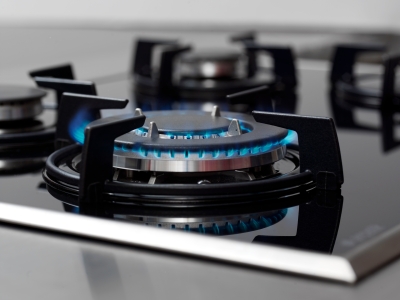
Fortunately, gas stoves are extremely easy to repair. So if your gas stove will not heat up, you can most likely fix your gas stove with just a simple cleaning! The following repairs should be able to be completed without shutting off gas to the stove as long as none of the burners are opened.  Make sure that the moment you smell gas, you active the gas shutoff and immediately ventilate the room. Your safety is of the utmost importance.

Clear the Pilot

Most gas range stoves have a hinged lid, so lift up your stove top to access the igniter, which will vary depending on the type of stove you have. If you have a standing pilot light, you can identify it by a small gas tube with a hole at the end of it.  A small flame should be burning at the end of the tube. If you have a spark igniter, you should see a small ceramic nub near the burner. You should hear a click if it is working.

Clean out the burners

You’ll simply need to use a diameter brush to clean your burners. Try to remove all the grime that may be clogging your burner holes, preventing them from lighting. After cleaning out your burners, simply try to light your burners again. If it still doesn’t work and you have a standing pilot stove, you may want to consult your owner’s manual to see how to raise or lower the flame to the appropriate height.  On the other hand, if you have a spark ignition stove, make sure the stove is plugged in and that there is actually power running to your stove.

The majority of gas stove problems can be solved by just giving your stove a simple and thorough cleaning.  However, if you believe your stove is malfunctioning from a mechanical or more severe problem, you may want to call in a service professional to diagnose and repair your gas stove.  TalkLocal can do all the work for you, connecting you to high quality local appliance experts in just minutes.  You’ll have your stove working in no time!

Quarantine a Computer Virus

Thursday, August 30th, 2012

To prevent malicious viruses from infecting your computer, it is important to download antivirus software. Companies such as Norton Antivirus and McAfee offer free virus scan programs off their websites. Once the program is installed on your PC, run a virus scan. Make sure to not use your computer when it is scanning; you may accidentally open a file with the virus.

Once the program has detected the viruses, it will allow you to delete or quarantine them. When anti-virus software quarantines a virus, it means that the virus is moved to a place where it cannot infect any files on your computer. Your PC will be safe from the virus as long as it remains quarantined. Isolating the virus allows you to examine the malicious file before deleting it. It may be beneficial to check the quarantined virus before deleting it to ensure that deleting the file will not take out something you need running on your system. Once you check for this, it is completely safe to delete the file. It is best to delete a quarantined file as soon as you confirm that you do not need it. Just because you quarantine a computer virus does not mean your computer is immune from other similar viruses, so delete any unneeded quarantined files. Now that your computer is clean, take caution to not visit any sites that will put your computer at risk again.

Do you need more help with virus protection? Use TalkLocal to find a local computer professional in minutes! Simply input your computer problem, location, and availability into the service request online, and up to three businesses in your area will call you on the phone. The process works in a snap and can effectively address your specific computer problem.

Fixing Leaking Pipes

Thursday, August 30th, 2012

Fixing Leaking Pipes Plumbers

When you get those pipe leaks, it’s time to carefully examine the pipes to come up with a proper solution. Some pipe leaks can be fixed by a simple patch, which you can find at your local hardware store and install yourself. Other leaks will need to be more carefully fixed, often with the replacement of a section of piping. When deciding whether or not to patch or replace piping, keep in mind that a patch is only a temporary solution; the pipe will need to be replaced entirely sooner or later. Read on for tips on fixing leaking pipes.

If you prefer to be handy and perform the work yourself, there are a few steps you will need to keep in mind before you begin. If it is an active pipe that constantly moves water through your home from the water department, you will need to turn off the water in your house. This is a safe precaution to do when doing any pipework to prevent further damage.

Find the water main and shut it off. It is typically located in one of two locations: outside your home or in your basement. If you are looking outside your home, it can sometimes be found below a deck or porch, or on the side of the house. If you have difficulty locating the main water valve, call your local water department; they should be able to assist you.

After you have located and turned off your main water valve, be sure to check that the water is completely turned off by opening faucets within the house. Once you are certain the water is not running, follow instructions to patch a pipe and take extra precaution if you are welding a new piece of pipe. Refer to these instructions for a variety of pipe fixes. Once the work is done, test the connection by turning the water back on in your home. Carefully look for any drops of water or leaks, and fix as necessary.

If you are uneasy fixing your own pipes, TalkLocal can connect you with a local plumber in minutes.

How often should you Change your AC Filter

Thursday, August 30th, 2012

How often should you Change your AC Filter? Heating and Cooling

How often should you Change your AC Filter?

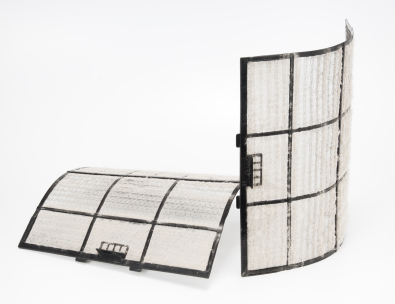
Air conditioning filters come in a variety of forms, but all forms need to be changed on occasion to keep air quality at optimal levels. Some of the different types of filters include economy filters, efficient filters, panel filters, and reusable filters. Of course, every home has different amounts of dust, so some may need to be changed more often, but if you’re wondering how often you should change your AC filters, keep reading.

Economy filters, sometimes known as panel filters, should be changed every two months. These filters often advertise they can last up to 90 days, but when a panel is filtering air for 60 days, there is going to be much dust and sediment that congests the filter and restricts air flow. This can bring up problems later on, so we recommend changing them at least every two months.

For filters that are either reusable or highly efficient, you will want to change these more frequently, roughly once a month. The highly efficient filters capture the smaller particles that other filters miss, so you’ll want to replace these every month to make sure they continue to do so. Reusable filters should also be cleaned every month, as these filters are never 100% clean and they lose a bit of their filtering ability with each change.

Filters are capable of capturing dust, lint, pollen, smog, bacteria, pet dander, and similar particles. But if you don’t change the filters, then you may as well not have a filter. That’s why its imperative to be diligent about changing your filters in proper intervals.

If you would prefer a repairman do this, consider using TalkLocal to find one for you. TalkLocal is a free service that will connect you with top-quality, reputable HVAC companies in your neighborhood within minutes. Just enter in your specific problem, location and availability, and up to three companies will call YOU directly, saving you the time and stress of finding one yourself.

Protect my Computer Power Outage

Thursday, August 30th, 2012

Protect my Computer Power Outage Computer Repair

When there is a power outage while your computer is on, it can be harmful to the computer. The effects of a power outage can include problems with the hardware, OS boot, and data. To protect your computer from power outages, there is Uninterruptible Power Supply, or UPS, that can be purchased t to protect your computer from power outages.

A UPS is an appliance which is placed between the electrical outlet and computer to isolate the computer from a power outage or power surge. When there is change in the voltage due to a power outage or power surge, the appliance switches to a battery backup. This give the computer time to save data and shutdown. There are many types of UPS that protect from short to long term power outages and different types of power surges.

Types of UPS

– Offline — Offline UPS detects changes in voltage and changes from internal electrical outlet to external battery. The appliance is the cheapest and most efficient type of UPS. Find out if the computer can stand the transfer of the electrical source before using an off-line UPS.

– Line-interactive — Line-interactive UPS detects and changes the voltage of the appliance without the use of battery power with an internal circuit. This saves the battery power in times of power outages. This type has transient protection. However, one of its flaws is that the inverter may cause it to fail when needed most.

– Online — Online UPS is has an internal power supply which supplies the computer with power. This provides a complete protection of power outages. The downside is this type is the highest cost, the least efficient, and noisiest.

For UPS installation, use TalkLocal. TalkLocal connects you with the best professional help in your area for free.

How to Trim Bushes

Thursday, August 30th, 2012

How to Trim Bushes Landscapers

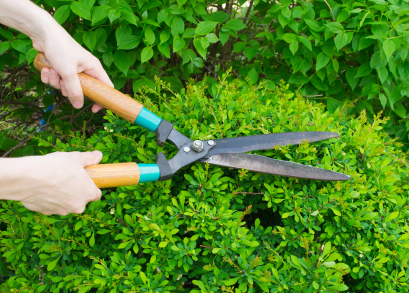
Bushes can be very unruly and make the garden look very messy if not trimmed. Trimming bushes is not difficult and can and can easily be done by anyone. Here’s how to trim bushes:

  1. First, buy a pair of shears that are long enough to go reach the center of the bush. Make sure it has a comfortable grip and you are able to maneuver it easily.
  2. Start by trimming the top of the bush, making sure that you are trimming in an even line before moving on to the next level. Sometimes you may have to step back to check. If you have multiple bushes, make sure they are all the same height. If you want the bushes to be different heights, then make sure that the height difference is consistent between bushes.
  3. Now trim the bushes around the edges not cutting off more than three to four inches in one go. If more than that needs to be trimmed, you can do it over the second time. This is done to ensure that too much does not get trimmed off accidentally.
  4. Don’t try to shape your bushes unless you know exactly how to. More often than not, this results in something that you may want to cut off entirely. You can start with something simple, such as square bush with rounded edges or even a spherical bush.

When done carefully, trimming bushes can result in great artwork for your lawn. However, the skill comes with practice and patience. If you need professional help to tidy up your handiwork, you can use TalkLocal to find local landscapers who can meet when you are available. Just tell TalkLocal your problem, availability, and location to talk to help in a matter of minutes.


Top Video Players for Windows 7

Wednesday, August 29th, 2012

Top Video Players for Windows 7 Computer Repair

There are tons of media players for Windows. You are not limited to Windows Media Player and iTunes, which do not have the functionality of most media players that are free for download. That being said, here are some of the top Media Players for Windows.

Top Video Players for Windows 7:

1. VLC Media Player

VLC media player is one of the best media players out there. Its specialty is in its media file capability. The media player practically plays any type of video file imaginable. Its vast amount of video file compatibility has made for no additional codecs needed for download. Due to no additional codecs, VLC media player is lightweight on a computer. VLC media player is capable of playing damaged media files to a certain extent. The player is also great for streaming media content.

2. GOM Player

GOM player plays most media files. In the cases where the player cannot play the file, it will direct you to a site to download the codec. There are also customizable features that a user can adjust brightness, hue, and saturation.

3. KMPlayer

KMplayer is one of the most popular media players for Windows. KMPlayer is the best at customization and video viewing options. It can also play almost any media files and run subtitles. The KMplayer has an extensive menu to customize the player to a user’s liking–which can be overwhelming to a casual video viewer. One of the interesting settings is the 3D playback. KMplayer is a video enthusiast dream.

4. Media Player Classic

Media Player Classic’s appeal is how it is basic. The user interface is simple and the look is clean. The player is entirely lightweight on the computer, while still having tons of features. Its downside is in its media file playback. The entire codec library needs to be downloaded before Media Player Classic can play the popular video files. The upside, though, is that Media Player Classic is compatible with basically all codecs in existence.

If you would like to consult with a local IT support service before deciding on a video player, TalkLocal can connect you to a high rated business in minutes.

Moving Companies from US to Canada

Wednesday, August 29th, 2012

If you are moving from the US to Canada, it is important to find a moving company that specializes in cross-border moving. Some U.S. companies to consider are Allied Van Lines, United Van Lines, and Mayflower. International movers such as Gateways and Orbit also specialize in moving large amounts across borders.  It is important to compare prices of moving companies from US to Canada when making a decision.

Before you call the moving company, decide whether you want to pack your belongings yourself or have the movers do it. Also, check your insurance policy to see whether moving is covered.

Contact the moving company and tell them what Canadian city you are moving to, as well as your scheduled moving dates. Schedule an appointment with the moving company to survey your belongings and provide you with an estimate cost. The cost will vary based on the weight of your items and the services provided by the company.

Create a written inventory of all items that will cross the border. Upon entry into Canada, the movers will have to provide two detailed lists. Write down all electronic serial numbers and include receipts of recently bought items. The list will also help you keep track of everything that is being moved. Contact your movers for information about required paperwork.

If you need help finding a moving company for your move from the US to Canada, TalkLocal will connect you to a reliable moving company in minutes! Just type in your service need, your location, and when you need to move. By including the specific need about crossing into Canada, TalkLocal can filter out moving companies that can’t provide that service. This way, only moving companies that can help you will call you back!