Archive for the ‘services’ Category


Microwave Sparks when Cooking

Friday, August 17th, 2012

Microwave Sparks when Cooking Appliances Repair

Your microwave is a helpful device that makes cooking a lot easier.  It speeds up the process of defrosting, heating up, etc. When your microwave begins to spark it can seem very scary.  It almost looks like your device is going to blow up.  You should not freak out, but instead stay calm and follow these tips.

If your microwave sparks when cooking, the first thing you should do is turn the microwave off and unplug the device to prevent further damage. The lightening storm you see with all the sparks and sizzles can electrocute you if you are not careful. There are two possible problems with your microwave: You may need to simply clean out your device or you may be cooking something that has a high mineral content.

Dirty Microwave

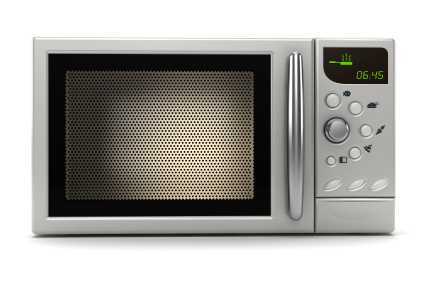
In order to clean the device, you should first unplug it. Place the microwave in an area with a lot of light.  Along the side or back of the microwave is a rectangular piece of metal plate. This is called the wave guide cover and it is screwed directly into the microwave wall. This wave guide cover protects the inside of the microwave from stray bits of food or water. You should carefully unscrew the plate and keep the attachments in a safe place while you are working.  Using a soft cloth and clean water scrub off any food or particles stuck to the cover.  The material is fragile so you should be careful and make sure it is completely dry before you reinstall it.  Place the cover back on the microwave.  If the device continues to spark you should maybe consider replacing the part.

Cooking Food with High Mineral Content

Another potential reason your microwave could be sparking is because of the food you are cooking. Anything metal will react in a microwave and cause sparks and lightening.  Dense vegetables such as green beans, carrots, and peppers have a lot of minerals in them.  These high mineral content vegetables contain a lot more metallic substances than other foods. The minerals include iron, magnesium, and selenium. You should be careful and keep a constant eye on the food when it is cooking to avoid overheating.

Continuing Problems

If you continue to have problems with your microwave you should seek professional help. Use TalkLocal to be put in contact with reliable local businesses within minutes.  You don’t have to do any work! Simply input your problem and availability and TalkLocal will do the rest.  Almost immediately you will be connected with someone who can help you out on the phone.

Shockwave Flash Crash Google Chrome Solution

Friday, August 17th, 2012

Shockwave Flash Crash Google Chrome Solution Computer Repair

Do you find yourself frequently receiving a message that says “The following plug-in has crashed: Shockwave Flash” when visiting a certain website or trying to watch a video online? It can be very inconvenient and quite annoying. It turns out that this message is more likely to happen in Google Chrome than any other browser, including Firefox or Internet Explorer.

This is a common occurrence and is likely attributed to the fact that Google Chrome already includes an internal installation of the Flash player. This means that if you also download another version of Flash on your own, the player will slow down or crash more frequently.

Here’s is a possible shockwave flash crash Google Chrome solution:

1. Open up a new tab in Chrome.

2. In the address bar, type “about:plugins”.

3. Press enter.

4. You will see a list of all the plug-ins you have installed for Chrome. If you scroll down the list a bit, you should see “Flash (2 files)” or “Flash (3 files)”.

5. Click “[+] Details” in the upper right-hand corner of the window.

6. Go back down to the Flash entry. You will see that one Flash version is for the internal Chrome installation (…Google\Chrome\Application…) and that one is for your OS installation (…Macromed\Flash…).

7. Click the “Disable” link for the Google Chrome version.

8. Exit out of this tab.

9. Close the Chrome browser.

10. Open it back up.

11. Go to Adobe Flash Player’s test page to make sure everything is working smoothly again.

If it is not working, try going back to the plug-ins list and re-enable the Google version. Disable your other version. Try closing and re-opening your browser and resume your normal browsing.

If you are still experiencing the problem, try contacting a computer specialist to help solve the issue. Check out TalkLocal, a free service that will connect you with reputable, top-quality professionals in your area who can cater to all your needs. Just enter in your problem, location, and availability into the online service request and–within minutes–professionals with solutions will call YOU directly.

How you can Fix Registry Errors on your Computer

Thursday, August 16th, 2012

How you can Fix Registry Errors on your Computer Computer Repair

Your computer registry contains information about your installations and updates.  It is recommended that you clean and fix your registry regularly because it can become bloated with unused files.  However, before you start emptying your registry you should back your files.  If you are using Windows, follow these steps to back your registry.  Continue reading for more information on how you can fix registry errors on your computer.

Back up Registry

1.   Click the Start menu.

2.   Click “Run.”

3.   Type “ntbackup.exe” in the command.

4.   Click “OK.”

Now that your files are back, you can either download an automatic cleaner or fix your registry manually.  If you do not want to spend money fixing your registry, there are a handful of free programs you can download online.

Fix Registry Automatically

1.    Look for a command that automatically scans and fixes your registry.

2.   Quit all other programs besides the registry cleaner.

3.   Run the registry cleaner.  Even though it is an automatic cleaner, it is better to monitor what the program is deleting instead of blindly letting it clear your files.  Many programs have a setting that allows you to approve of its suggestions before it performs them.

4.   Schedule the cleaner to regularly scan your registry.  If the program does not have that option, schedule reminders to run the program.

If you want total reign over deleting files, read the following steps:

Fix Registry Manually

1.   Click the Start menu.

2.   Click “Run.”

3.   Type regedit.exe.  You now have an overview of all your registry’s files.

4.   Delete any files that you do not use.  Some files are not clearly marked, so make sure you do some research before deleting unfamiliar files.

You can also speed up your computer by following these steps:

1.   Click the Start menu.

2.   Click “Run.”

3.   Type regedit.

4.   Find the following registry key:

HKEY_LOCAL_MACHINE> SYSTEM >CurrentControlSet>Control>Session Manager>Memory Management> PrefetchParameters

5.   Change the EnablePrefetcher number from 3 to 5.

6.   Restart your computer.

If you are still having problems with your registry, contact a professional to assess your situation.  l can connect you with high rated IT support services in your area.  Just fill out a short service request online to talk with a professional in minutes!

AC Fan Not Spinning

Thursday, August 16th, 2012

AC Fan Not Spinning Heating and Cooling

Is your AC fan not spinning?  If the fan of your air conditioner has stopped spinning, the fan may just be getting a little stiff. A simple solution is to try using a stick to tap the belt and make it move again. It may start up immediately and be just fine and dandy. If not, the issue is a little more serious.

Next, you should try to turn the air conditioner off and wait a little while before restarting it.  Sometimes it could overheat and cause the fan belt to shut off.  If your air conditioner fan does not start working after you turn the device back on, you should take some of the following steps.

The fan may not be getting power so you should go into the service panel on the side of the unit. You can use a multimeter to check and make sure that there is a continuous electrical path within the device. If there is power going to the fan then the issue is with the fan itself.  You may want to replace the belt/fan so that the problem is rectified. If there is no electric signal reaching the fan, then something else is broken. You should make sure that everything is aligned properly and in the right position.

Another reason the fan may have stopped working is because the compressor has seized up. This could be the result of an oil leak. If so, it is a serious issue and you should shut the entire air conditioner off to stop further damage. Call a professional in this case. The motor could also be shot, so you should call a service man because the average person usually doesn’t know how to fix this .

Use TalkLocal to be put in contact with reliable local businesses almost immediately. Simply input your problem and availability in the online service request and TalkLocal will do the rest. Within minutes, you should be connected with a qualified HVAC company.

Hot Water Plumbing Problems

Thursday, August 16th, 2012

Hot Water Plumbing Problems Plumbers

Few people enjoy waking up to a cold shower. However, diagnosing and fixing hot water plumbing problems can take half the day! To speed up the process, troubleshoot your hot water issues with the following steps:

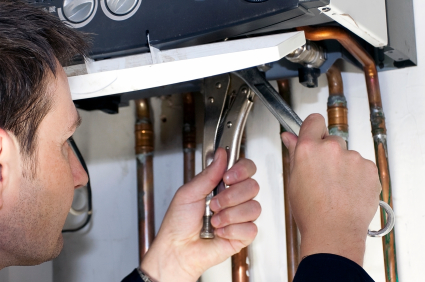
1. Check the power supply. Make sure there is power going to the boiler. The panel light should be on and the pressure gauge should be showing around one bar.

2. Make sure your pump is working by feeling the side of the pump for motion. If it doesn’t seem to be working, you may need to call a professional to investigate.

3. Check to see that your thermostat is on and not too low. Check that the power switch is turned to on and that the thermostat controlling the water temperature is set high enough.

4. Make sure the pilot light goes on when needed. If not, relight it by following the steps in your water heater instructions.

When you are in the shower and the water temperature suddenly changes, it is a result of a water pressure change from water being used elsewhere in the house. To fix this unpleasant surprise, install a pressure balance device. This device works to balance changes in water temperature before water is able to scald or freeze you.

If you are tired of waiting a long time for the water to turn hot before showering or brushing your teeth, then you should install a hot water recirculation system. The system uses a small pump to speed up how quickly hot water reaches the faucet. Though convenient, this system can cause a spike in your water bill so look for an energy efficient pump that only circulates hot water when needed.

If you continue to have hot water problems after these tips, use TalkLocal to find a reliable plumbing professional in minutes!

How to Clean Computer Fan with Compressed Air

Thursday, August 16th, 2012

How to Clean Computer Fan with Compressed Air Computer Repair

Dust inside a computer can cause slow performance, component failure, and fan failure. To keep it running smoothly, it is important to clean your computer fan at least a few times a year. Unfortunately, cleaning a computer fan is a risky action if you don’t know what you are doing, so read these instructions carefully to learn how to clean computer fan with compressed air.

Start by gathering your materials: a screwdriver that you can use to open your computer, a can of compressed air (designed to be static free), and a gas/dust mask to deal with all the dust. Next, shut down your machine (using the master power switch if it has one) and unplug any cables from the computer itself. Next, move to a comfortable, clean location where the dust can ventilate properly.

Time to open the computer! Take a picture before you start in case you want something to use as a reference later on. If you still have the user manual, it would be wise to consult it to find which areas you need to unscrew to open your computer properly. If you don’t have the manual, most computers have screws that hold down the side panel. Remove these to open up your machine.

Before we start messing around with the interior of the computer, be certain to never touch the inside of your computer with your hands. Doing so can destroy your computer because of electrostatic discharge. Just like you can be shocked by static if you rub your hands on a carpet, you can discharge static electricity into a computer, which has the potential to disrupt and destroy hardware components.

In light of this, use the compressed air to blow out the inside of your machine. Keep the can upright at all times to make sure no liquid spills out of the can. You’ll want to keep the can at least a few inches away from any interior parts. It is also good practice to begin from the top of the computer and systematically work your way down to ensure all the dust is removed.

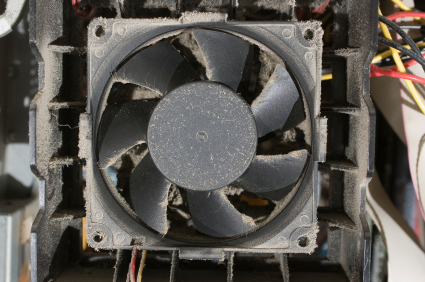
Once all the other parts have been cleaned, move onto the computer fan. This is the last step because having dust accumulated in different areas will make cleaning the fan inefficient. To clean the computer fan, hold the can of compressed air roughly six inches away and spray directly at the fan from several different angles. Continue this process until all traces of dust are gone.

Now you can reassemble the computer. This step should be simple, but if you have trouble remembering where the pieces were before dismantling, refer to the pictures you took. When everything is back together and the cables plugged in, your computer will be running significantly cooler and faster.

If you would prefer to have a professional look at it, consider using TalkLocal. TalkLocal is a free service that will connect you with top-quality, reputable computer repair companies in your neighborhood within minutes. Just enter in your specific problem, location and availability, and up to three companies will call YOU directly, saving you the time and stress of finding one yourself.

Supplies Needed for a Snowstorm

Thursday, August 16th, 2012

Supplies Needed for a Snowstorm Snow Removal

Getting your home winterized and ready to survive the snow is an essential step once the cold winter months begin to approach.  One of the most important aspects of being prepared for those winter snowstorms is the creation and maintenance of a set of emergency supplies for your home.  The supplies needed for a snowstorm will vary depending on where you live and the intensity of your weather, but there is a set of basic common items that everyone should keep ready in case of a heavy snowstorm emergency situation.

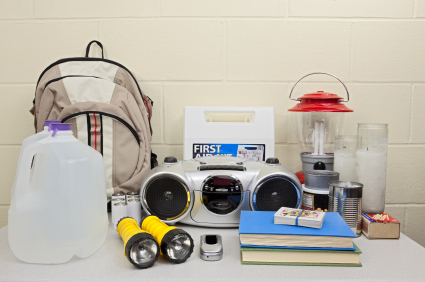
Being ready for snowstorms means being prepared to live for several days stuck inside your home without power.  It can sometimes take days for power companies and snowplows to respond, especially if you are in a remote area, so you need to be ready to survive the wait.  Your most pressing concerns will be staying well-fed and warm without any power.  To this end, a gas powered camping stove or barbecue grill is a must to be able to cook without electricity.  Be sure to keep plenty of fuel for it as well.  To keep yourself and your family warm, have an ample supply of extra blankets and winter clothing.  Keep at least one snow shovel so that you can dig yourself or your car out when you need to.  You should also keep a supply of rock salt and sand to melt ice and improve traction.  Other emergency supplies that are not winter-specific but still essential to have around are: flashlights, matches, a first aid kit, a battery operated radio, and a pocket knife.

Stocking up on food and water is a key part of snowstorm preparedness as well.  That gas stove won’t do you any good if you don’t have anything to cook on it.  You should try to have enough non-perishable food and clean water to last you and your family at least a week.  Make sure that you have a manual can opener on hand for any canned goods.  Your food supply should be purchased in advance; don’t be one of those people who wait until the night before the big storm to rush out to the grocery store and try to fight the mob for the last can of beans.

Once you have the basics, you should check out this guide put out by the CDC.  They include some other things that are smart to have in your home, as well as some extra ideas/practices to consider during a snowstorm.  If you’re snowed in and need help getting out, give TalkLocal a try. This completely free service will connect you to multiple snow removal companies in your area within minutes.

Document Stuck In Print Queue Windows 7

Wednesday, August 15th, 2012

Document Stuck In Print Queue Windows 7

The printer is the “brat” of the computer peripherals. Printer problems are an aggravating experience, especially when you are trying to print a document that is due in the next hour. One of many problems that occur with printers is a document being stuck in a print queue. There are various common mistakes made when trying to fix this problem. Deletion or cancelation of the document in the queue will usually not do anything besides causing the document to be stuck in deletion or cancelation. Testing the printer will only increase the documents in the print queue. There is an easy way to relief this problem in a few simple steps by clearing the print queue manually.

Print Queue Info

There are many applications with a print function. To stop the printer from printing documents from different application all at once, the “print queue” application sequences the printing process. When a document is finished printing, the next requested document begins to print. The print queue is achieved by a “Print Spool” service. Each printer connected to the computer has its own print queue.

Before Clearing Queue Manually

Before even clearing manually the print queue, look at the regular signs of why the document has not printed. Remember if any dialog box came up about of the printer’s status when requesting the print. This usually means the printer is out of ink or out of paper. If so, reload these items accordingly.

Clearing Queue Manually

1. Click the Start Button.

2. Search for “Administrative Tools” in the search box.

3. Click on it.

4. Click “Services.” A “Windows Management” window should pop up.

5. Click on “Print Spool.” You may need to scroll down to find it.

6. Click “Stop” on the left side of the window.

This should clear the print queue so you can finally print out the documents you need. If manually clearing the queue does not work or the problem persists, call TalkLocal to talk to local computer repair services.

What to Use to Clean a Stainless Steel Refrigerator

Wednesday, August 15th, 2012

What to Use to Clean a Stainless Steel Refrigerator Maid Services

Stainless steel appliances are a popular choice for people who want to give their kitchen a modern look.  Newer refrigerators in particular are often stainless steel and can be tricky to clean as the exterior is prone to getting covered in fingerprints and smudges.  This can be irritating and keep your kitchen from looking its best.  If you don’t know what to use to clean a stainless steel refrigerator, you should read these tips and learn the best ways to keep them shiny and smudge-free.

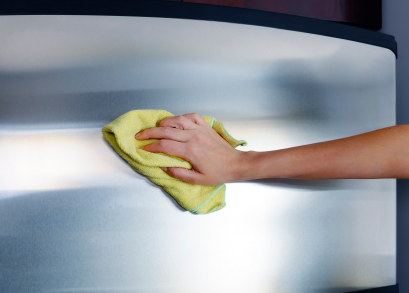
The interior of a stainless steel refrigerator should be cleaned in the same way as any other fridge interior.  Where they differ is in the cleaning of the exterior.  To get dirt, smudges, and fingerprints off of the outside surface of your fridge, try using a small amount of rubbing alcohol on a microfiber cloth.  If you do not have any rubbing alcohol available, you can try mixing half a cup of baking soda with a few squirts of dish soap and warm water.  When wiping the fridge down try to rub your cloth with the grain of the stainless steel rather than against it.  Wiping against the grain can leave scratches and other damage to the surface of the refrigerator, especially if you are using harsher cleaning products.

Once the fridge is clean and dry, the surface might look a little dull or worn out.  To solve this problem, our next step is to polish the stainless steel back to full shine.  There are many different products that you can potentially as polish including: baby oil, mineral oil, petroleum jelly, and WD-40.  Using a rag, apply whichever polish you chose to the entire surface of your stainless steel refrigerator.  Then buff it with another clean rag until the cloth comes away dry.  Applying this polish will not only make your fridge gleam but will help prevent fingerprints and other smudges from appearing.

If you ever need some help with all of the cleaning in your home and kitchen, consider using TalkLocal to match you up with a maid service.  TalkLocal will automatically connect you to a high quality, local company; all you need to do is enter your location, availability, and a brief description of your service needs.

Web page prints in HTML

Wednesday, August 15th, 2012

Web page prints in HTML Computer Repair

If you want to print out a Web page in Internet Explorer and only to find to your dismay that the web page prints in HTML source code instead, don’t despair!  It’s usually caused by a single setting that can be easily changed and you’ll be printing regular pages in no time!

Why does this happen?

This problem usually occurs due to one of two different causes.  One possibility is that the temporary files (.tmp) that were used to print the web page were associated with a text editor (like Notepad), and as a result, these temp files were converted to text when sent to the printer.  Another possibility is that certain Internet Explorer settings were changed after installing new add-ons or during usage–both can inadvertently cause your web pages to print in HTML.

How do I solve this problem?

There is one simple way to solve this problem, which will work for the majority of the cases: Reset Internet Explorer’s settings back to default.  All you have to do is open Internet Explorer, click “Tools”, and then click “Internet Options.”  Under the Advanced tab, there will be a “Reset Internet Explorer Settings” options; click that button.

Your web pages should be printing normally now. However, if this solution didn’t solve your issue, it’s highly suggested that you change web browsers to alternatives such as Google Chrome or Mozilla Firefox.  Both of those browsers usually don’t have issues when it comes to printing out web pages in the correct format.

Ultimately, if none of the above options worked, then you should use TalkLocal to contact a IT professional near you today.  TalkLocal will automatically choose the best quality professional in your area in just minutes, saving you time and money to spend on more important things!