
Archive for the ‘services’ Category


Web Pages Will Not Load

Sunday, January 27th, 2013

Web Pages Will Not Load - Computer Repair

So you’re surfing along through the internet, jumping from website to website, and suddenly your web pages will not load. This is a frustrating situation to be in, so here are a few things you can do to try to get back to your favorites websites.

Check Your Internet Connection

Your internet connection should be the first thing you check for this problem. A router (the device that connects you to the internet) in your place may have been turned off, disabling the internet. Or your dog/cat has knocked/disconnected an internet cable/antenna – most likely, this problem will be easy to fix.

Other Possible Causes

Is it only a specific web page that is not loading up? Try going to another web page like Google. If Google loads up but not that specific web page you are trying to get to, chances are that the “specific website you are trying to get to” is experiencing a downtime – in other words, the website has been taken down temporarily.

Why does this happen? A website can be taken down for different reasons, such as updating the website. Information on the website or the website itself needs to be updated every now and then. It could be that the hosting provider for the website (the company that maintains the domain name on the internet) is experiencing a downtime. Or it may be that the website (the company that the website belongs to) is now out of business.

If you find that you cannot access other websites like Google, chances are that your own internet connection is at fault. Do you use a wired connection (a LAN cable) or a wireless connection for the internet? If you use a wired connection, check to see that the two ends of the cable is connected properly and the router is turned on.

If you are using a wireless network, you can find on the bottom-right corner of your screen that you are not connected to any wireless networks. Click on the bars icon to look for available wireless connections around your area and connect to the one you are familiar with. If the connection is encrypted, input the password to gain access to the network.

Once you are connected to a network using a cable or wireless connection, wait for a while for the connection to take effect into your computer and try connecting to the desired web page(s) again. If you are still having a problem, the possible cause may be bad hardware in the computer, cable, or router, which may require the help of a professional.

Additional Help

Hopefully this guide has helped you find your problem. If not, TalkLocal will connect you with up to three local computer technicians who are available to help you when you need them.


Replacing Power Window Motor

Sunday, January 27th, 2013

Replacing Power Window Motor - Auto Repair

Up and down. Up and down. Opening and closing windows is now as easy as pushing down or lifting up a button.  Think about the “olden days” when you had to hand crank the window to get it to move at all! So much work just to get a whiff of fresh air.  The power windows in our vehicles are great conveniences, but sometimes there are malfunctions that cause the motor to stop working.  If  you find yourself replacing a power window motor, these tips can help.

Diagnosing the Problem

The first step to replacing a power window motor is to diagnose the problem.

1. Make sure the rest of the car is in working condition. Put the key in the ignition and check that your batteries are charged and power is running throughout the car.

2. Check all the fuses and circuit breakers that could connect to the windows to make sure that you haven’t blown a fuse and that you don’t have an open circuit. Do this by removing the interior door panel.

3. If the fuses and circuits check out, verify that the power window motor is actually defective by checking the voltage.  Connect the plus probe to one of the motor wires and the negative probe to the other.  If the readout is at or above 12 volts then something is definitely wrong.

Replacing Power Window Motor

1. You’ll need to buy a new motor for your window.

2. Remove the defective motor. Secure the window glass with masking tape or a stick before removing the motor. Undo all the rivets and screws holding the motor to the door panel.  The regulator arms should pop out of the bottom and you can take out the whole assembly. Be careful, because the arms will try to rotate in opposite directions and could hurt you.

3. Insert the new motor and reattach it in exactly the same way you removed the old motor.

Additional Help

If you have more questions about replacing your power window motor you should talk to a professional.  The easiest, fastest way to get in contact with reliable local auto service companies is to use TalkLocal. Just put in your problem and availability and let them do all the work.  Within minutes you will be connected to someone who will be able to help you out.

Norton Slowing Down Computer

Sunday, January 27th, 2013

Norton Slowing Down Computer - Computer Repair

Norton Slowing Down Computer?

Norton is a security system that protects your computer and information from viruses and other harmful third parties. However in some cases, Norton can slow down your computer.

Solutions:

1. Download the latest Norton Antivirus program update. Install the updates and restart your computer.

2. Make sure the performance options for operating system are set to applications or programs instead of background services.

Follow these steps:

Windows 2000:

3a. Click Start > Settings > Control Panel > Administrative Tools and then click Computer Management.

3b. In the left screen, right-click “Computer Management (Local) and then click Properties.

3c. Click the Advanced tab and then click the Performance Options button.

3d. Check Applications and then click OK.

Windows XP:

  1. Click Start.
  2. Right-click My Computer and then click Properties.
  3. In the left screen, right-click “Computer Management (Local) and then click Properties.
  4. Click the Advanced tab and then click the Settings button under the Performance heading.
  5. Check Programs under the “Processor scheduling” and “Memory usage” headings.
  6. Click OK.

3. Unregister and re-register the auto-protect service.

Follow these steps:

Exit all open programs.

1. Click Start, and then click Run. The Run dialog box appears.

2. Type the following and press Enter:

"C:\Program Files\Norton AntiVirus\navapsvc.exe" /unregserver

3.  Click Start > Run. The Run dialog box appears.

4. Type the following, and then press Enter:

"c:\Program Files\Norton AntiVirus\navapsvc.exe" /service

5.  Close the Services program.

6.  Open Norton Anti-Virus.

7.  Click Options, and then click Auto-Protect.

8.  In the right screen, click “Enable Auto-Protect (Recommended)” and “Start Auto-Protect when Windows starts up,” and then click OK.

9.  Restart the computer.

Additional Help

If you continue to have problems with Norton slowing down your computer, try TalkLocal. We will connect you with up to three professional computer technicians in your area who will be available to help you when you need them.
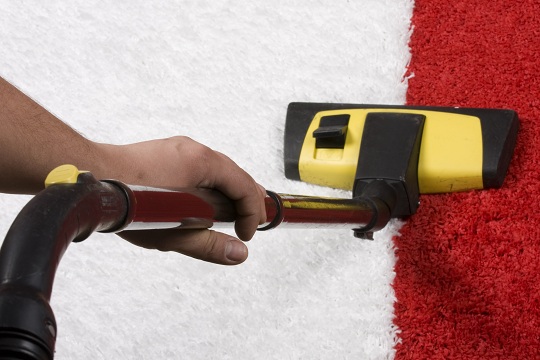
Does Carpet Cleaning Remove Pet Dander?

Sunday, January 27th, 2013

Does Carpet Cleaning Remove Pet Dander? - Carpet Cleaning

Does Carpet Cleaning Remove Pet Dander?

Carpets get dirty for many reasons – kids, pets, unruly guests, infuriating people who don’t remove their shoes, etc. So, inevitably, you will need to get your carpet cleaned. Some stains and dirts come out easier than others, but pet dander is not one of these.

Pet dander is tiny flakes of dead skin that continuously fall off pets. It is incredibly light and can become airborne with shed fur, ultimately causing allergic reactions for many people. It can be spread by touch or by normal shedding and is not easily removable.

Carpet cleaning is one way to clean pet dander, though it may not be the most effective. The formal carpet cleaning process is an extensive one meant to clean the carpets from any soils, dusts, and other materials that may get stuck in your carpet. Usually, carpet cleaning is performed by professionals who own expensive equipment and use expensive products. However, these professionals aren’t always able to clean the pet dander that may be in the air or stuck to furniture and carpet. This cleaning doesn’t remove all pet dander, or even all the dander on the carpet.

Method for Cleaning Pet Dander

1. Mix fabric softener with water into a spray bottle.

2. Lightly spray the floor with this mixture, making sure not to completely saturate the carpet.

3. Let it dry for several minutes.

4. Vacuum up your floor as you normally would.

The fabric softener works to loosen up the carpet from the stains, making it easier to remove the dander. This method is effective at removing dander from your carpet, though not completely. This method also works with furniture, but to get the remaining dander, other methods will need to be used.

Other Methods to Remove Pet Dander

– One suggested method is to wear rubber gloves and rub it against walls and other surfaces where dander may have strayed.

– An alternative method is to find a balloon, then rub it along a carpet. The resulting static helps to pull hair out from carpet. By utilizing these tactics, you should be on your way to reducing and removing dander in your home.

Additional Assistance

When talking to any professional carpet cleaners, ask them what steps they take to reduce dander. If you need help locating a professional carpet cleaner, consider using TalkLocal to find a carpet cleaning company for you. TalkLocal is a free service that will connect you with top-quality carpet cleaning companies in your neighborhood within minutes. Just enter in your specific problem, location, and availability, and up to three companies will call YOU directly, saving you the time and stress of finding one yourself.

Cat Nail Manicures

Saturday, January 26th, 2013

Cat Nail Manicures - Veterinarians

If your cat runs when she sees the clippers, you may need some tips to help get you through cat nail manicures. Just remember- it does not have to be painful for you or your pet! If you follow these guidelines, it won’t be.

Cat Nail Manicures

Help your cat adjust to manicures. You should try and “set the mood” for your pet.  Hopefully you’ve introduced your cat to nail clipping when he or she was a kitten. It’s OK if you haven’t, it just might be a little harder.

Keep your cat calm. Choose a chair in a quiet room where your cat can sit on your lap. Make sure your cat is in a relaxed state, like when they’re sleepy. Make sure the cat can’t spy any distractions such as other pets, birds or children.

Massage your cat’s paw. When you have your pet in place, you should take the paw between your fingers and massage it for no longer than three minutes. If your cat tries to pull away, don’t resist, but keep your fingers on the paw. Try to do this often so the cat will not feel nervous when you grab the paw with a clipper in hand.

When you are clipping the nails, make sure you never cut to the quick. The quick is where all the nerves and blood vessels are. If you cut too much of the nail off, it will hurt your cat really badly. Snip only the white part of the claw. Be prudent when cutting, it’s better to cut less than to cut too much.

Additional Help

Hopefully this helped, but if not you can always contact a veterinarian for help! If you need to find a veterinarian or pet groomer TalkLocal will contact local professionals in your area at whatever time is most convenient for you!

Peanut Butter on Mousetraps Not Working?

Saturday, January 26th, 2013

 peanut butter mouse traps

Peanut Butter on Mousetraps Not Working?

Do you have a pesky mouse problem that just won’t end? If you are using mousetraps to fix your rodent problem, you are on the right track. Mousetraps can be an effective way to kill any unwanted mice that may be living in your house. However, it is important to use the right type of bait to maximize the success of the traps. There are a couple of different types of bait that you may find more effective than peanut butter for your mousetraps.

More Effective Bait for Mousetraps

High Sugar Foods: Mice like foods with a high sugar content like grains and fruit. Peanut butter can work in some situations, but if you have not found this successful try moving on to a different type of food. Keep in mind that when you use food as bait, you are more likely to catch male mice that are out hunting for food.

Lint or Cotton: Consider putting lint or cotton in some of the traps. This will help you catch pregnant female mice that are out looking for nesting material. Getting rid of pregnant females will exterminate your problem much more effectively than targeting males.

Still Having Rodent Problems?

Try one or both of these types of bait to maximize your at-home pest control. If you still have a rodent problem after several attempts, consider hiring an exterminator. TalkLocal will connect you to up to three local pest control professionals in minutes!

No Internet in Safe Mode With Networking

Saturday, January 26th, 2013

No Internet in Safe Mode with Networking - Computer Repair

Windows “safe mode” is a way to allow users to access certain troubleshooting programs and features of their computer without activating the rest of the operating system.  It is often used for computer maintenance and debugging procedures.  When booting in safe mode, only the minimum necessary features are enabled, in order to better isolate problem areas.  The average computer user may need to use the safe mode to install or modify their antivirus programs, or to try and get rid of a virus on their system.  If you have no internet in safe mode with networking, perhaps because you want to download and install antivirus software, there are a couple things you can try to fix your connection.

Things You Can Try

– Make sure that you are booting up “safe mode with networking,” and not just the normal “safe mode.”  Safe mode with networking differs from the default safe mode in that your operating system loads some additional drivers and features necessary to connect to networks that are not loaded in the default.

– If you still have no internet in safe mode with networking, it might be because you are trying to connect to a wireless network, which is typically not possible while in safe mode.  Safe mode, even with networking, does not initially load wireless card drivers and therefore cannot be used to connect to a wireless network.  If you are using Windows Vista or Windows 7, there is an option to turn on wireless drivers while in safe mode.  Follow the steps outlined here to enable this option.  If you are using Windows XP, or a previous version, you will need to connect with an Ethernet cable in order to access the internet while in safe mode.

Additional Help

If you are connected through an Ethernet cable and are still have no internet in safe mode with networking, there might be something wrong with your system, your hardware, or your internet connection itself.  Check to see if your internet is working on other computers on the network.  If it is functioning normally then it might be time to call in a professional computer technician to take a look at your computer.  You can use TalkLocal to find a quality professional technicians in your area.  All you need to do is enter your name, contact info, and a short description of your problem and TalkLocal will automatically connect you with someone who can help in just a few minutes.

How to Pick the Right Junk Removal Place

Saturday, January 26th, 2013

How to Pick the Right Junk Removal Place - Garbage Removal

It’s basically impossible to avoid accumulating clutter over the years.  So we all end up needing to dispose of our unwanted junk in one way or another.  One of the best ways to get rid of your unwanted stuff is to use a junk removal company.  But you’ve got to be careful; these days, any guy with a van can call himself a junk removal company.  So here are some important tips on how to pick the right junk removal place.

  • Make sure the company can provide the service you need.  Many people think that the term ‘junk’ is all encompassing, so a company that claims to ‘remove junk’ will be able to remove any stuff they want.  However, many companies have items they won’t remove.  For example, some companies will only remove recyclable items.  So make sure the company can and will remove the junk you want them to before going any further.
  • Does the company dispose of the junk in an environmentally friendly way? Many people employ junk companies instead of just hiring a truck and taking all their stuff to the dump because they want to neutralize the impact on the environment as much as possible.  Thus people often assume that junk businesses are environmentally friendly, but many aren’t, so you never know until you ask.
  • Find out how the company will charge you.  Some companies charge based on how much you want them to haul, others charge based on the amount of time they spend on the job, and still others charge a flat rate.  So you should know what you’re getting into before you agree to hire the company.  Many companies will give you an estimate before they do any work for you.
  • Make sure the company will service you quickly.  Unless you’re booking a junk removal service for a dorm on the last day of move-out, good junk removal companies should be able to service you quickly—usually within a day, and at least within a few days.  So if a company says they won’t be able to service you quickly, pick another company.
  • Ask about what other services the company might offer.  Some junk removal places will offer additional dismantling and clean up costs free of charge.  You might want to check what the company offers before settling on one service.

Additional Help

You should weigh the factors above, and pick the place that works the best for you.  A clean house can mean a clean mind, so don’t put off removing your junk!  If you have any questions about what type of junk removal you should use, or need to find a junk removal place near you, simply use TalkLocal. We will connect you to high quality local professionals in just minutes!

bootmgr is Missing on HP Laptop

Saturday, January 26th, 2013

bootmgr is Missing on HP Laptop - Computer Repair

Everyone hates it when they get an error on their computer.  It means that something is wrong but you probably have no idea how to fix it.  It’s basically the computer’s way of laughing at you.  A common error that some HP users have is a pop up saying that the bootmgr is missing. Not many know how to fix this but that are indeed a few ways.

How to ‘Find’ the bootmgr

Some people complain that this problem began to occur after they hit the F11 key.  The best way to help solve this is to:

1. Re-install the operating system. In order to reboot your computer with the newly installed system you must have your BIOS settings configured correctly.

2. While the computer is restarting you should continuously hit F1, F2, F10, esc, or delete in order to get to BIOS.  After re-installing the operating system the problem should be fixed.

If you want to try to restart the computer and not have to re-install the system you can enter the system recovery process upon reboot.  The recovery disc should be inserted and the program will walk you through the steps.  Be sure to read everything when do this because the recovered computer will be a direct result of your steps.

Either of these options are viable choices to take when trying to solve this error.  If you do have this problem or even if you don’t you should make sure the back up all of you files in order to make sure that you don’t lose any information.

Additional Help

If you follow these steps and still your bootmgr is missing, it may be necessary to seek a professional opinion. The easiest way to do this would be to go to TalkLocal, type in your problem, availability, and requirements and let us do the work. TalkLocal will find you up to three technicians in the area that will be able to help you.

Grooming Your Dog

Thursday, January 24th, 2013

Grooming Your Dog - Veterinarians

Grooming your dog can be a difficult process depending on what kind of hair your dog has. It can be more difficult if your dog is a long-haired pup versus a short haired dog. However some things stay the same regardless of the breed of dog you have.

Grooming Your Dog

1. Start brushing at the top of your dog’s head, but be gentle when you do this. When you’re grooming the head you should remember that the skin and hair around a dog’s face are very sensitive.

If your dog has long hair, put your fingers behind the long hair and comb it. Make sure that your dog’s skin is protected from the comb. For your short-haired dog, use a soft slicker brush made for the face. This will be gentle enough not to irritate your dog.

2. Long-haired dogs tend to have long ear hair. If you need to brush this out as well, put your hand between the comb and your dog’s skin. If it’s matted or knotty, use a washcloth that has been dipped in de-tangler solution. This will help get the tangles out. If they’re too big, you might have to use clippers.

3. Smooth the fur on your dog’s neck. Use the soft slicker brush to brush out any knots. If your dog has a lot of fur around the neck, try using a comb.

If your long-haired dog needs its legs brushed, you’ll have to comb it out since it tends to tangle often.

4. Brush the dog’s belly. Once again, you should use the soft slicker brush to brush out any knots. A Note of Caution: This is another area of the dog that’s very sensitive.

5. Brush the back of the dog. This will be the easiest part, especially compared to the dog’s rear end. When brushing the rear end of a dog, make sure to use a slicker brush at first to test out how your dog feels about being brushed back there. Be very careful as this is another sensitive area.

6. If your dog has a long furry tail you’ll need to comb that out as well.

Now you’re done!

Additional Help

If you need more help grooming your dog, or if your dog is sick, in need of vaccinations, or just needs a checkup, just use TalkLocal! We will connect you with up to three veterinarians or dog groomers in your area within minutes!